

Introduction
Dub uses two distinct types of authentication keys depending on where your code runs. Choose the right one for your use case:| Key type | Use case | Where to use |
|---|---|---|
| API keys | Server-to-server (REST APIs) | Back-end only; store securely, never expose to client |
| Publishable keys | Client-side conversion tracking | Safe to include in frontend code |
API keys
API keys on Dub allow you to access your workspace programmatically. This is useful for integrating Dub into your application or with other tools and services. Each API key is tied to a specific workspace – meaning you can use it to access that workspace’s resources without having to worry about “leaking” access to other workspaces. API keys on Dub follow the format:.env
Create an API key
You can create an API key by following these steps:Go to your workspace
Go to Settings > API Keys in your workspace.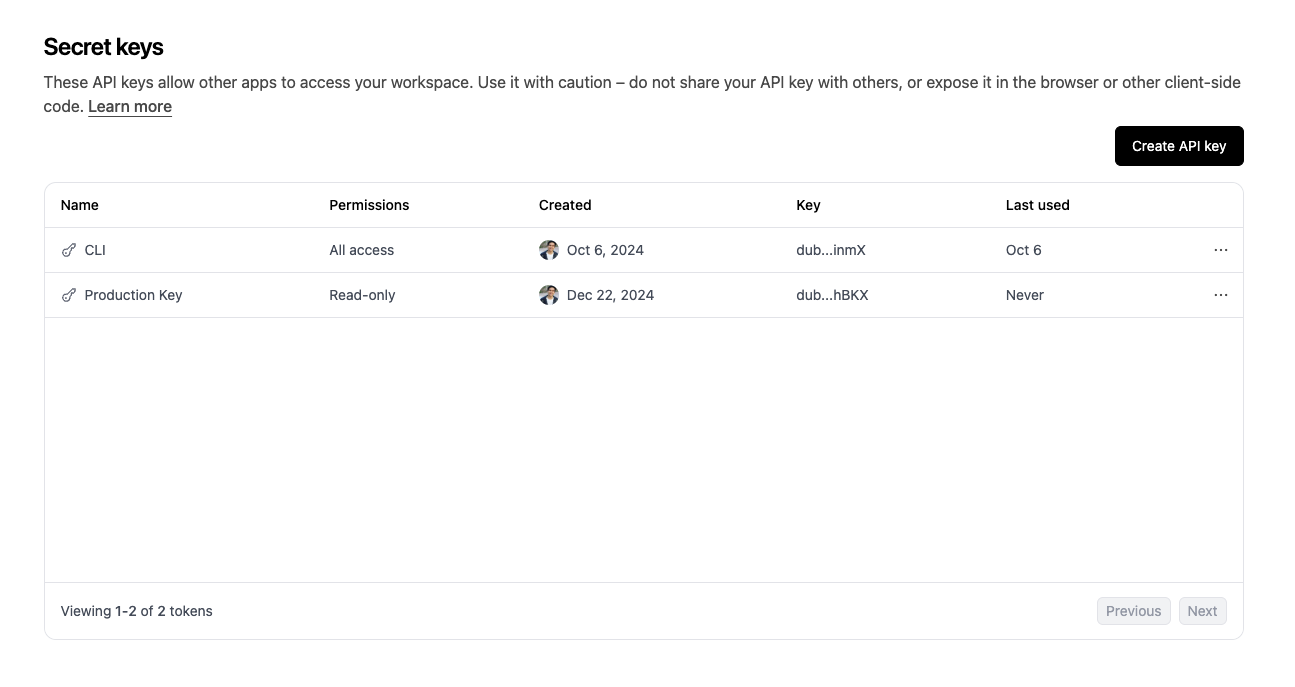
Create an API Key
Click on the “Create” button and select permissions you want to grant to
the API key.Select between “You” and “Machine” to associate the API key with your account or a machine user.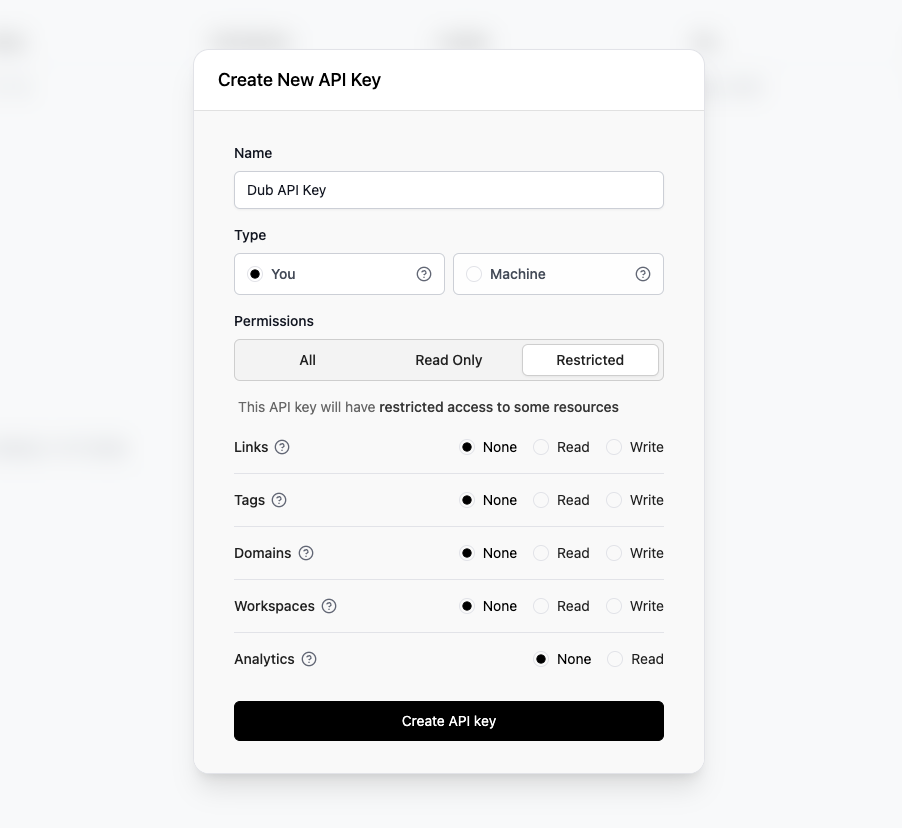
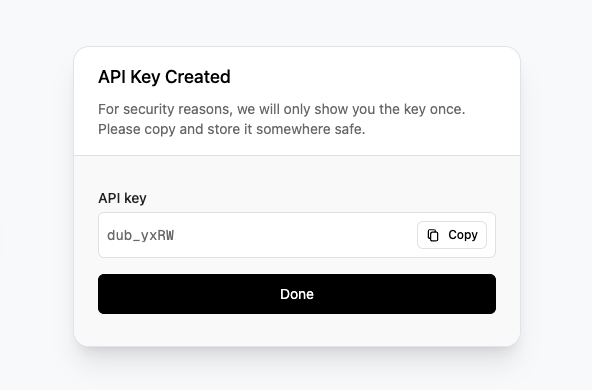
- You: This API key is tied to your user and can make requests against the selected workspace.
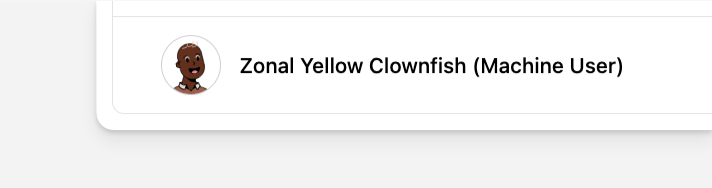
- Machine: A machine user will be added to your workspace, and an API key associated with that machine user will be created.
API key permissions
When creating a secret key, you can select the permissions it has, which will give the key access to certain (or all) resources on Dub. Here are the different permission options:
Depending on your use case, you might want to use one of these 3 options to limit the scope of the API key and improve security. When making API calls, if your API key has insufficient permissions, the error should tell you which permissions you need.
Machine users
On Dub, you can create API keys that are associated with a “Machine user”. This is particularly helpful when you don’t want to associate the API key with a particular user in your workspace, to avoid security risks in involving turnover or changes in project ownership.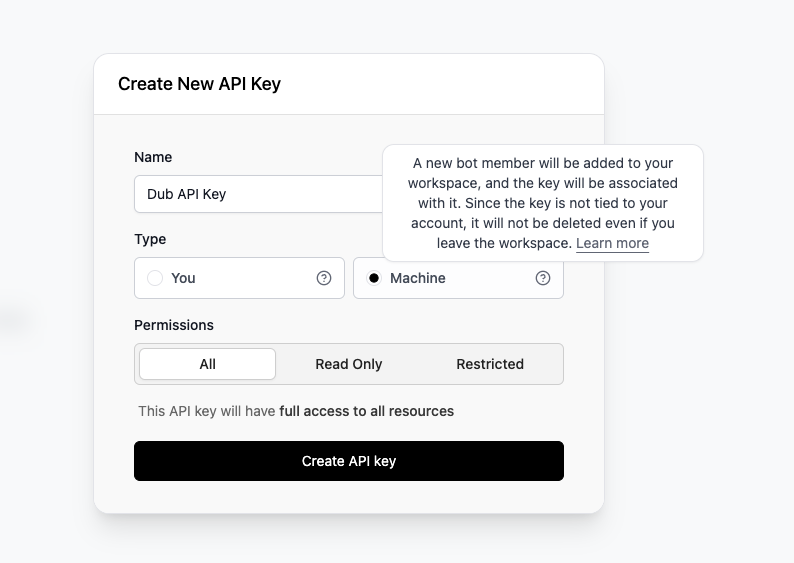
Publishable keys
Publishable keys on Dub allow you to safely embed authentication in client-side applications. These keys are specifically designed to be used with Dub’s client-side SDKs for features like conversion tracking. Unlike API keys which must be kept secret, publishable keys can be safely exposed in your frontend code since they have limited capabilities. Publishable keys on Dub follow the format:.env
Create a publishable key
You can create a publishable key by following these steps:Generate your publishable key
Before you can track conversions on the client-side, you need to generate a publishable key from your Dub workspace.To do that, navigate to your workspace’s Analytics settings page and generate a new publishable key under the Publishable Key section.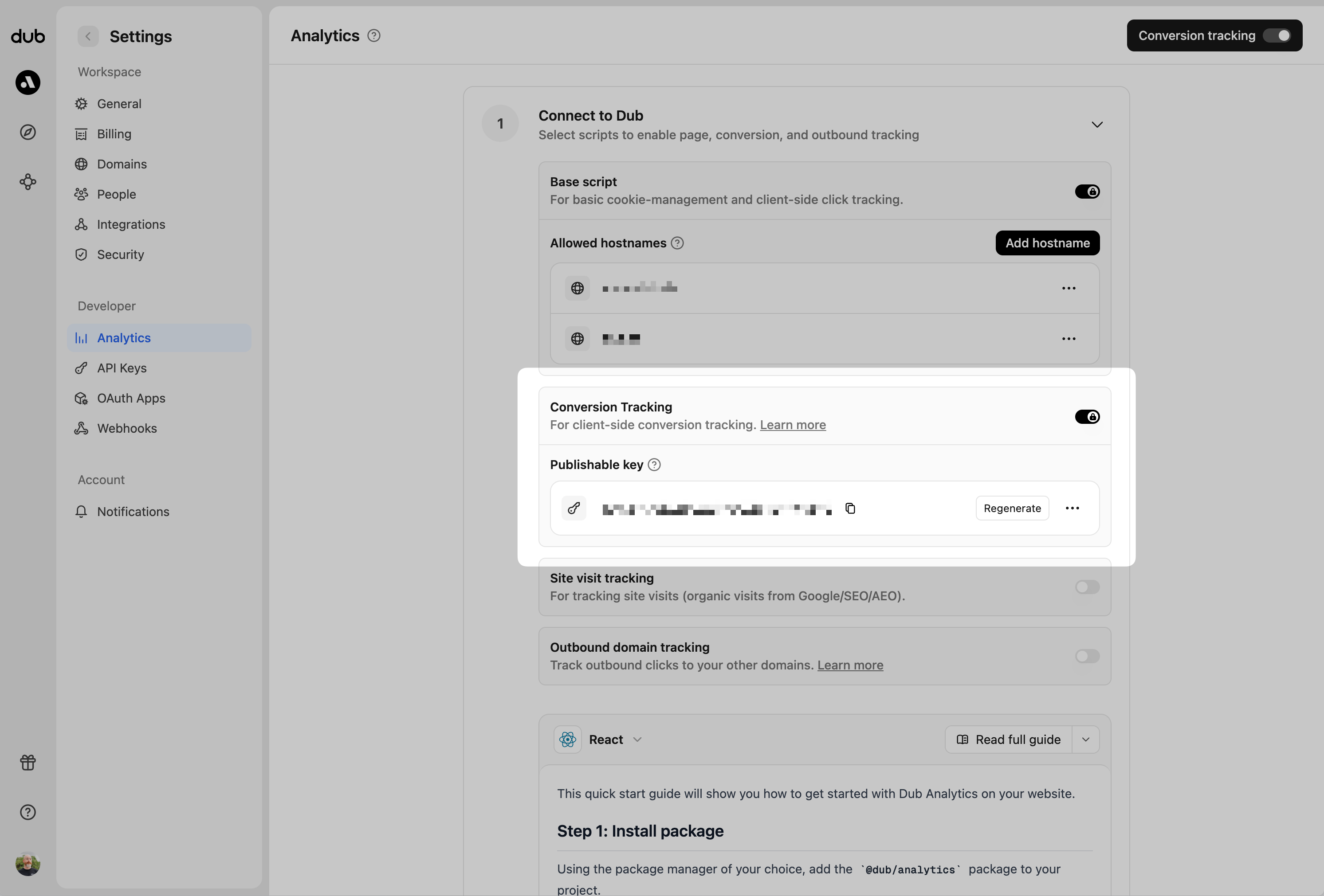
Allowlist your site's domain
Then, you’ll need to allowlist your site’s domain to allow the client-side conversion events to be ingested by Dub.To do that, navigate to your workspace’s Analytics settings page and add your site’s domain to the Allowed Hostnames list.This provides an additional layer of security by ensuring only authorized domains can track conversions using your publishable key.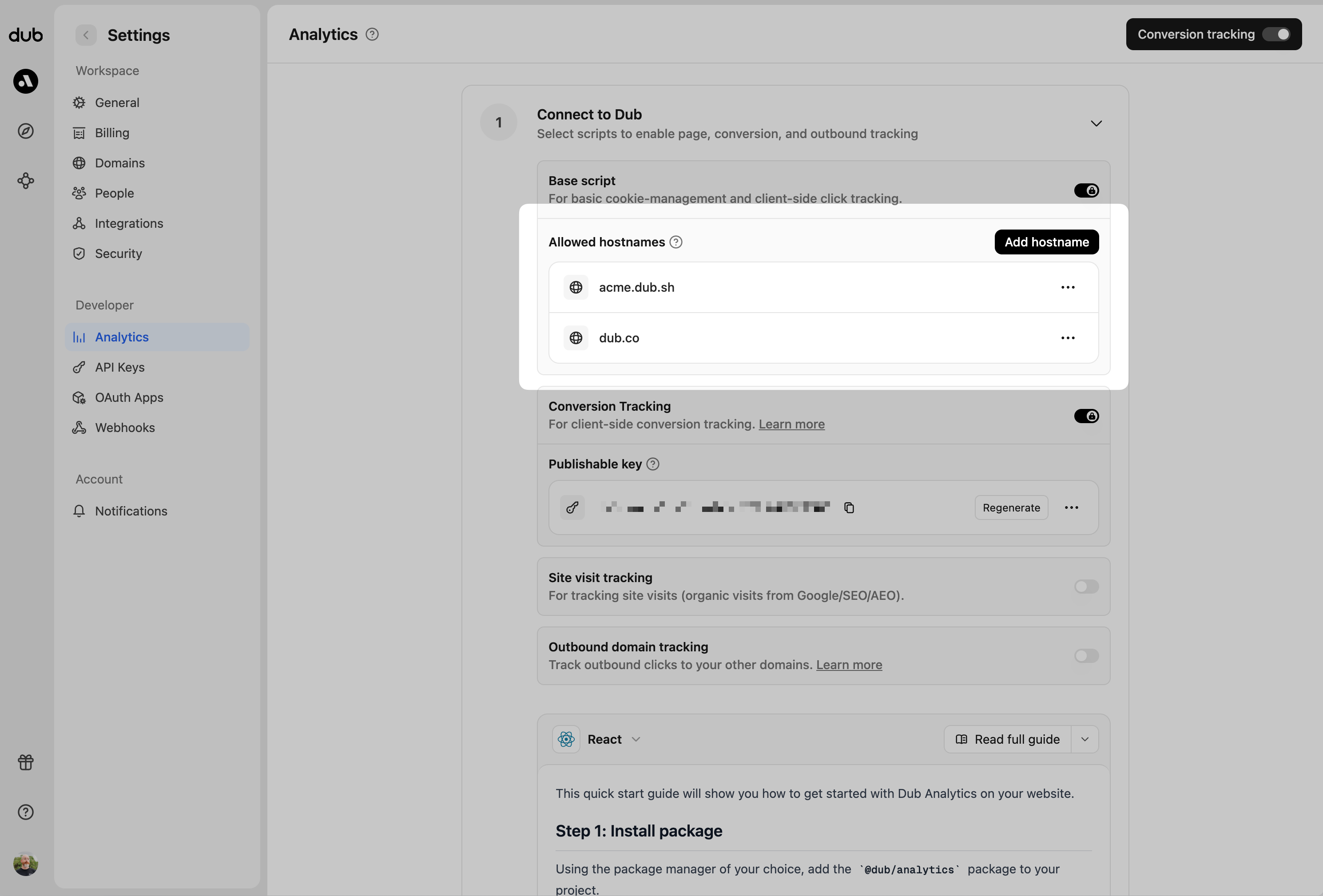
example.com: Tracks traffic only fromexample.com.*.example.com: Tracks traffic from all subdomains ofexample.com, but not fromexample.comitself.