

- 25% discount for the first 12 months
- 30% lifetime discount
- $50 one-off discount
Option 1: Direct link-based discounts (recommended)
If you’re using Stripe for payments, you can follow these steps to set up direct link-based discounts for your partner referral links:Link-based discounts provide better attribution accuracy since you get visibility into the customer’s geolocation, device info, referrer details, and UTM data.
The trade-off here is that it requires some engineering work to set up.
The trade-off here is that it requires some engineering work to set up.
Create a discount on Dub
First, navigate to the partner group that you want to create a discount for. Under the Discount tab, you’ll be able to create a discount for the group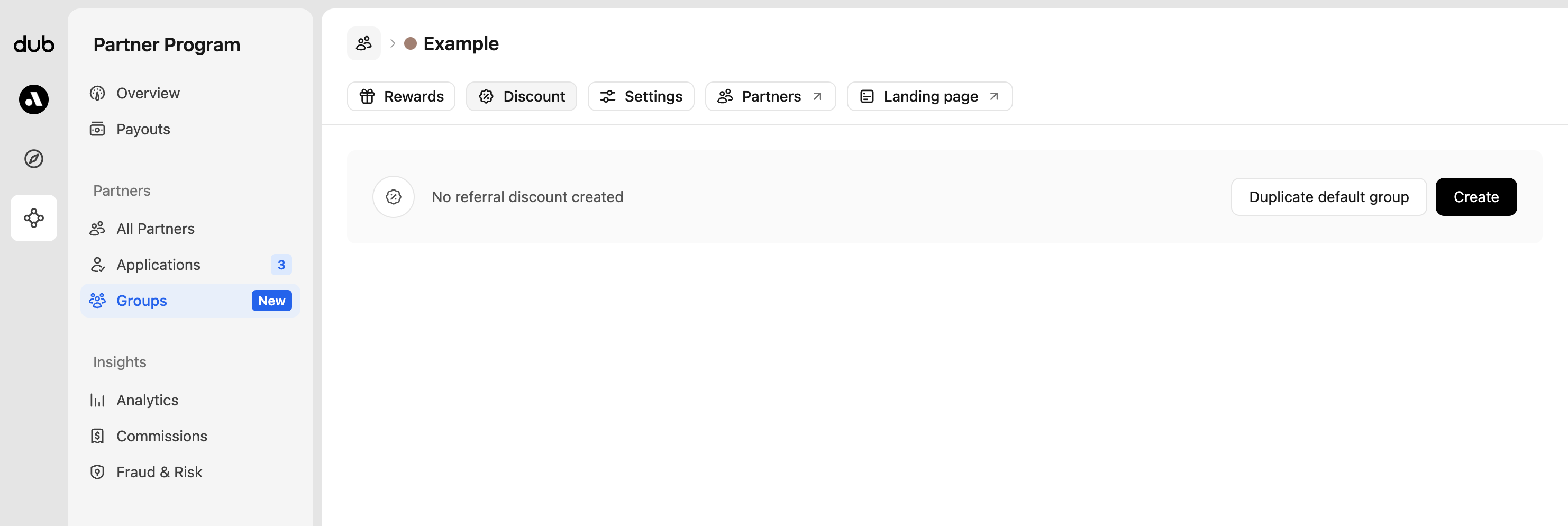 If you already have a discount set up for your default group, you can just duplicate it. If not, click Create to create your first group discount: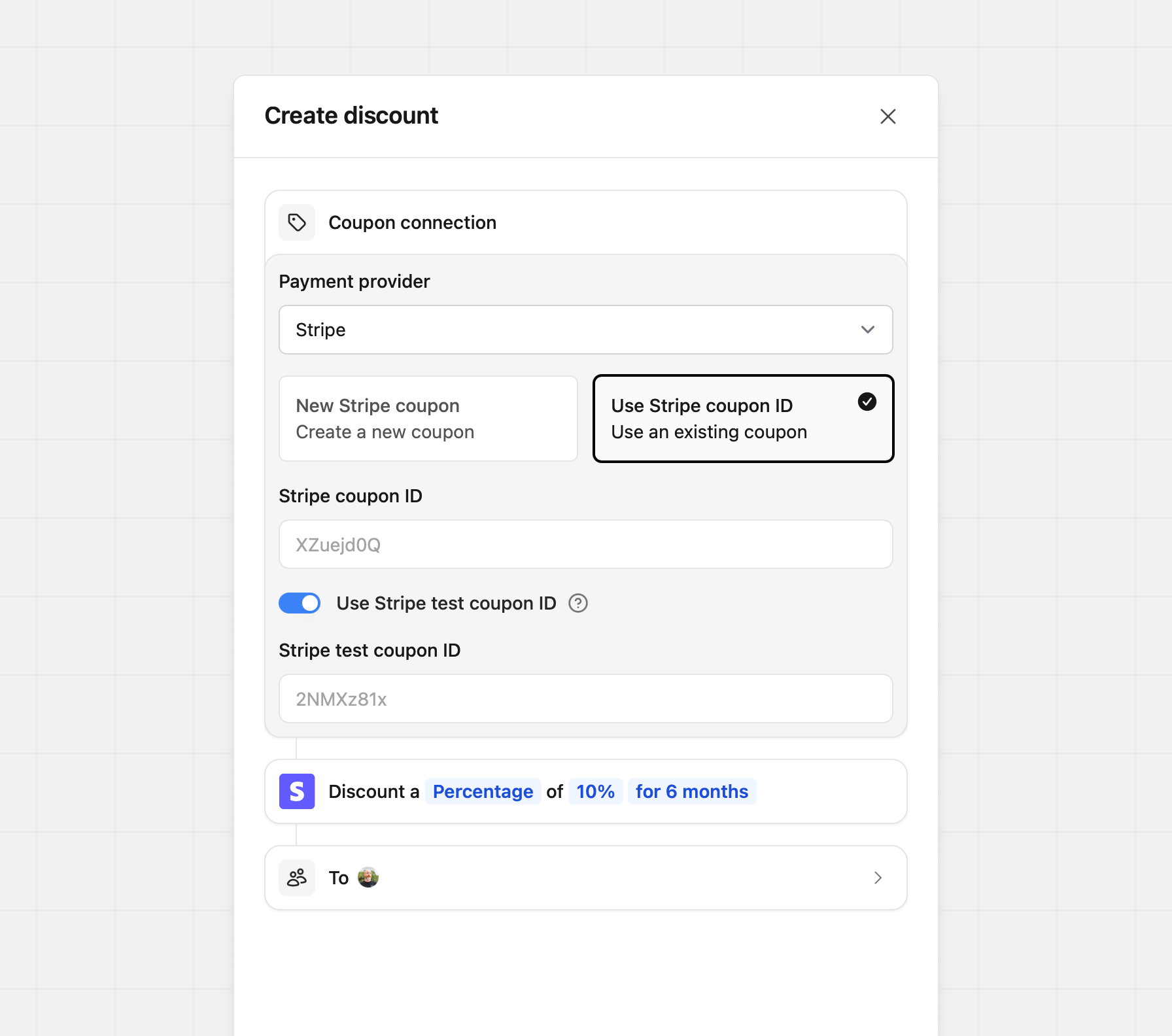
If you already have a discount set up for your default group, you can just duplicate it. If not, click Create to create your first group discount:New Stripe coupon
If you don’t have a coupon set up on Stripe yet, you can use the New Stripe coupon option to create a new coupon based on the discount type (percentage vs flat), amount, and duration set in Dub.Use Stripe coupon ID
If you already have an existing coupon on Stripe, you can enter the Stripe coupon ID (should be an 8 alphanumeric code) under the Use Stripe coupon ID option.Add coupon logic to checkout flow
Lastly, you’ll need to add the coupon logic to your Stripe checkout flow and leverage Dub’s Customers API to determine if a user is eligible for a discount or not.You can refer the docs on how to set that up here.Once this is set up, eligible customers will automatically see the coupon code applied at checkout:
Option 2: Using Stripe promo codes (no link required)
If you’re using Stripe for payments, you can follow these steps to set up Stripe promo-code-based discounts for your partners.Stripe promo-code-based discounts is much easier to set up (no code required).
However, you do sacrifice on attribution accuracy since you won’t have any insights into the customer’s geolocation, device info, referrer details, and UTM data. Our Stripe integration will try to derive the customer’s location based on their Stripe billing address, but it can sometimes be inaccurate.
However, you do sacrifice on attribution accuracy since you won’t have any insights into the customer’s geolocation, device info, referrer details, and UTM data. Our Stripe integration will try to derive the customer’s location based on their Stripe billing address, but it can sometimes be inaccurate.
Create a discount on Dub
First, navigate to the partner group that you want to create a discount for. Under the Discount tab, you’ll be able to create a discount for the groupIf you already have a discount set up for your default group, you can just duplicate it. If not, click Create to create your first group discount:
If you already have a discount set up for your default group, you can just duplicate it. If not, click Create to create your first group discount:New Stripe coupon
If you don’t have a coupon set up on Stripe yet, you can use the New Stripe coupon option to create a new coupon based on the discount type (percentage vs flat), amount, and duration set in Dub.Use Stripe coupon ID
If you already have an existing coupon on Stripe, you can enter the Stripe coupon ID (should be an 8 alphanumeric code) under the Use Stripe coupon ID option.Create your partner code
Open the partner profile that you’d like to create a discount code for, then click Create Code in the “Discount codes” section.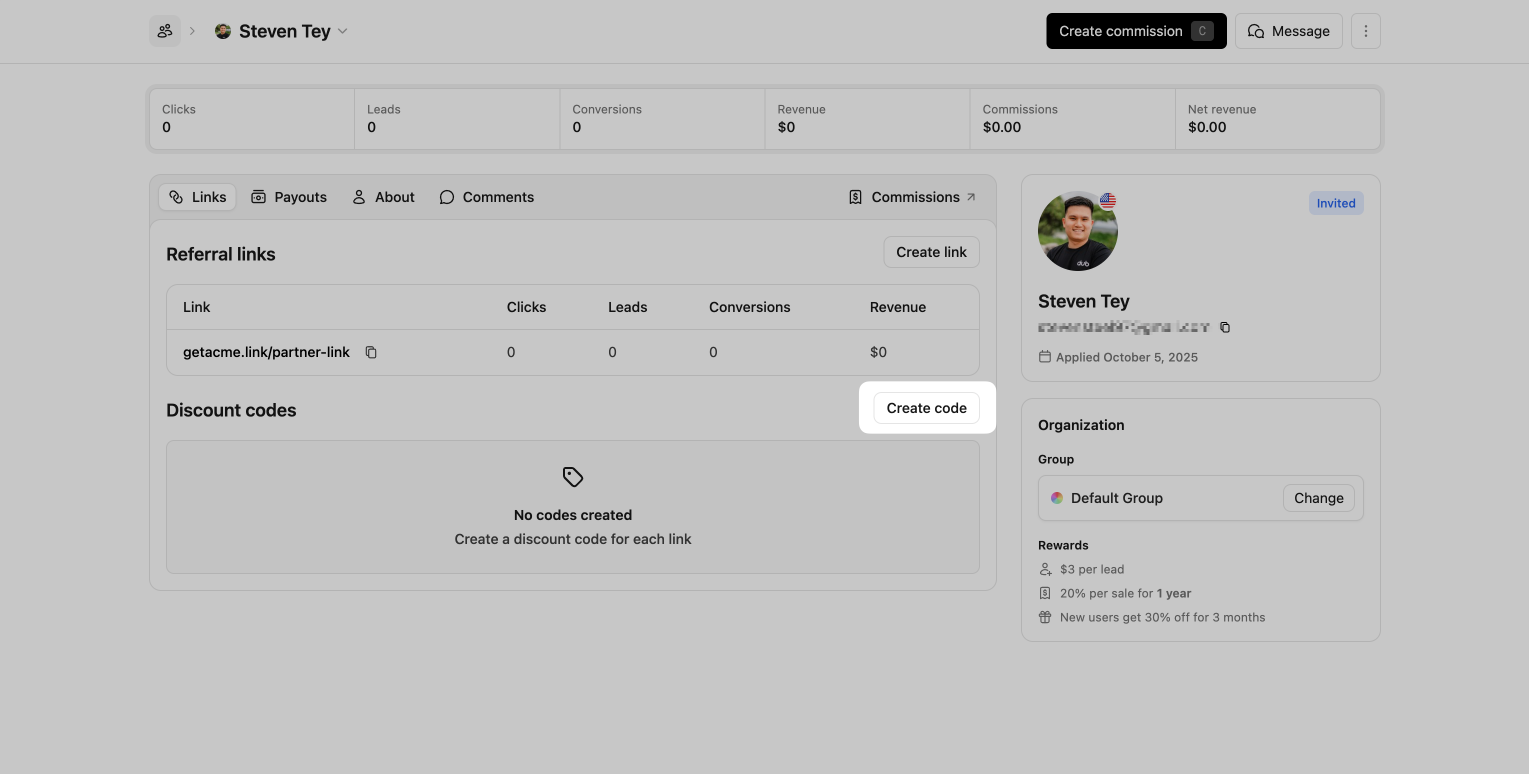 Here you can select which referral link you’d like to associate the code with. Then you can create the discount code.
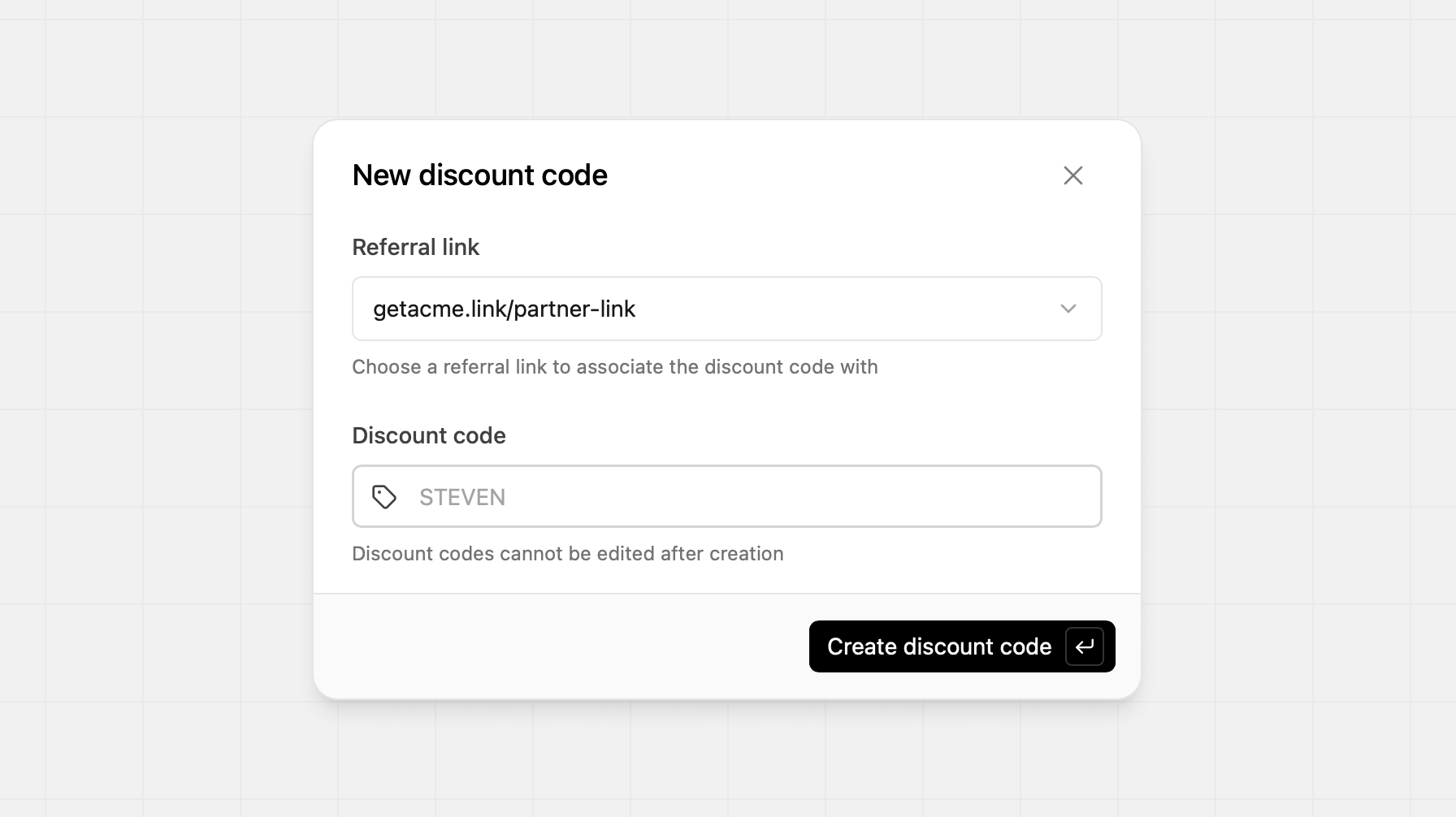 After the code has been created, you’ll see its value populated in the Discount Code section, and it is ready for use. In the Partner Dashboard, they’ll also see the associated discount code within their partner links.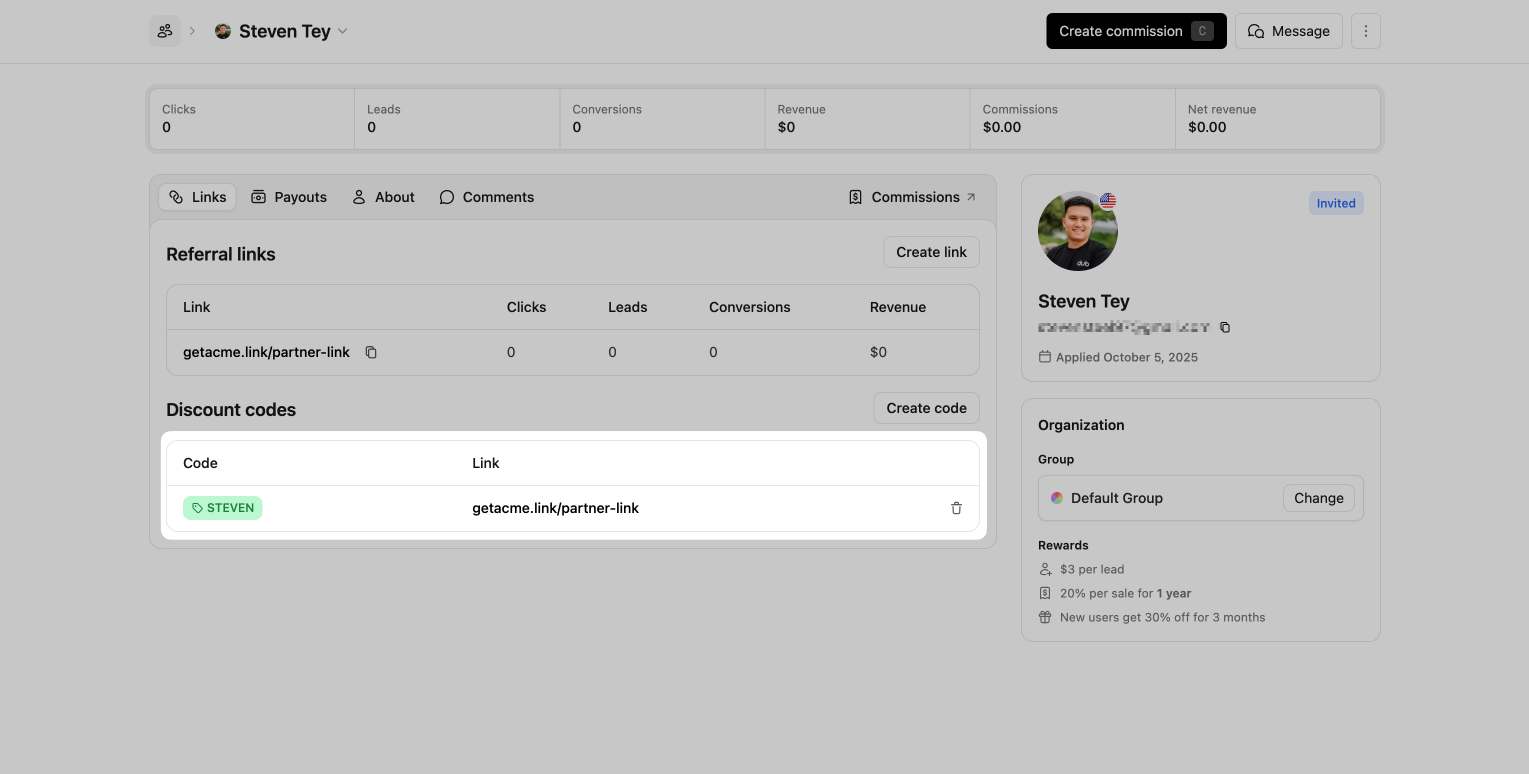
Here you can select which referral link you’d like to associate the code with. Then you can create the discount code.After the code has been created, you’ll see its value populated in the Discount Code section, and it is ready for use. In the Partner Dashboard, they’ll also see the associated discount code within their partner links.Displaying discount banner
Once you’ve set up dual-sided incentives, a potential next step would be to display the discount information on your pricing page / landing page hero: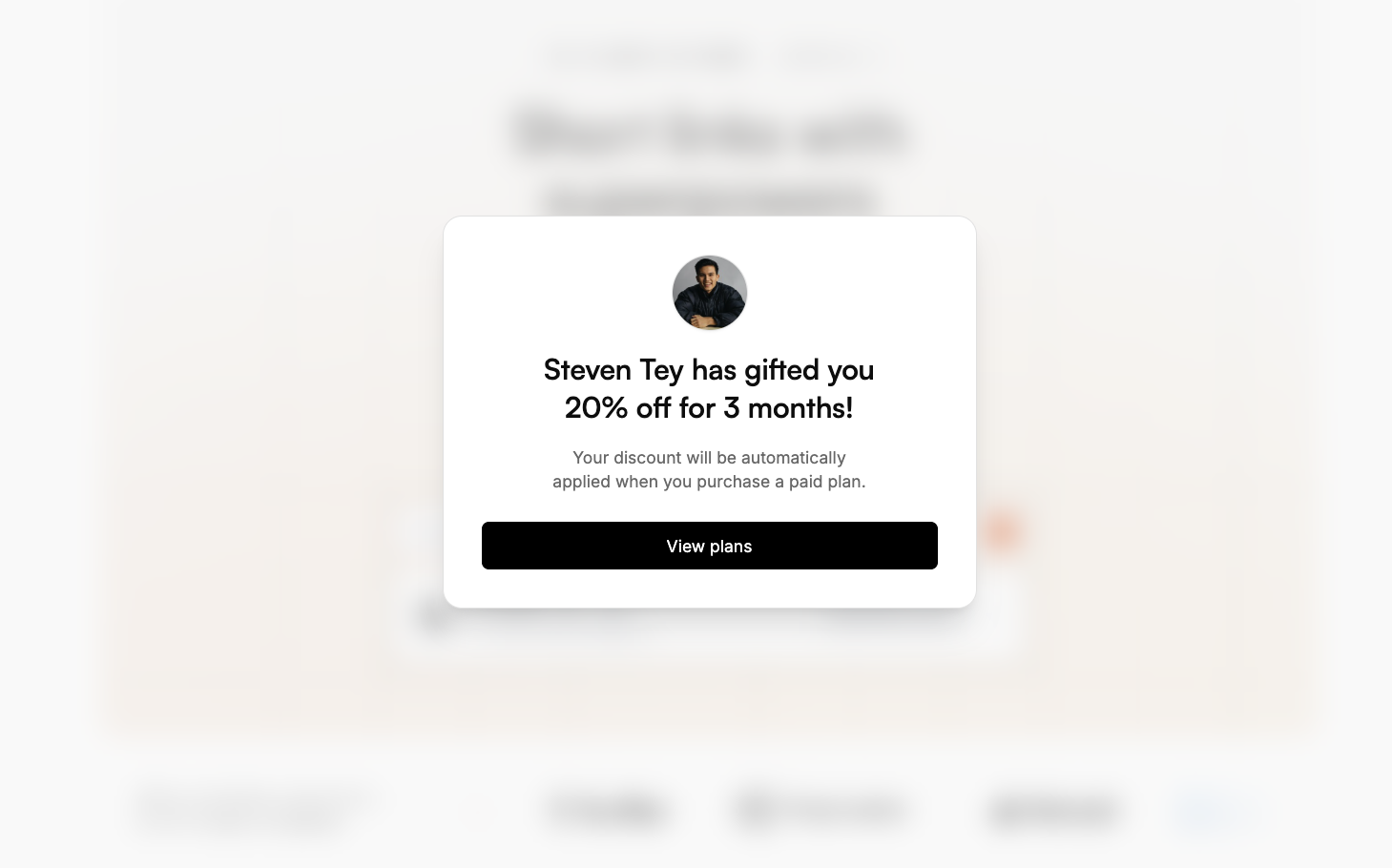 Check out this guide to learn how to set up a discount banner for your partner links.