

Where to find your referral link settings
Each partner group has its own referral link settings. To find them, open a group and click Links in the top navigation.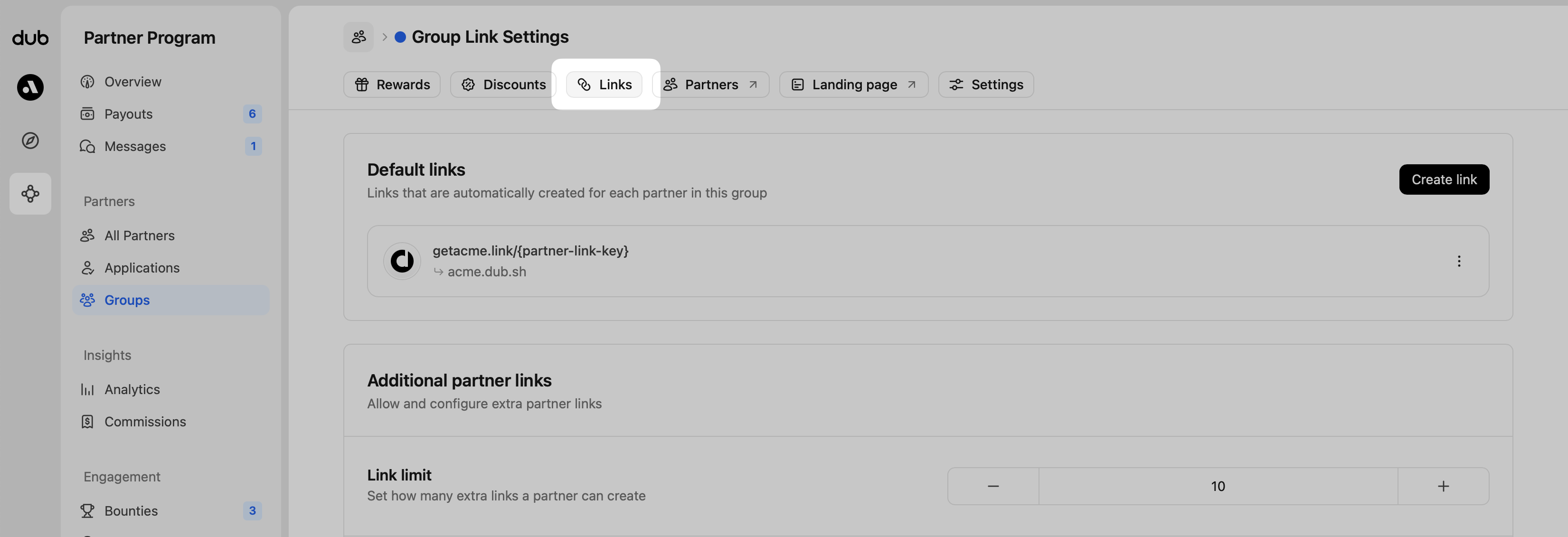
Default referral links
A default link is created during program setup, so new partner groups always have a referral link. You can also set up additional default links that are automatically created when a partner is enrolled in the partner group. Click Create Link to add more default links:
When creating a default link, you’ll be asked to enter a Destination URL.
This is the page users land on after clicking a referral link. It’s often your
homepage or a dedicated program landing page.
- When you create a default link, a new link is generated for every partner in that group. This includes both current and future partners in that group.
- When you update a default link’s destination URL, it updates all the corresponding partner links in that group with the destination URL you set.
- When you delete a default link, the link remains for existing partners in that group to ensure historical stats/commissions are preserved.
Additional partner links
You can also let your partners create their own links beyond the defaults: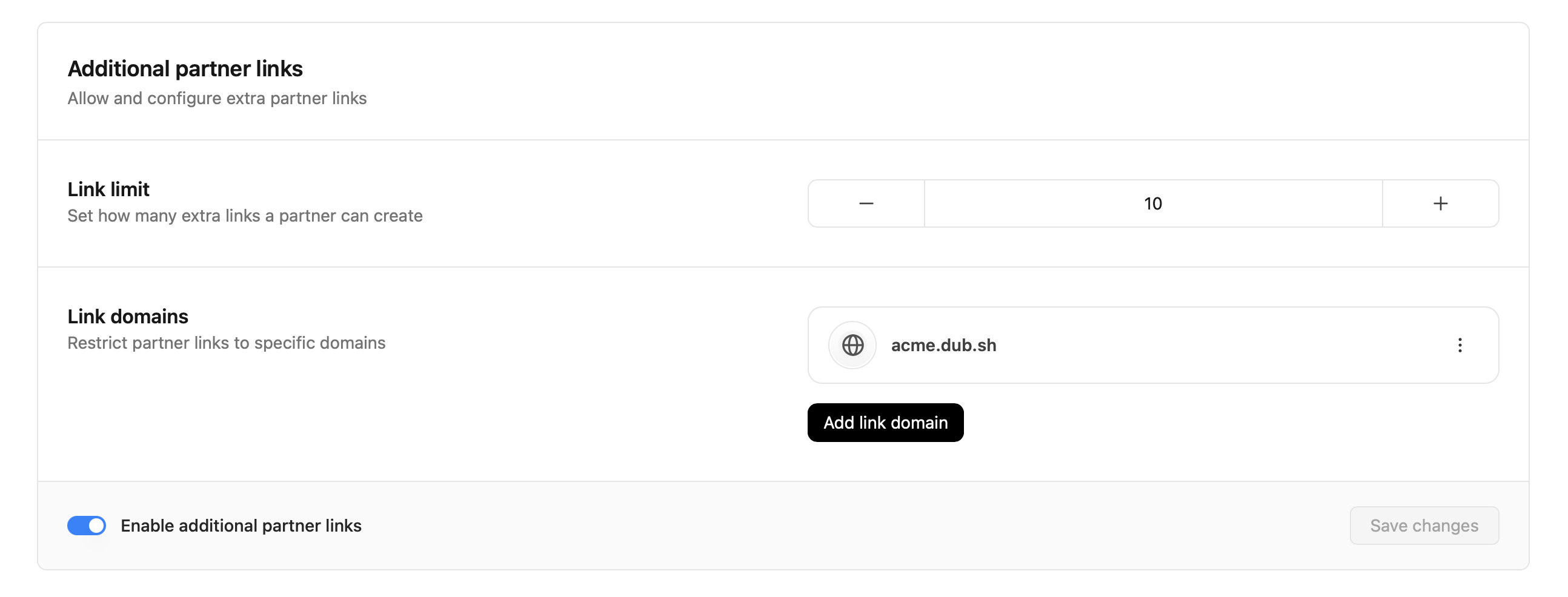 For your additional partner links, you can specify the following:
- Link limit: the maximum number of links partners can create
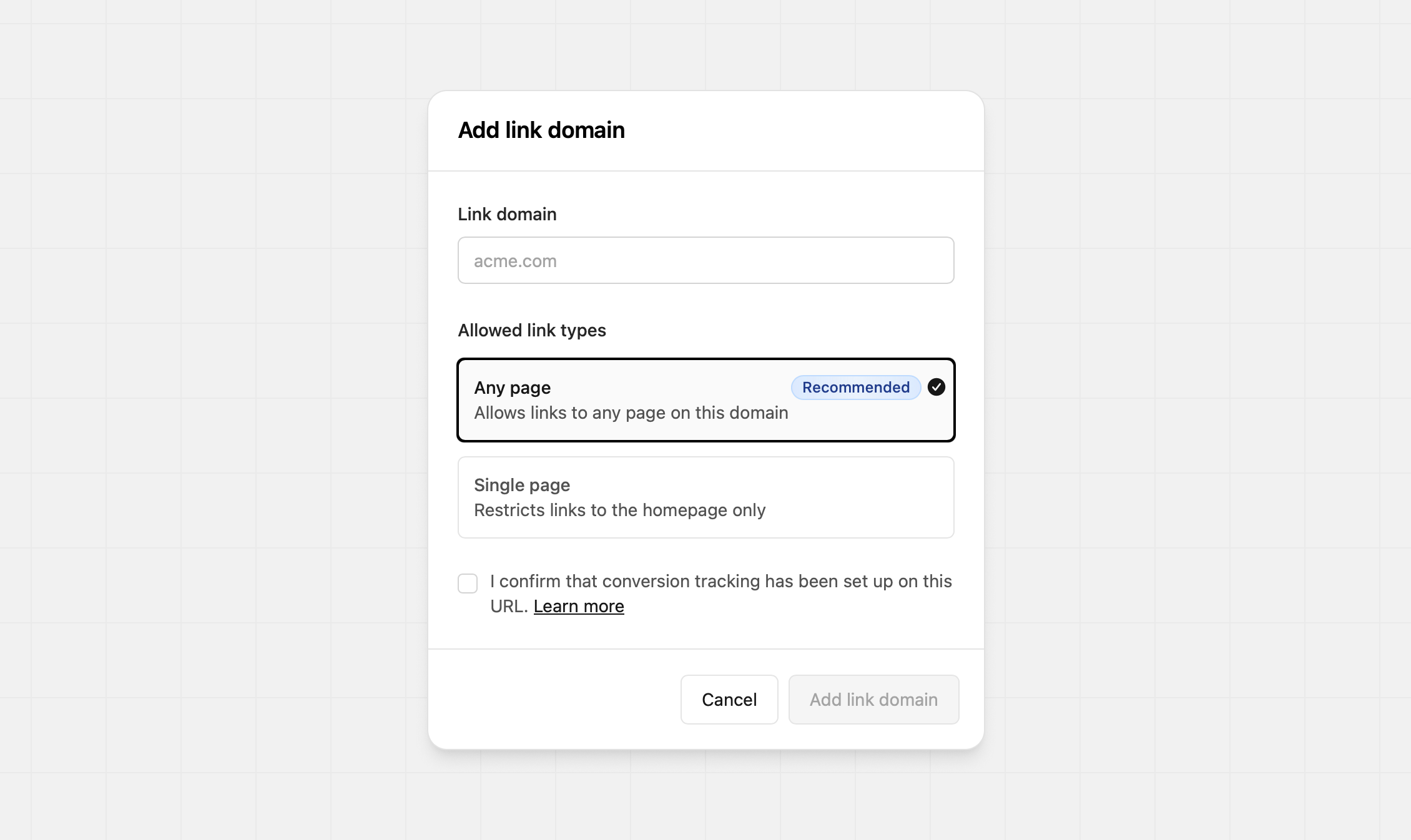
- Link domains: the domains that your partner’s links must match (either any page on that domain, or the homepage only)
Link settings
Define the link structure and UTM parameters for all partners in the group.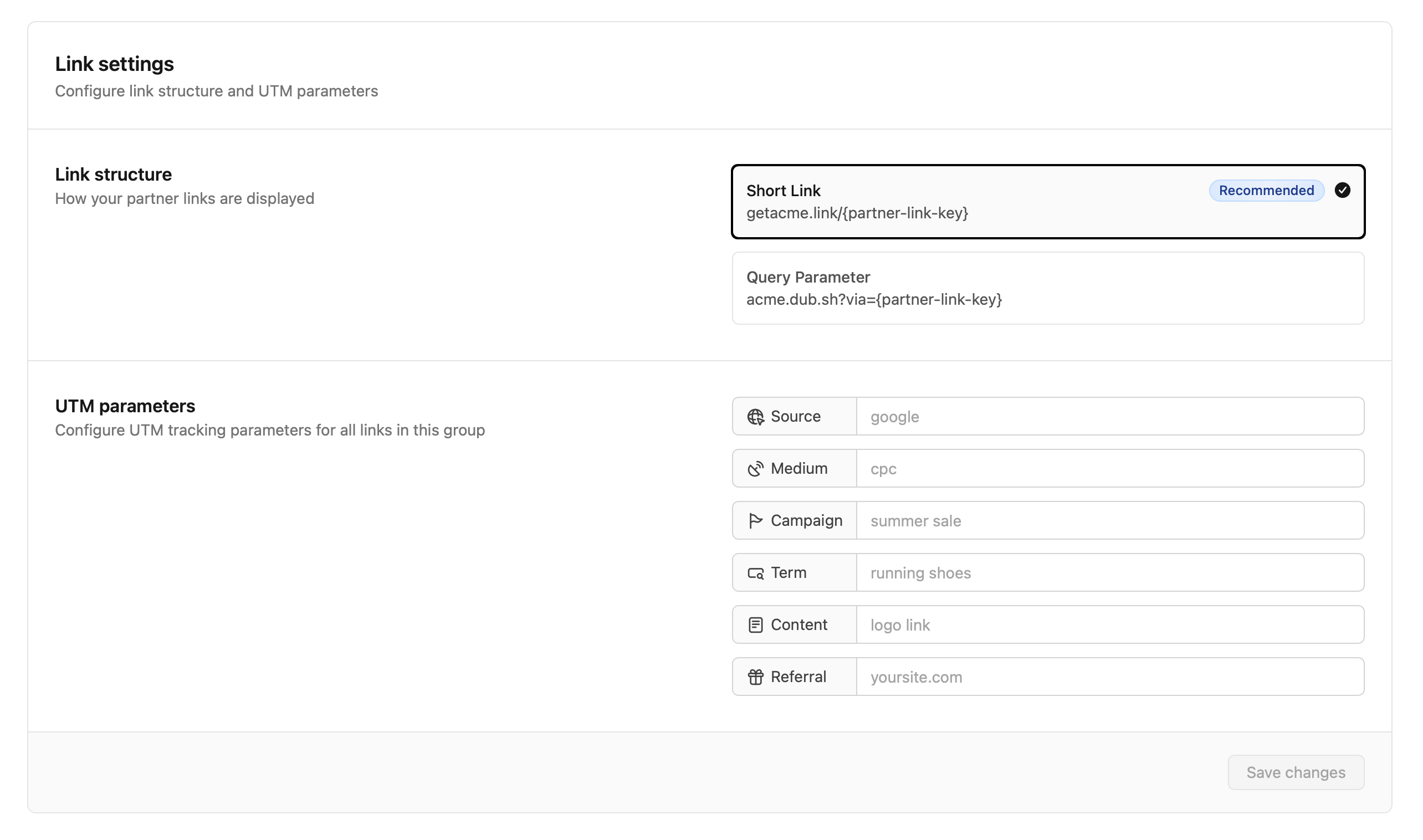
Link structure
Dub supports two referral link formats. Choose based on how you want links to look and where they’ll be shared. Both formats work the same for attribution.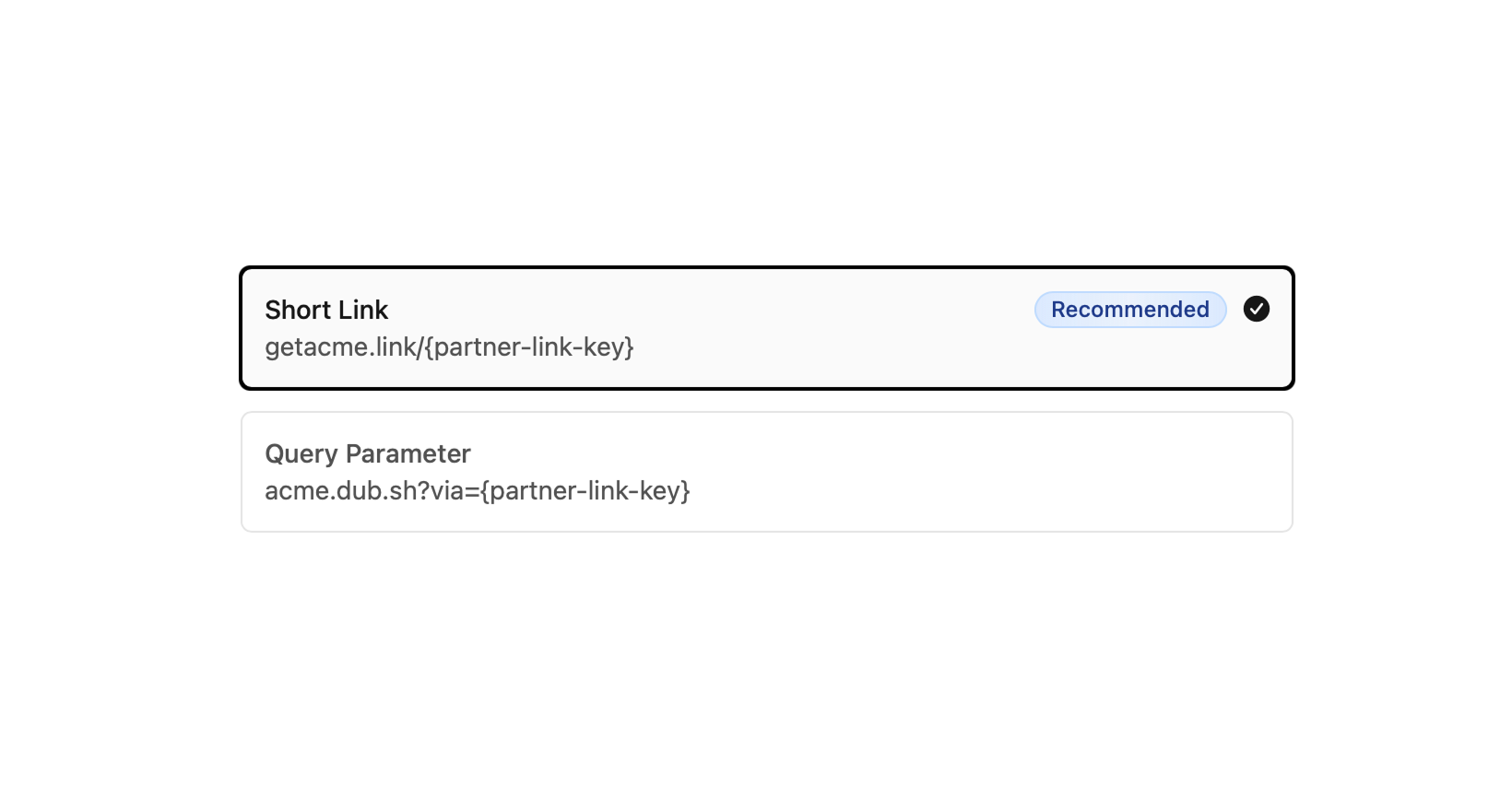
You can use any of the referral link types interchangeably – the option above
is to determine which format is shown in the partner dashboard.
getacme.link/{partnerName}
A clean, branded short link that’s easy to remember and perfect for sharing in social posts, bios, or messages.
Option 2: Query Parameter
Format: acme.com?via={partnerName}
Appends the partner name as a query string on your destination URL. Ideal for users who are migrating from Rewardful and want to maintain backwards compatibility for existing partner links.
UTM parameters
Set default UTM parameters for all links in this group. This gives you group-specific insights in analytics.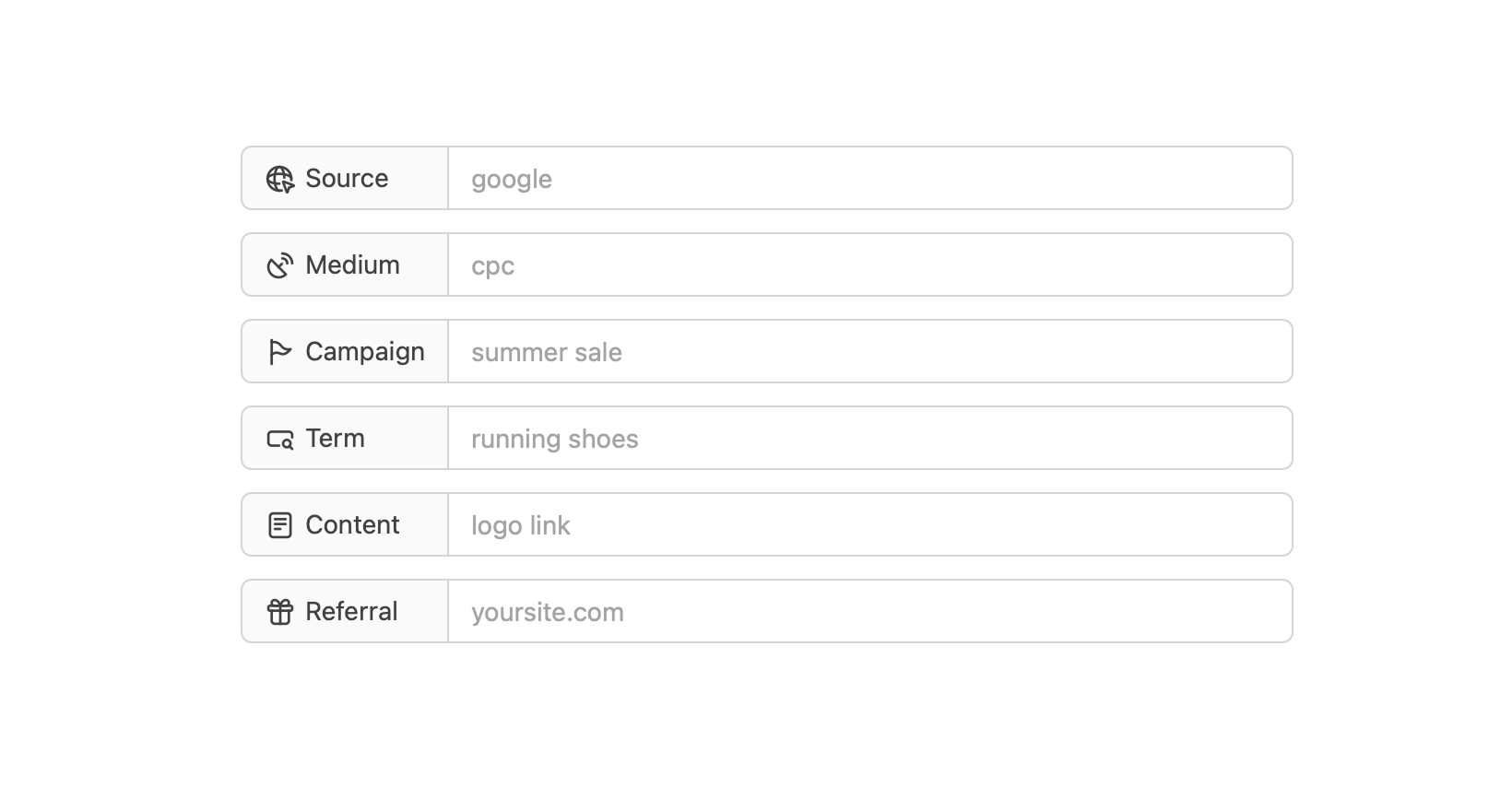
When you update a group’s [UTM
template](/help/article/how-to-create-utm-templates), all partner links in the group are refreshed and overwritten with the new UTM tags.How partner group changes affect referral links
As mentioned earlier, a partner’s link settings are tied to the partner group they’re in. When you update a partner’s group, or delete groups, their partner links will be updated as well.Moving partners to a group
When a partner is moved to a new group, their links automatically update to match the new group’s defaults and UTM parameters.Why would you move partners? - To promote them from a starter group to a
group with a higher reward tier - To try out new rewards in a test group - To
tidy up your structure and general reorganization
Deleting groups
If you delete a group, all partners in that group are moved to the default group. Their links are updated to match the default group’s settings.Why would you delete a group? - The campaign has ended - You created a
duplicate group by mistake - A beta trial group is no longer needed