

Step 1: Create SAML Integration
In your Google Admin dashboard, click on Apps in the sidebar and select Web and mobile apps from the list. If you don’t already have an existing SAML application, click on Add app and select Add custom SAML app from the dropdown menu.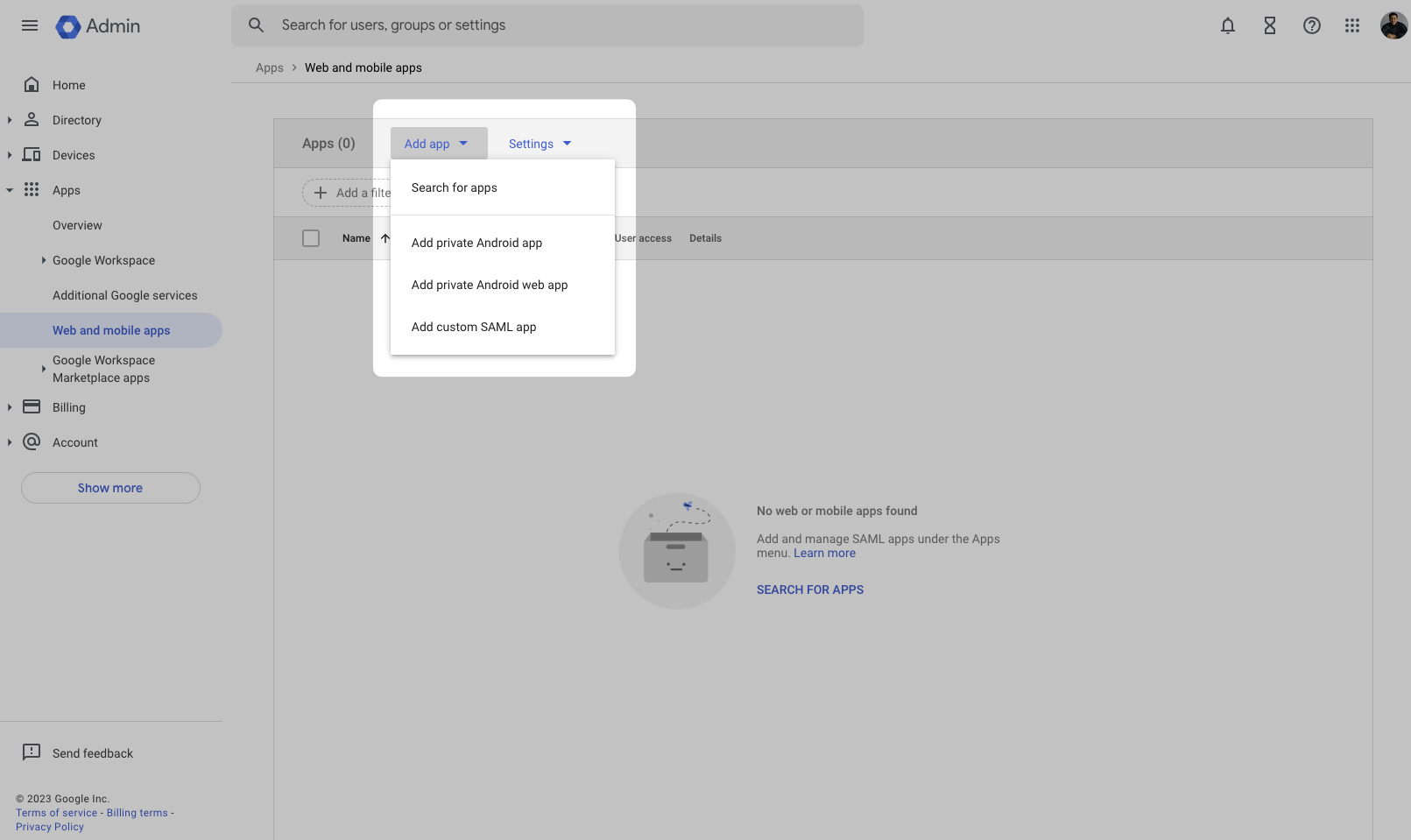 Enter the App name for your application, and click Continue.
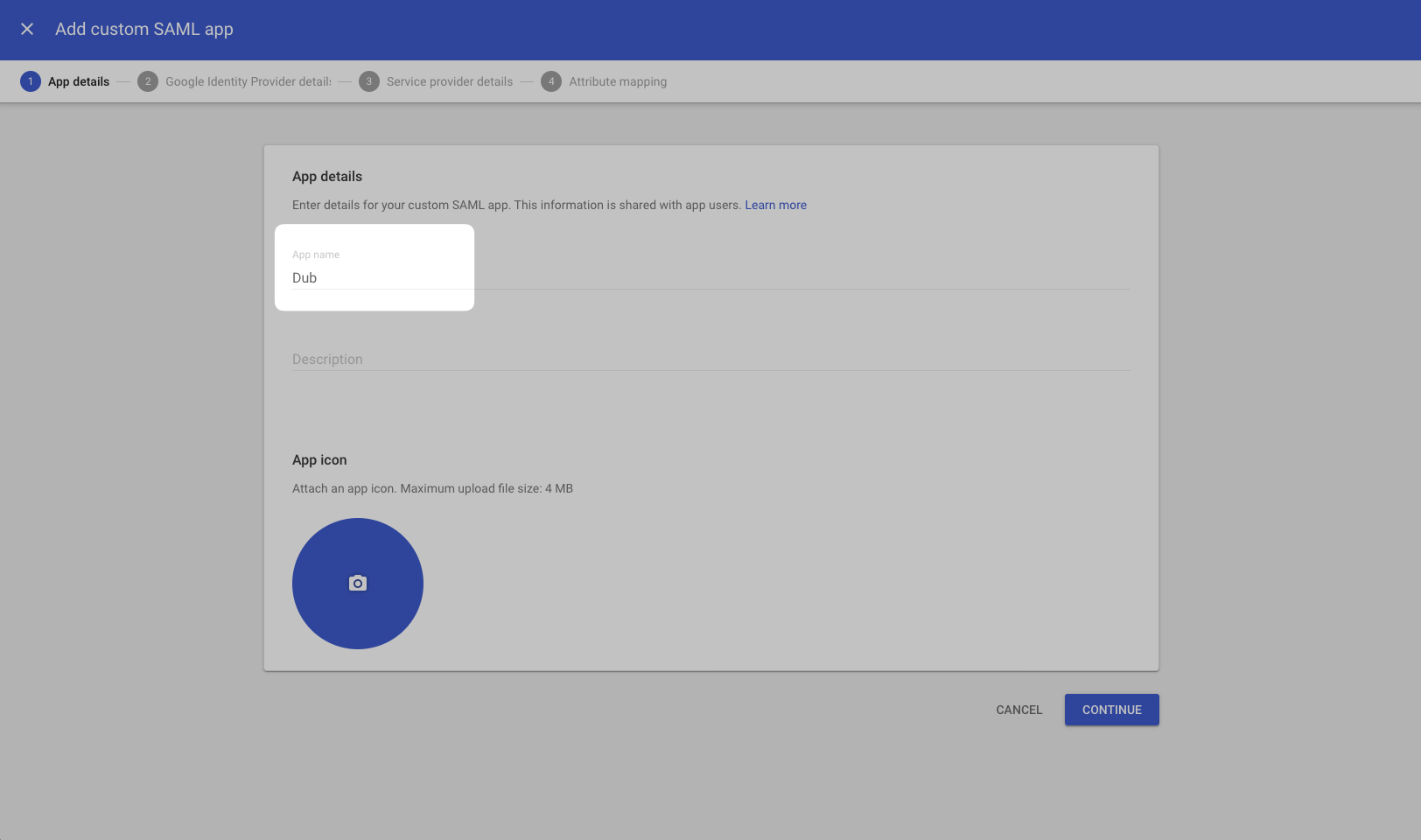 In the next screen, click Download Metadata to download the metadata XML file and click Continue. You’ll need this file in Step 3.
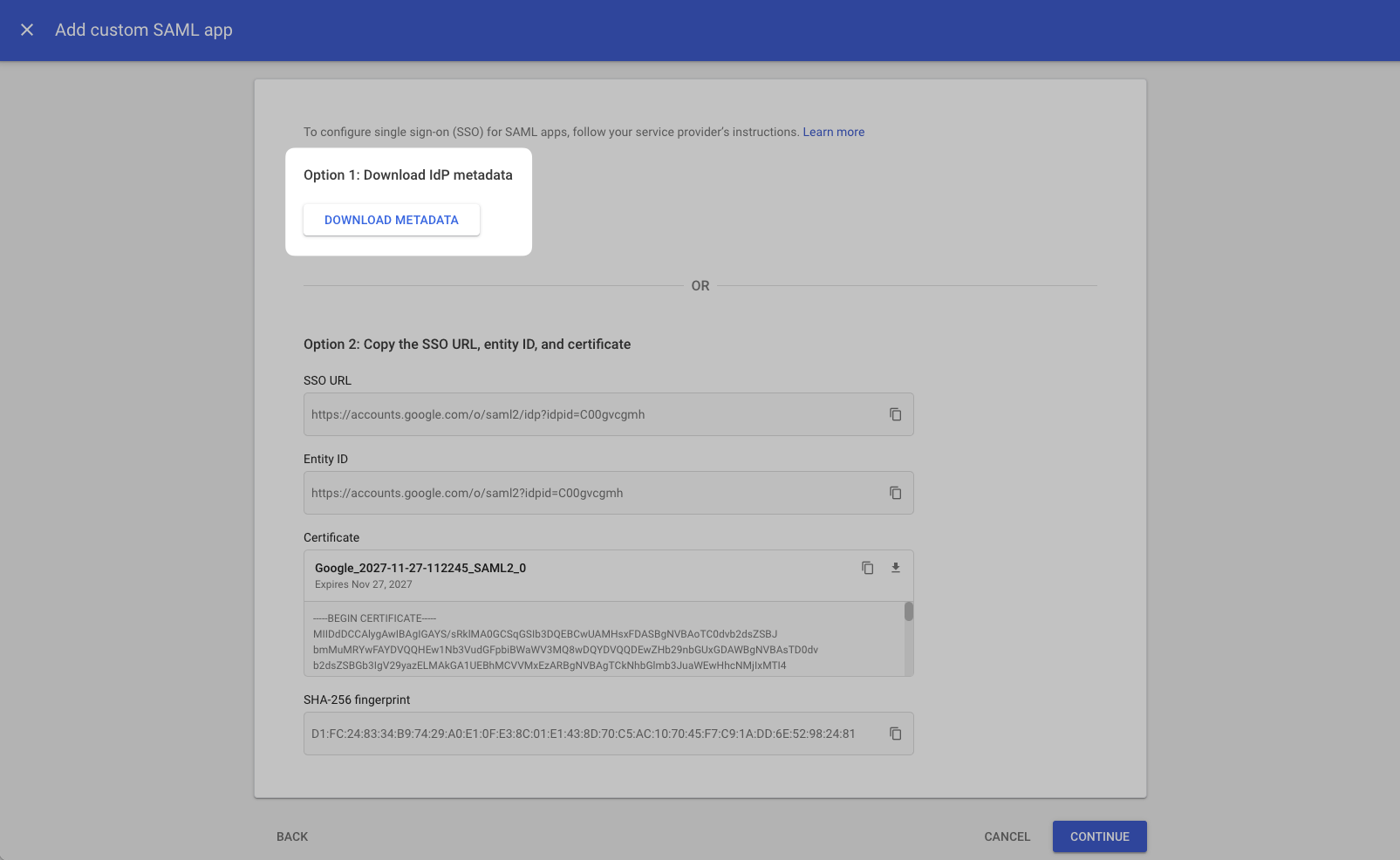 Copy the following values and paste them under Service provider details:
ACS URL
Entity ID
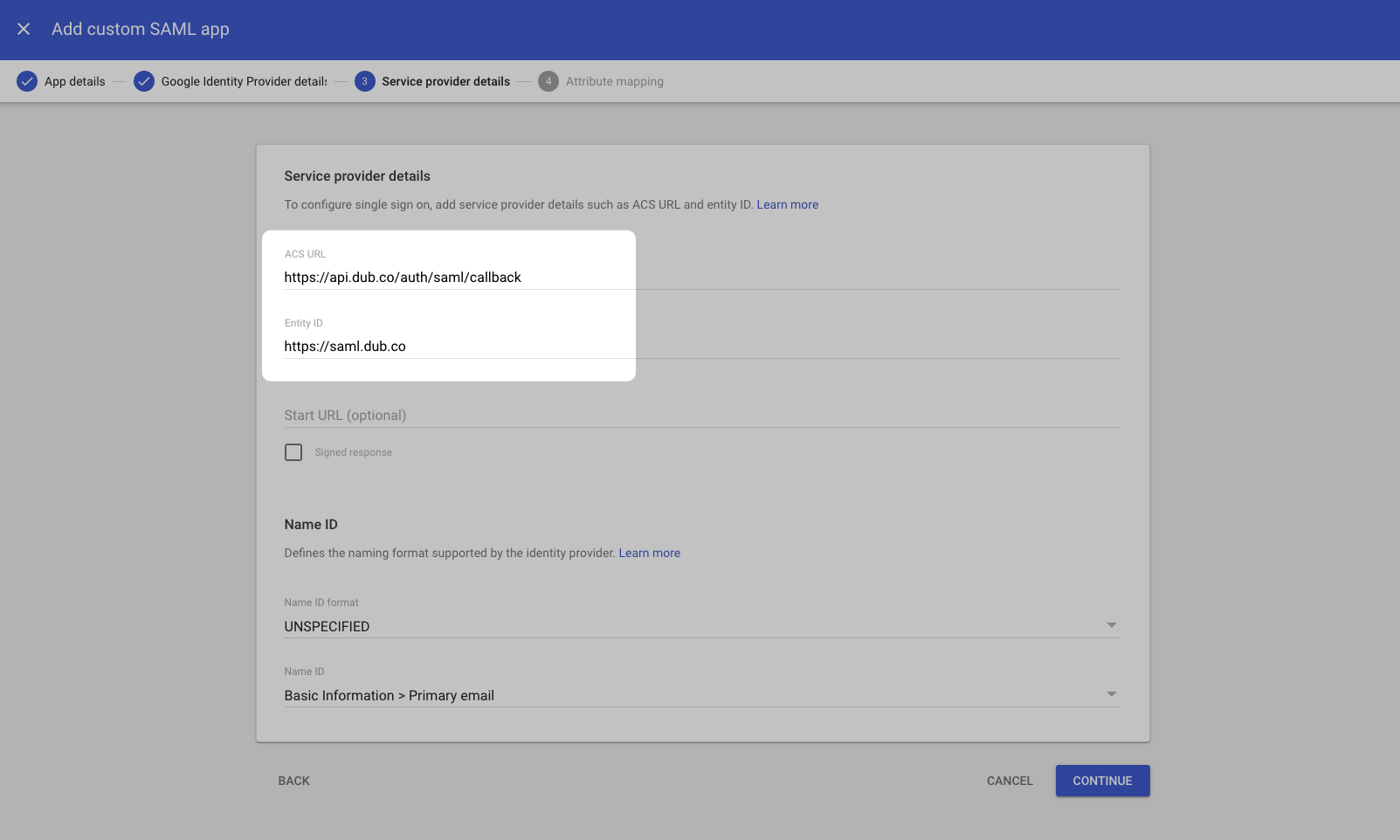 Click Next to proceed to the next step.
Step 2: Configure Attribute Mapping
On the next screen, under the Attributes section, click Add Mapping and add the following attribute mappings:| Google Directory attributes | App attributes |
|---|---|
Primary email | email |
First name | firstName |
Last name | lastName |
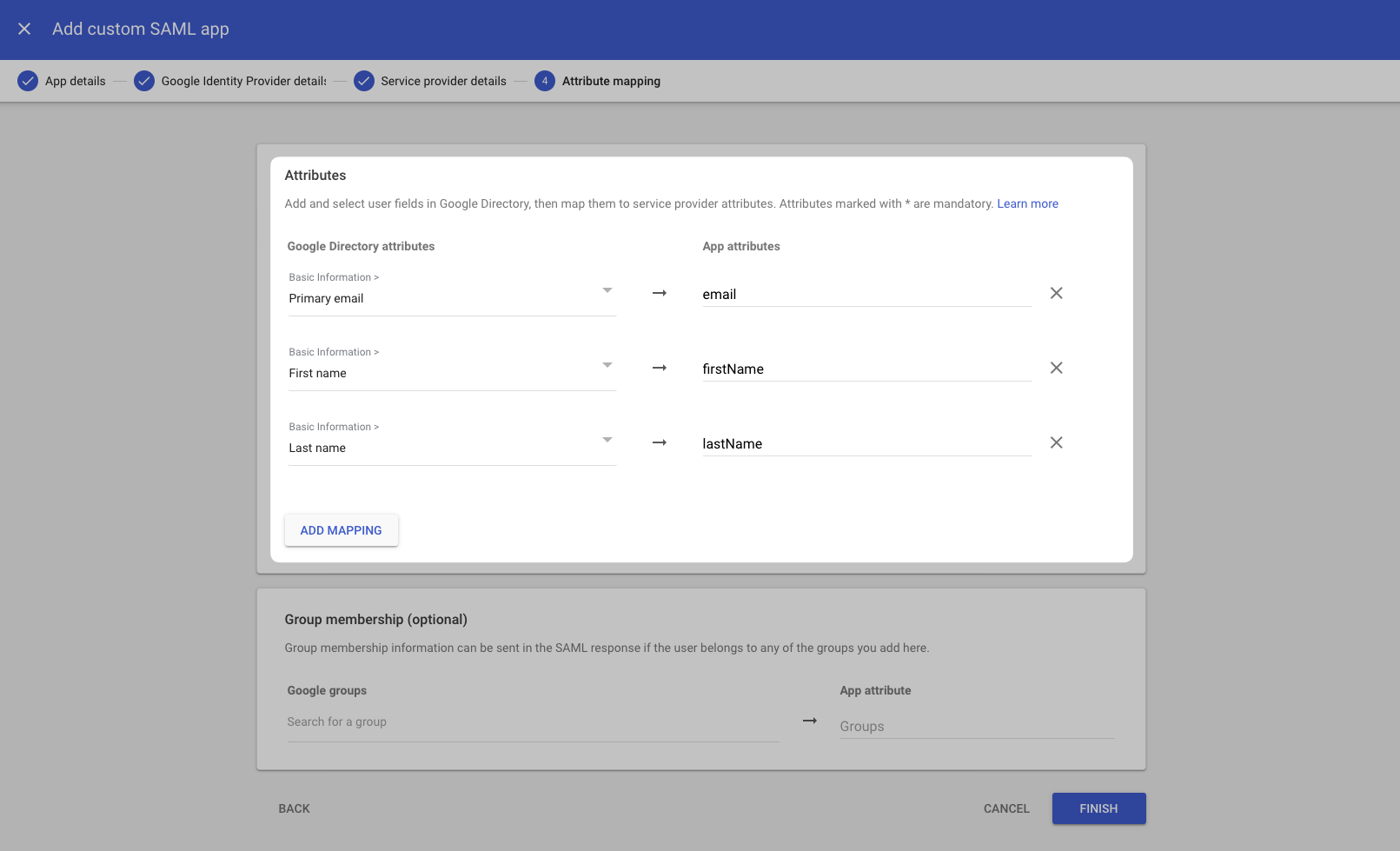 Once that’s done, click Finish.
On the next screen, click User access to configure the application to allow users to log in.
Once that’s done, click Finish.
On the next screen, click User access to configure the application to allow users to log in.
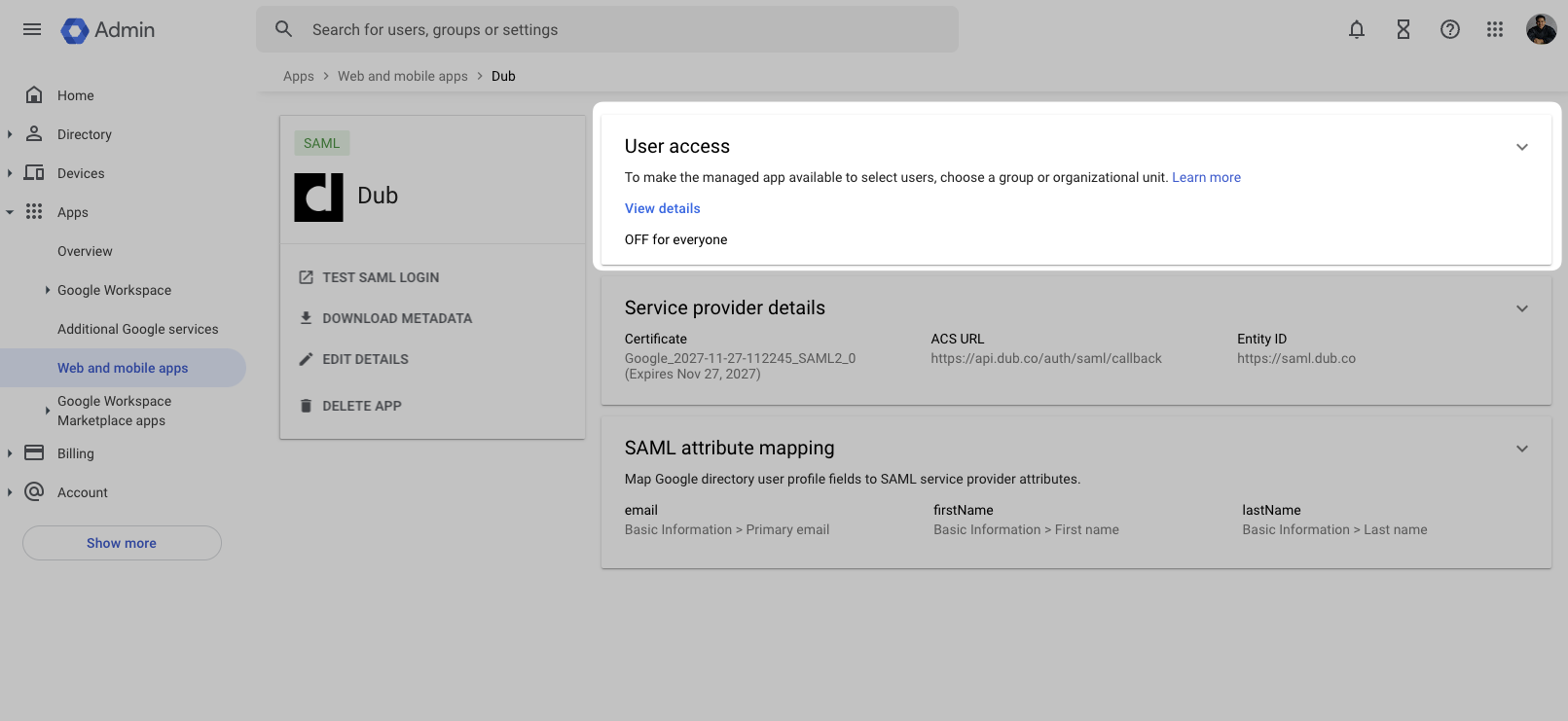 Check the ON for everyone checkbox and click Save.
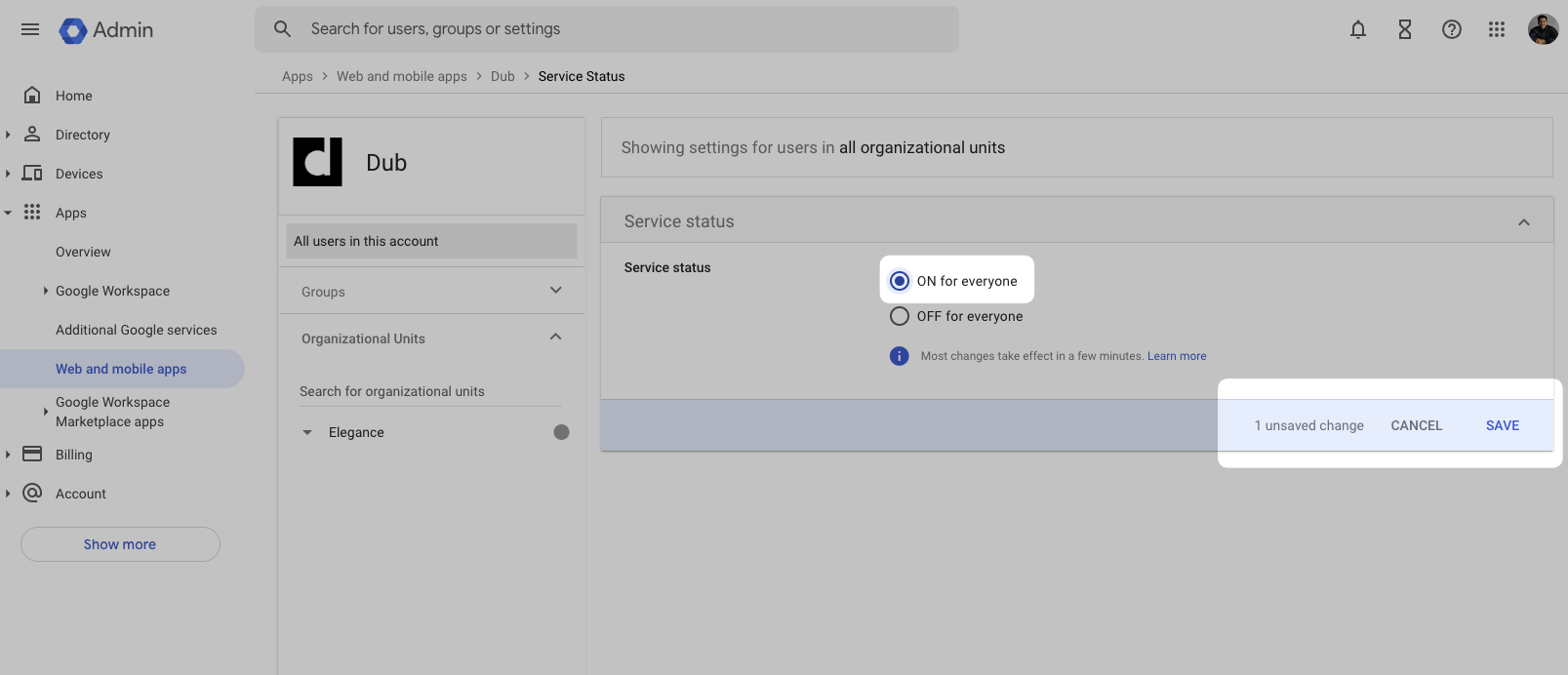 This will allow users in your Google Workspace to automatically sign in to Dub with Google SAML SSO.
You can now return to the Dub dashboard to complete the SAML SSO configuration.
This will allow users in your Google Workspace to automatically sign in to Dub with Google SAML SSO.
You can now return to the Dub dashboard to complete the SAML SSO configuration.
Step 3: Configure SAML SSO on Dub
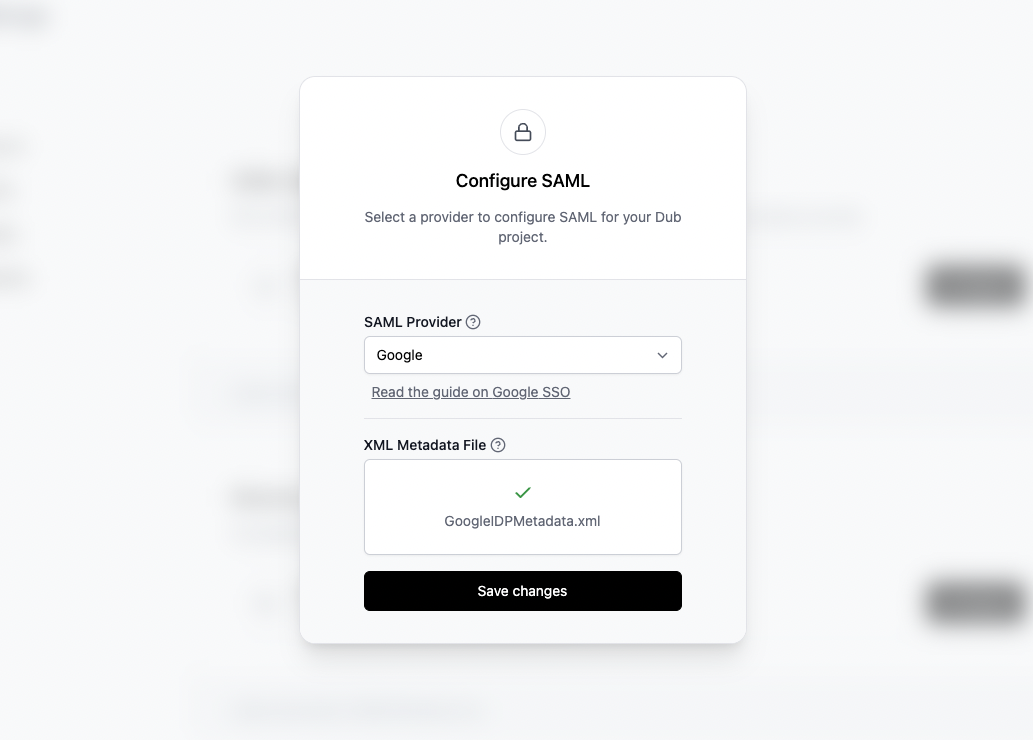
In your workspace settings, click on Security in the Workspace group.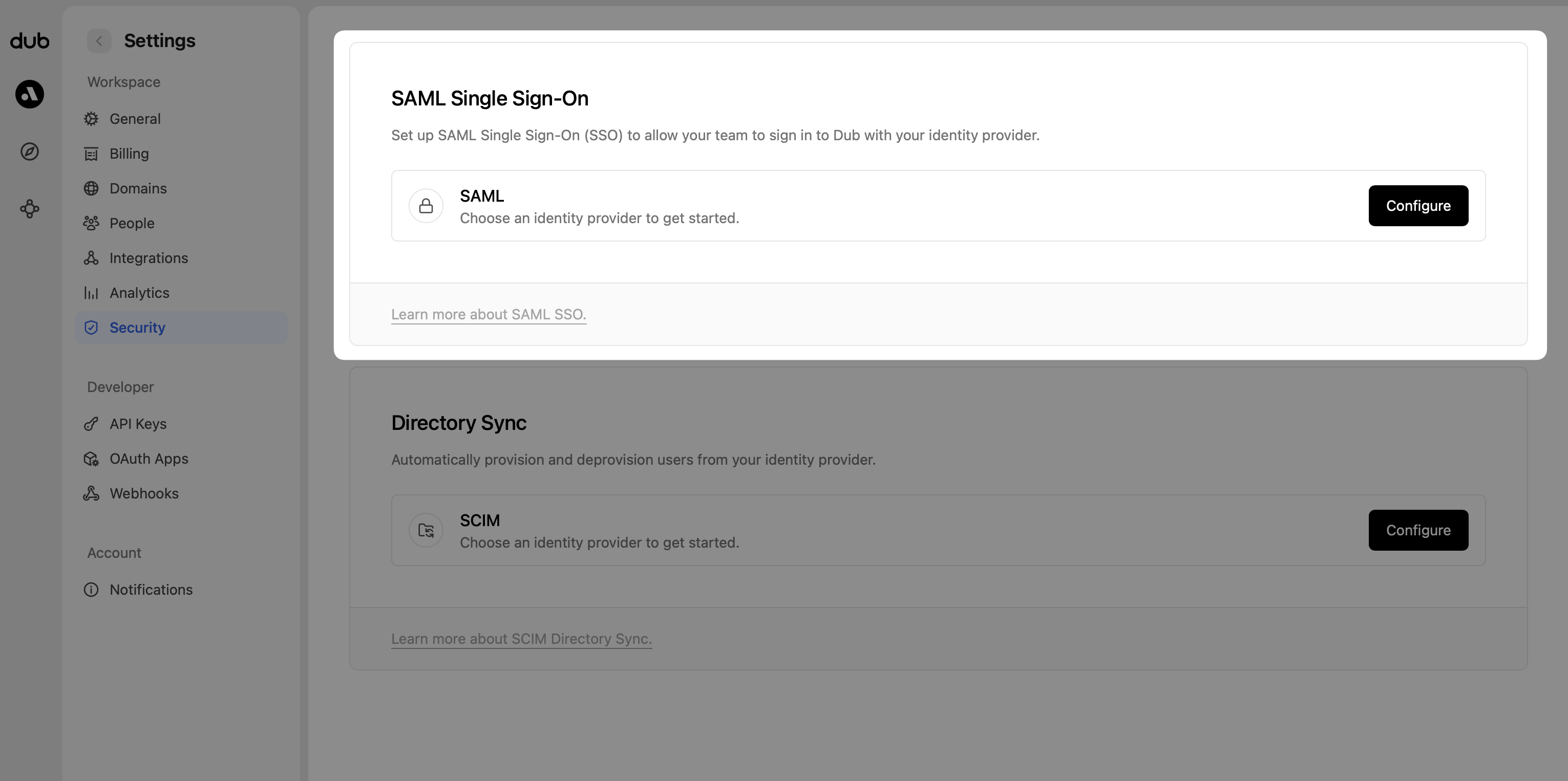 Under the SAML Single Sign-On section, click on Configure. This will open up the SAML SSO modal:
- Select Google as the SAML provider.
- Upload the metadata XML file you downloaded in Step 1.
- Click Save changes.
 That’s it! You’re all set – your team can now sign in to Dub using Google SAML SSO.