In your Dub workspace, you can export your links to a CSV file. This is useful if you want to analyze the data locally or share them with an external stakeholder. To export your links, follow these steps:
1

Open the Export links modal

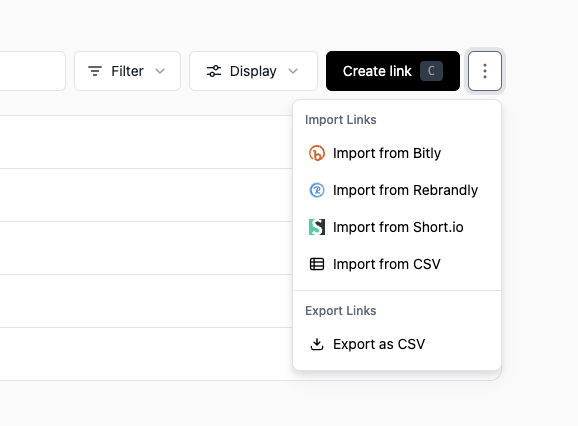
In your Dub workspace, navigate to the Links tab.Then, click on the button to open the more options dropdown menu. Select the Export links option.Click on the more options dropdown menu to open the export links modal
2

Select the date range

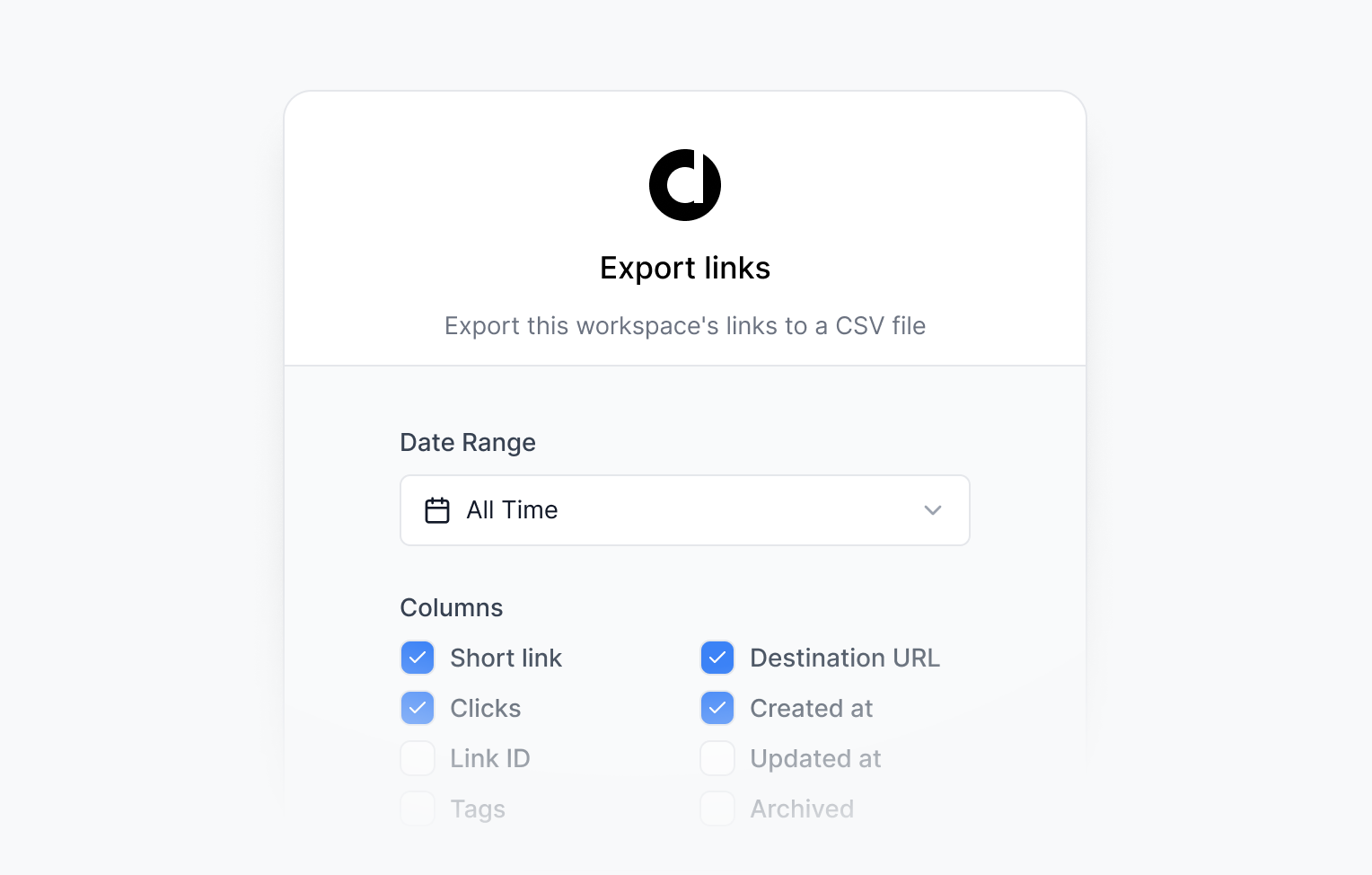
Choose the date range for the links you want to export. By default, Dub will export all links.Select the date range for the links you want to export
3

Select the columns to export

Dub will export the following columns by default:
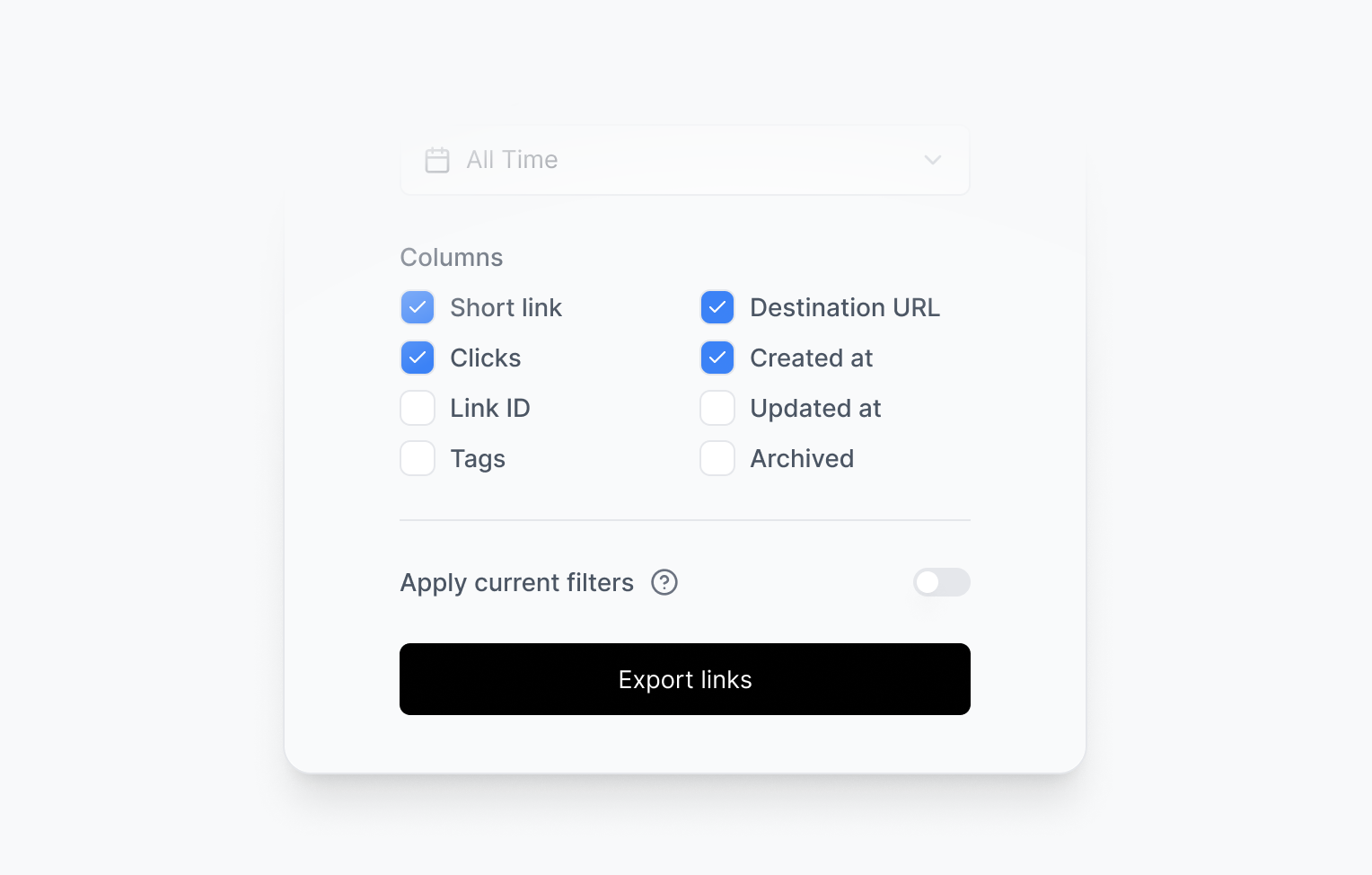
  • Short link
  • Destination URL
  • Clicks
  • Created at
You can select the columns you want to export under the Columns section.Select the columns that you want to export
4

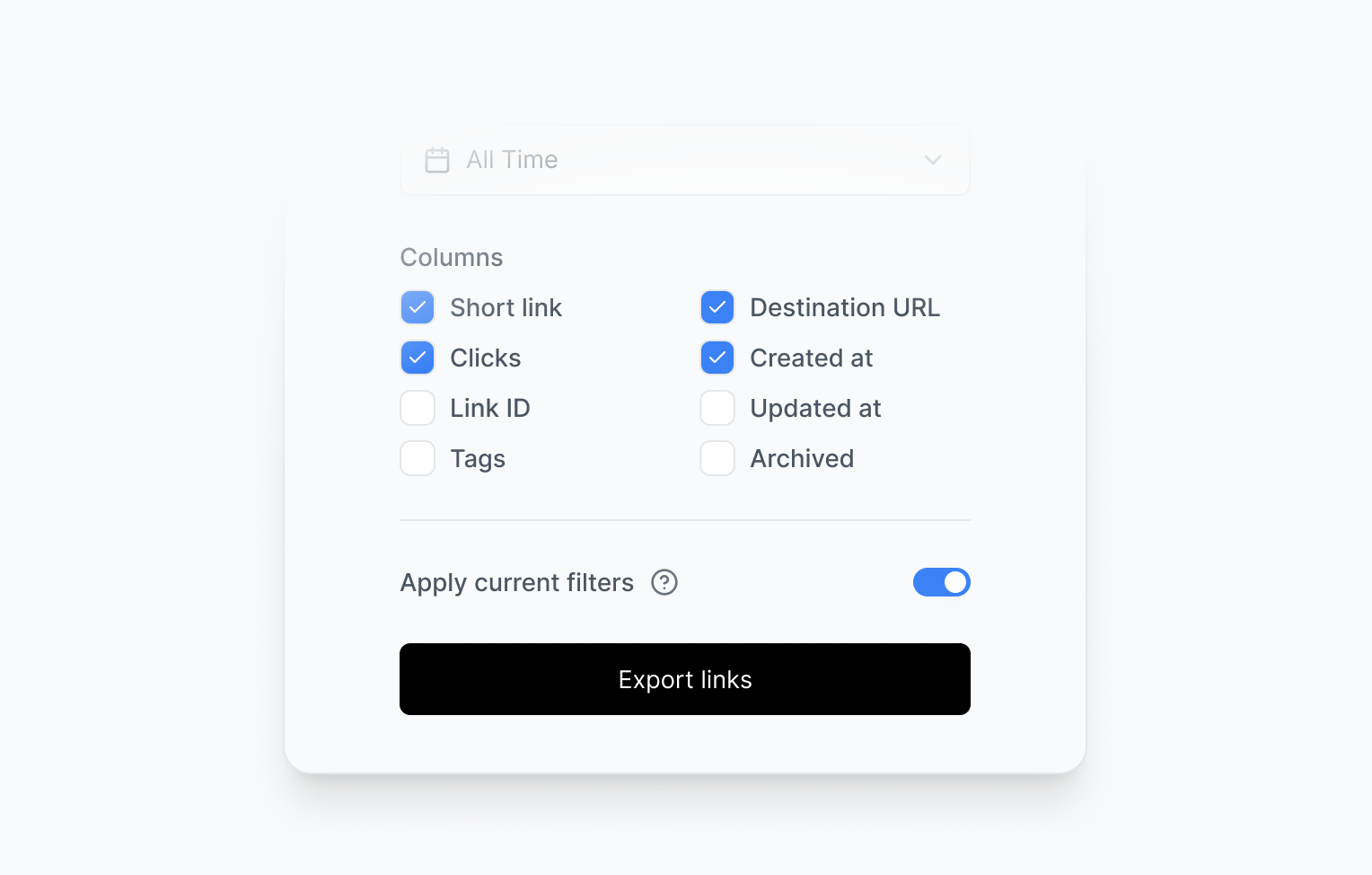
Apply current filters

Optionally, you can choose to apply the current filters to the links you want to export. If you do, Dub will export the links that match the current filters; otherwise, it will export all links.Apply current filters to the links you want to export
5

Download the data

Once you have selected the date range and columns to export, click on Export links.After a few seconds, the CSV file will be downloaded to your computer.