Transferring links between workspaces is a common use case for many Dub users, especially when they want to reorganize their links or consolidate them into a single workspace.
This guide will show you how to transfer your Dub short links from one workspace to another.
Transferring a link will also fully reset its stats and is irreversible
– please proceed with caution.
Step 1: Open the link transfer modal
For a given link, click on the ⋮ button and select Transfer.
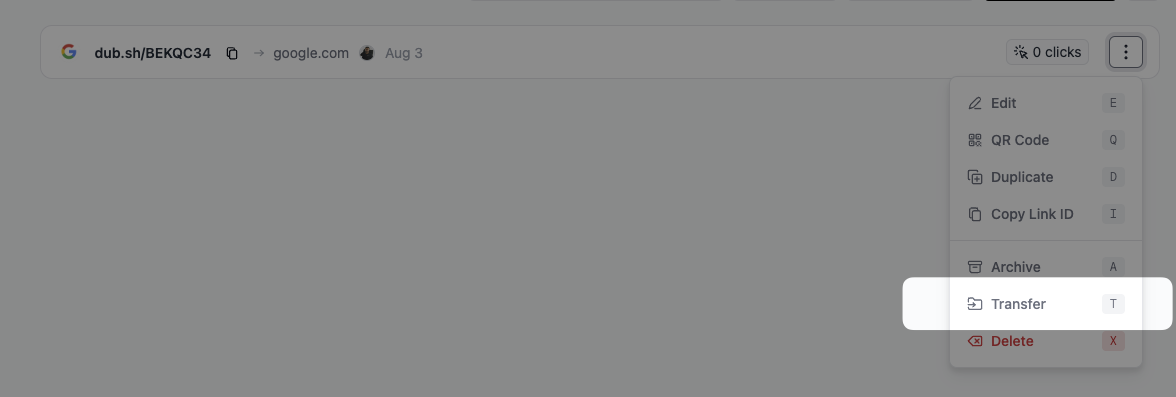 You can also use the
 T keyboard shortcut to open the transfer modal.
Step 2: Select the destination workspace
In the transfer modal, select the workspace you want to transfer the link to:
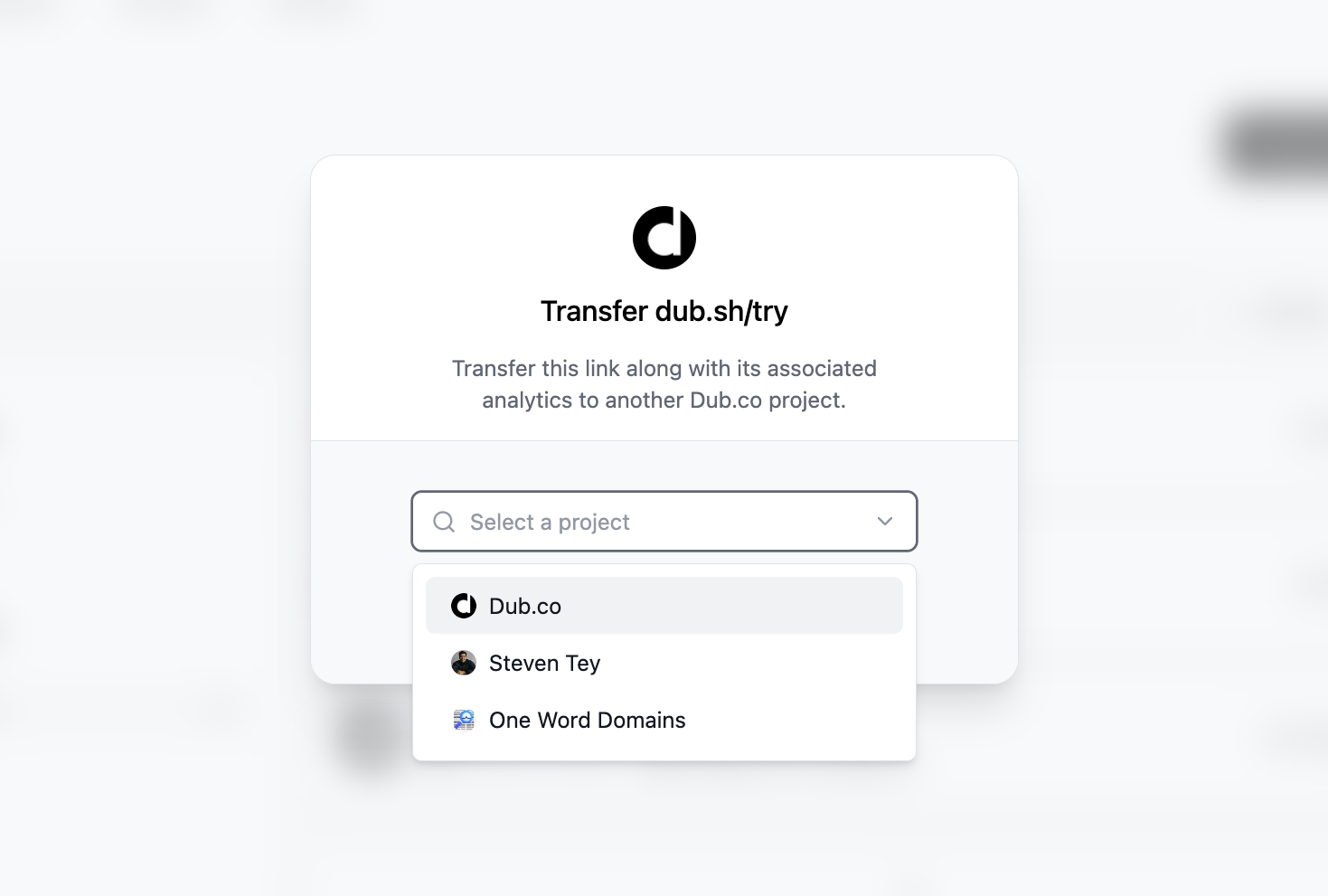 Click on Confirm transfer to complete the transfer.
That’s it! Your link should now be successfully transferred to the new workspace.
Click on Confirm transfer to complete the transfer.
That’s it! Your link should now be successfully transferred to the new workspace.
Transferring a link will also fully reset its stats and is irreversible
– please proceed with caution.
Caveats
- Transferring a link will also fully reset its stats and is irreversible – please proceed with caution.
- You can only transfer default Dub domains (e.g. `dub.sh`, `chatg.pt`, `spti.fi`, `amzn.id`, etc.) between workspaces. If you want to transfer a custom domain link, you’ll need to transfer the domain itself to the new workspace.
- Link tags are not transferred when you transfer a link between workspaces. You’ll need to re-apply the tags to the link in the new workspace.
- You can only transfer links to workspaces that you have access to. If you don’t have access to the destination workspace, you won’t be able to transfer the link.

