Where to find your program applications
In the Partner Program menu, click Applications to view your pending applications. We also show you a count badge, so you can see how many pending applicants you have at all times.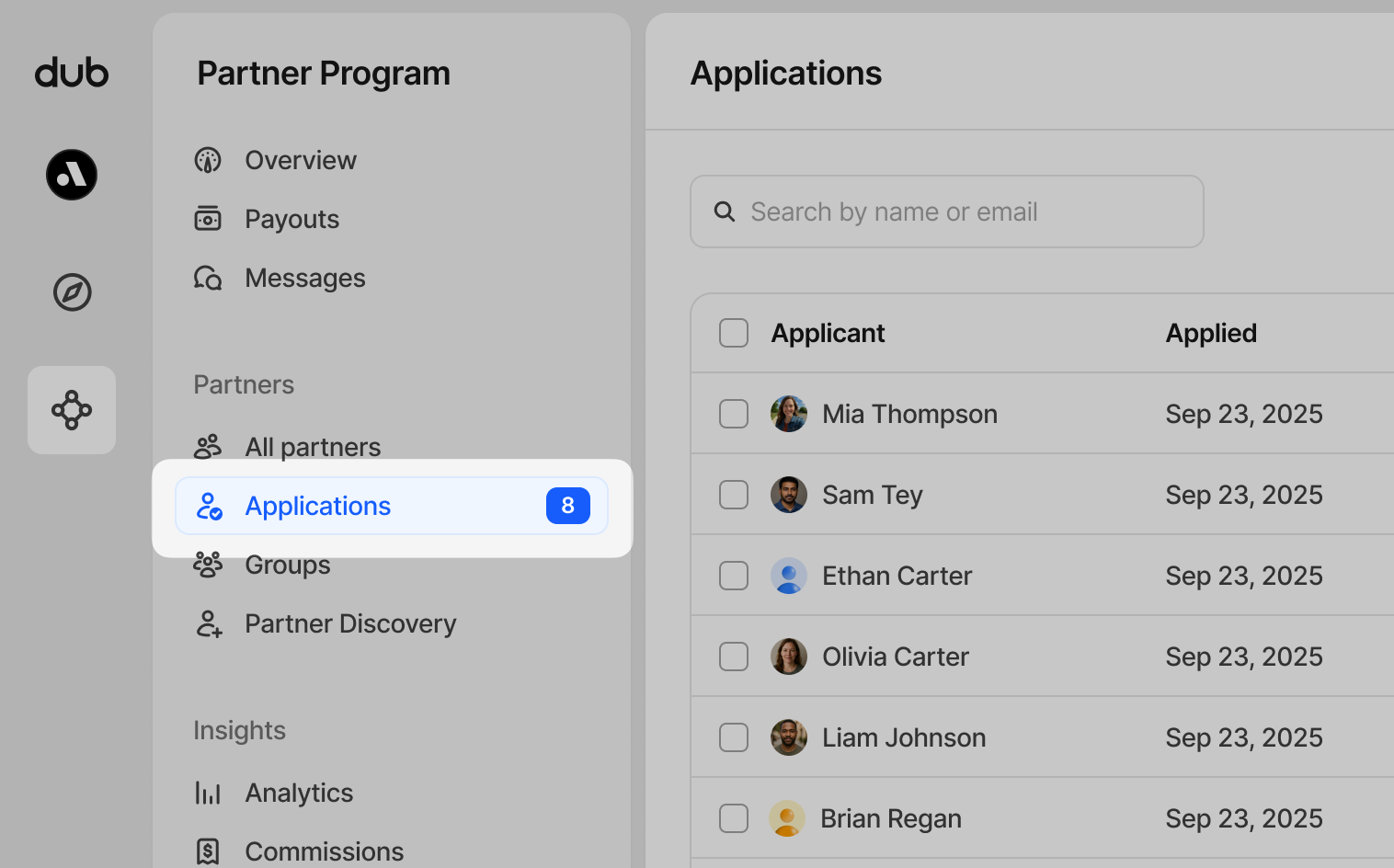
## Applicant table On your applications table, you’ll be able to view key
information, including: - The applicant’s name - When they applied - Their provided location - Their website and social media profiles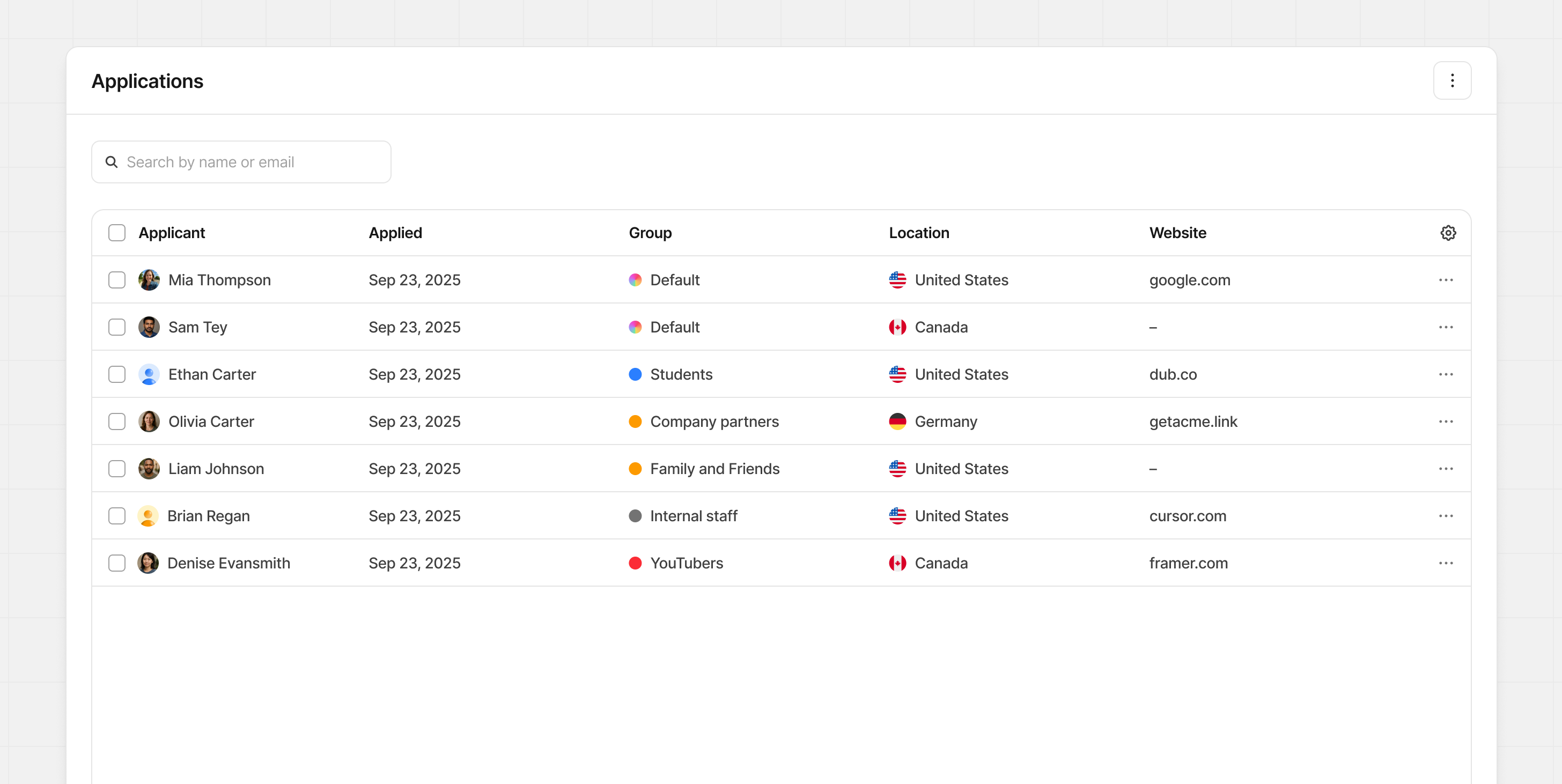 Click on any of the rows to view their profile and application form.
Partner application
When the application is open, we show additional information collected during the application process and their account creation. This is a good opportunity to get to know more about this partner and their background if they’ve provided it.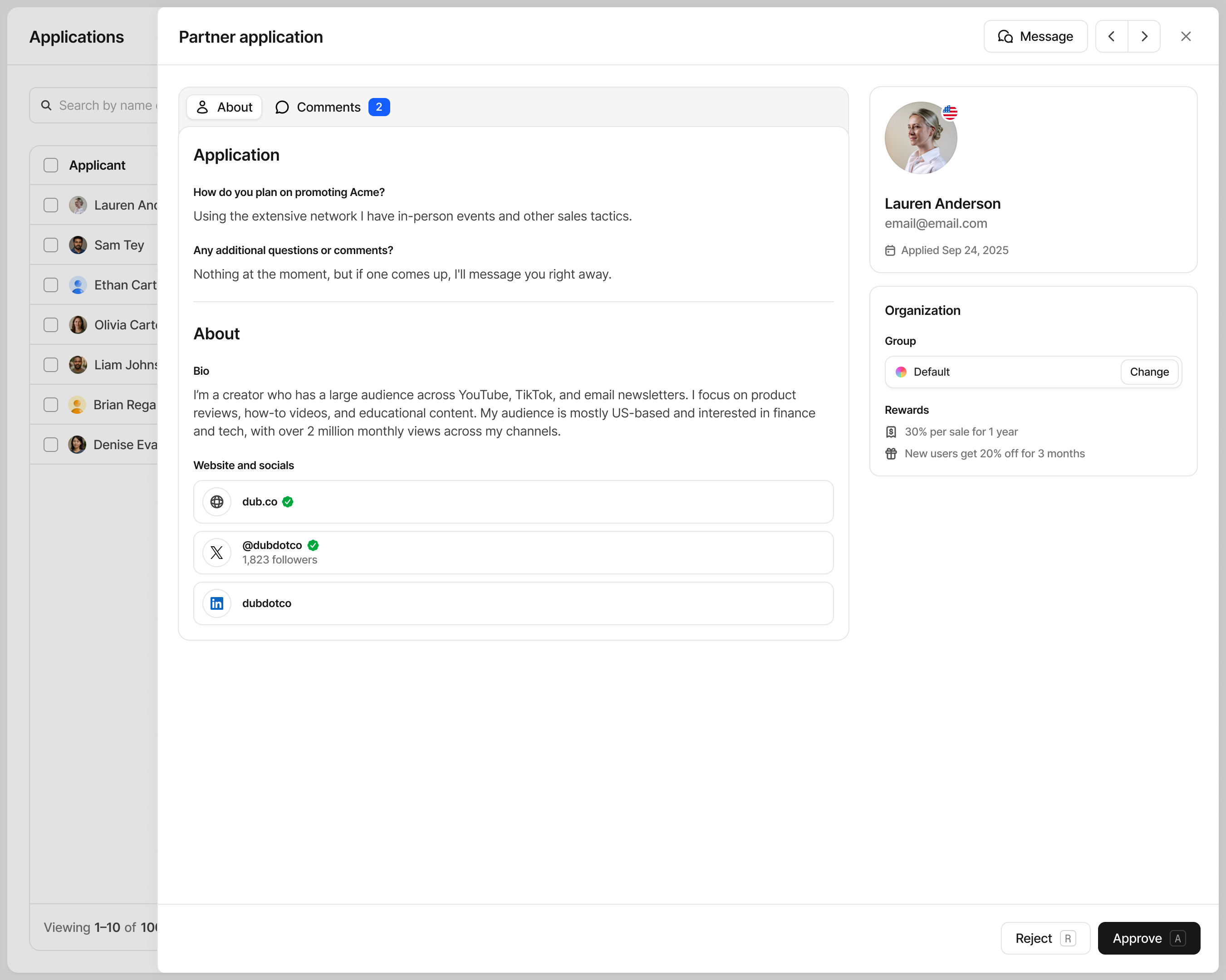
Online presence During account creation, we allow the partners to provide
their website and any social media accounts. As part of this, we also allow partners to verify each of these items to increase trust with their application. Verification isn’t required, but encouraged as it reduces the time it takes to review applications.Verified badge
If a partner has verified their website or social media accounts, a green check mark badge will be shown beside the item. In some scenarios, it will also show statistics from that verified account.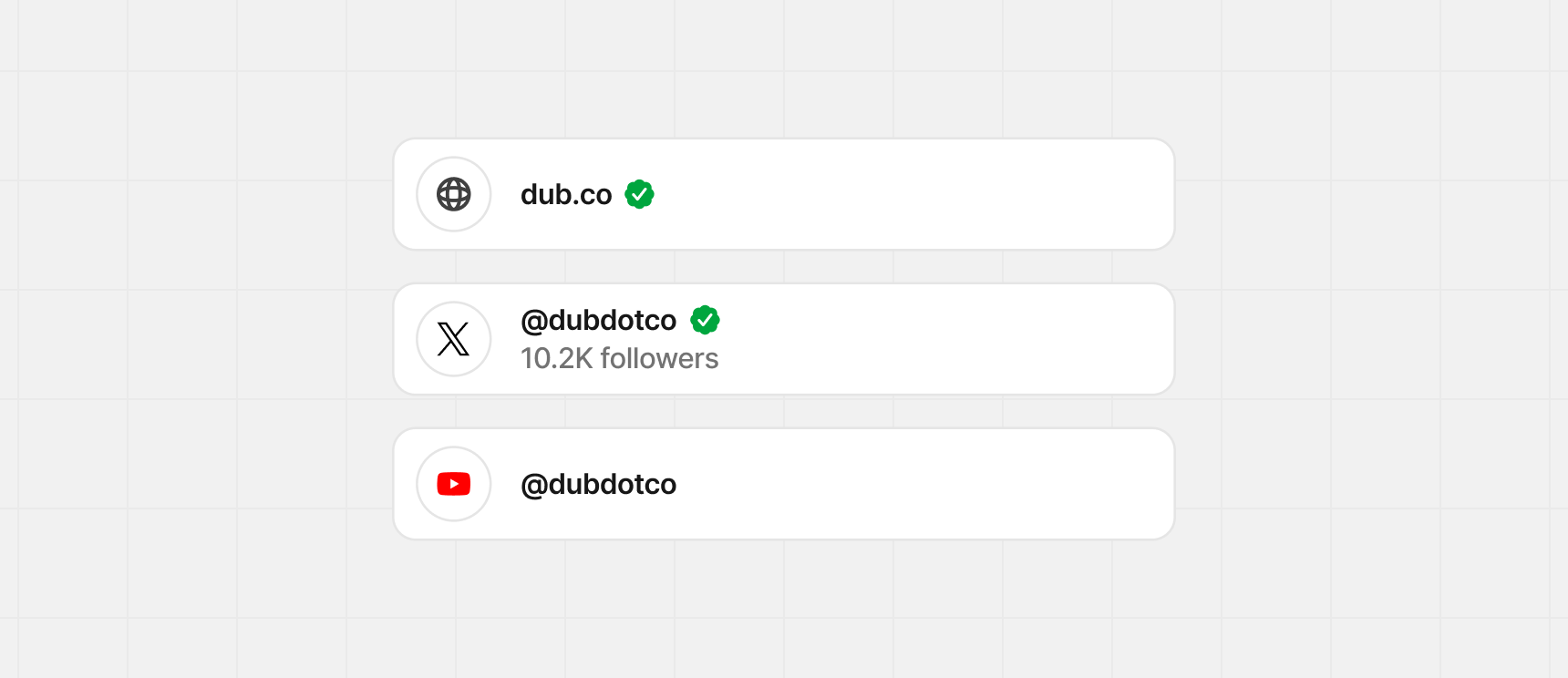
Applicant risk flags
Occasionally, certain applications to your program might trigger a risk flag that you should review before approving them. These signals are powered by our Fraud Detection feature and are meant to protect your partner program from risk and potential fraud.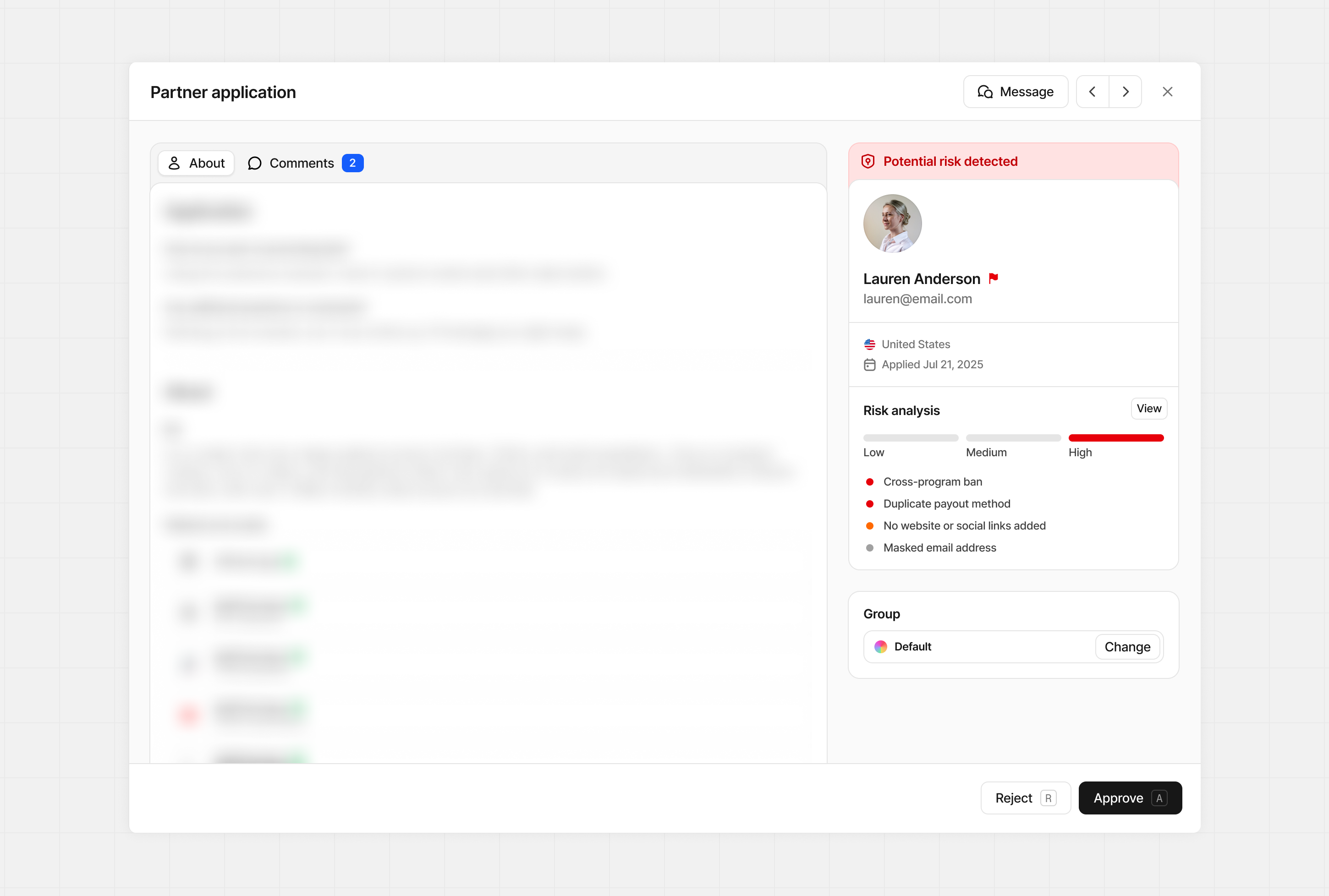 Here are the reasons an application will be flagged for review:
High risk
Indicates strong signs of potential fraud or past issues. These applicants need careful review before you move forward.| Flag | Description |
|---|---|
| Fraud report | This partner was reported for suspected fraud by another program. |
| Cross-program ban | This partner has been banned from one or more other Dub programs, indicating a potential high-risk history. |
| Duplicate payout method | This partner is using a payout method that is already linked to another partner account, which may indicate account duplication or fraudulent behavior. |
| Duplicate partner account | Multiple partner accounts originate from the same device, suggesting duplicate account creation or fraudulent behavior. |
Medium risk
Generally signals missing or incomplete information. These applicants need a closer look before approving.| Flag | Description |
|---|---|
| No website or social links added | This partner hasn’t provided any social or web presence, making verification harder. |
| Geolocation mismatch | This partner’s physical location doesn’t match their profile country, which may indicate a location mismatch. |
Low risk
These tend to be generally low risk and more common, but worth reviewing.| Flag | Description |
|---|---|
| Email domain mismatch with website | The custom email domain doesn’t match the website provided. |
| Masked email address | Uses an anonymized email address. Not harmful but harder to verify or contact directly. |
| No verified website or social links | Partner hasn’t verified their website or any social presence, making verification harder. |
Learn more about how Fraud Detection works on
Dub.
Approving applicants
There are 3 ways to approve pending applicants to your program:Applicant form
When the application form is open, click Approve at the bottom of the screen.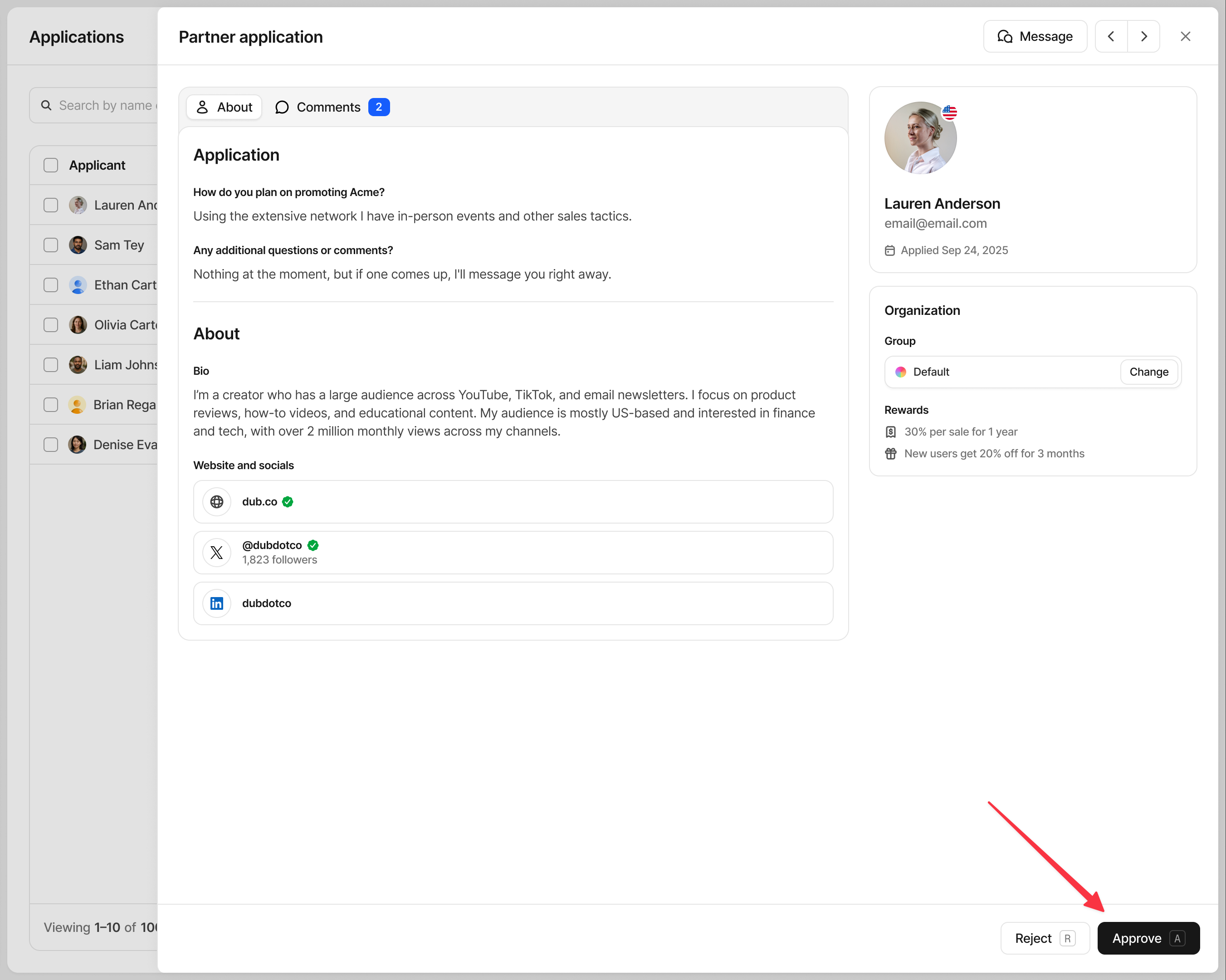 Once you’re finished reviewing the application, click Approve, and the applicant is now part of your program.
Once you’re finished reviewing the application, click Approve, and the applicant is now part of your program.Bulk approve
If you have multiple applications, use the checkboxes to the left of each applicant to select any that are ready to be approved. You can also select all, by clicking the checkbox in the top left of the application table.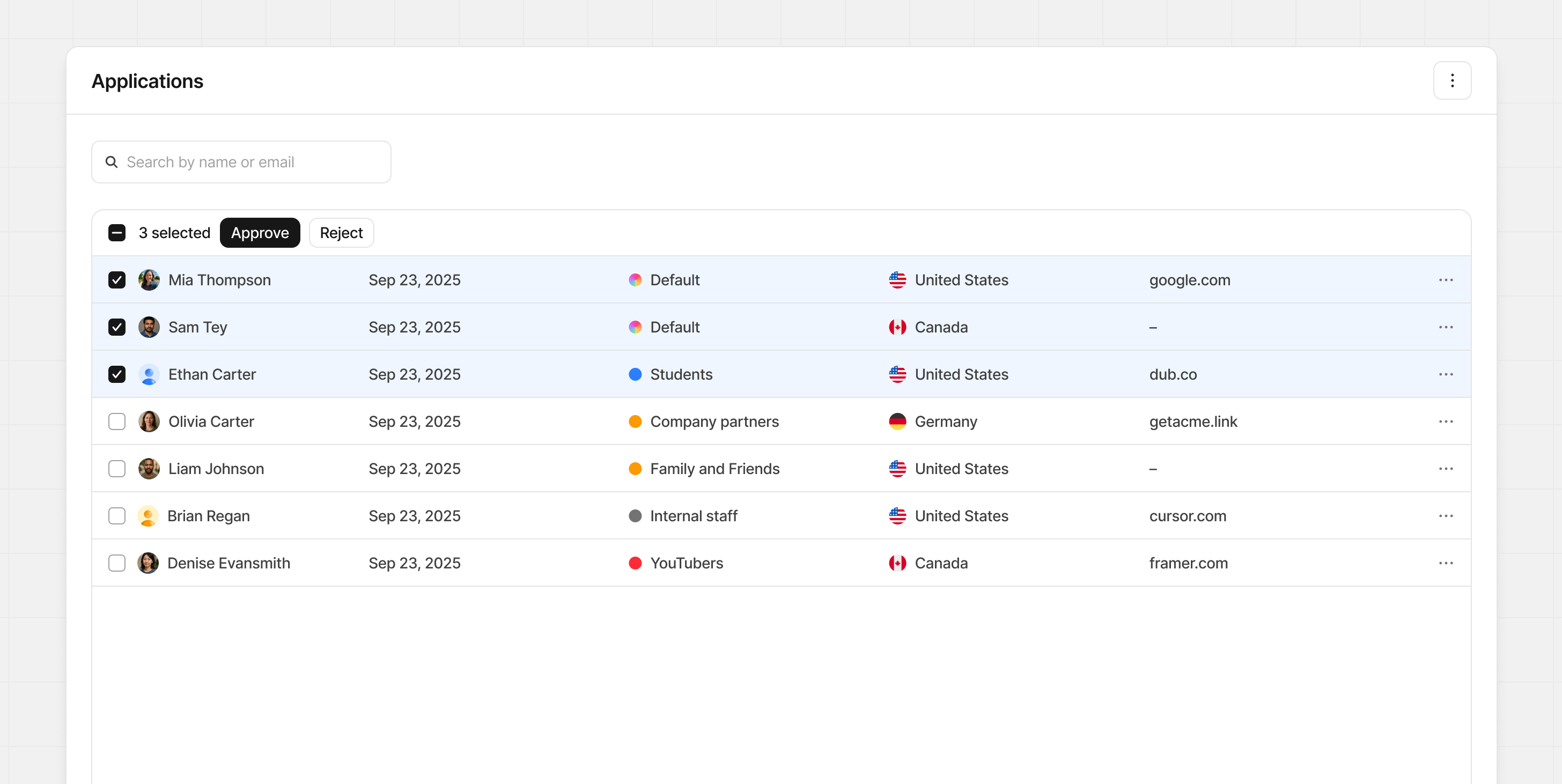 Once selected, click Approve to add them to your program instantly.
Once selected, click Approve to add them to your program instantly.Auto-approve
To auto-approve any new pending applications for your program, go to your individual groups and click on the Settings tab. Here you’ll find the auto-approve toggle in the “Addtional settings” group.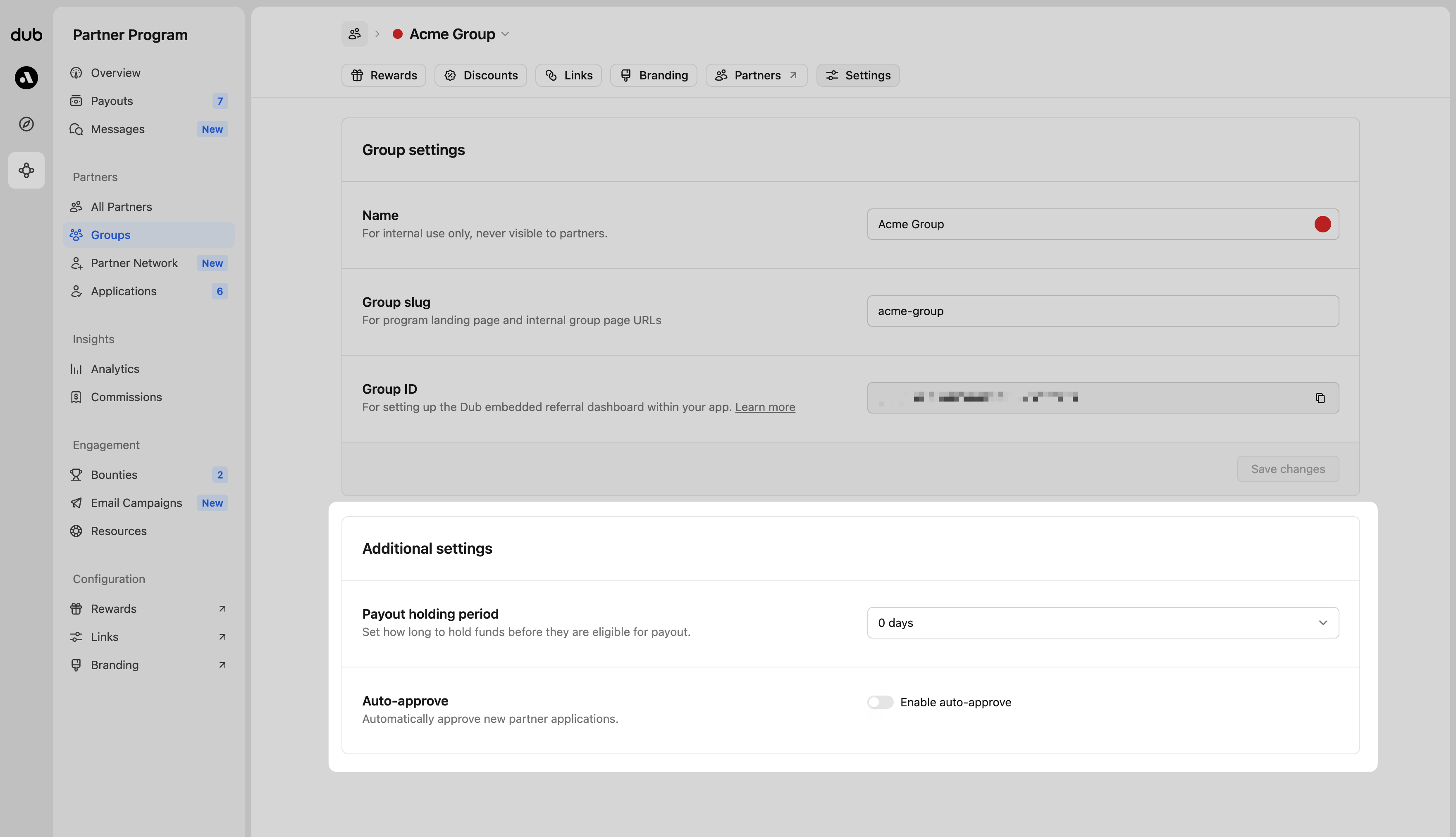 When you update the auto-approve options, you can apply the new setting to every group at once. Just select the box labelled
 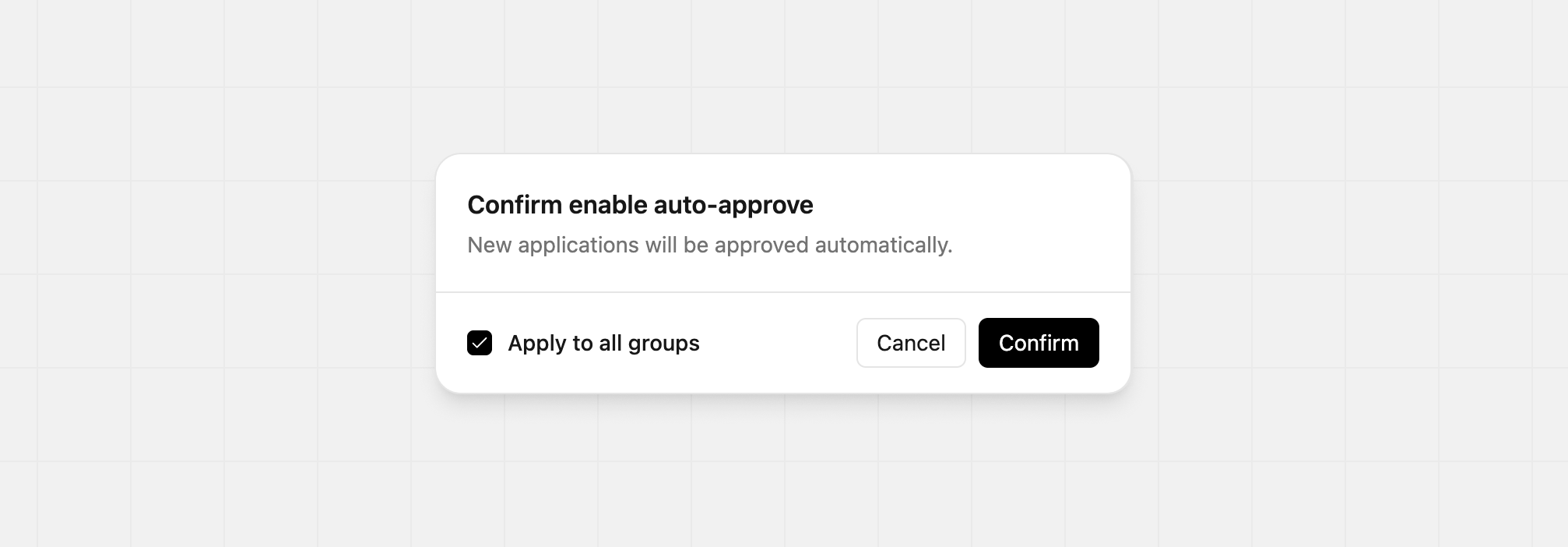 With auto-approve enabled, any new pending applications will be automatically approved for your program with no review period. Any existing pending applications will still need manual approval before being accepted.To disable auto-approve, click the toggle and confirm your choice. When confirming the change, you’re able to apply to all groups as well.
When you update the auto-approve options, you can apply the new setting to every group at once. Just select the box labelled Apply to all groups before confirming. The change will take effect right away.With auto-approve enabled, any new pending applications will be automatically approved for your program with no review period. Any existing pending applications will still need manual approval before being accepted.To disable auto-approve, click the toggle and confirm your choice. When confirming the change, you’re able to apply to all groups as well.Rejecting applicants
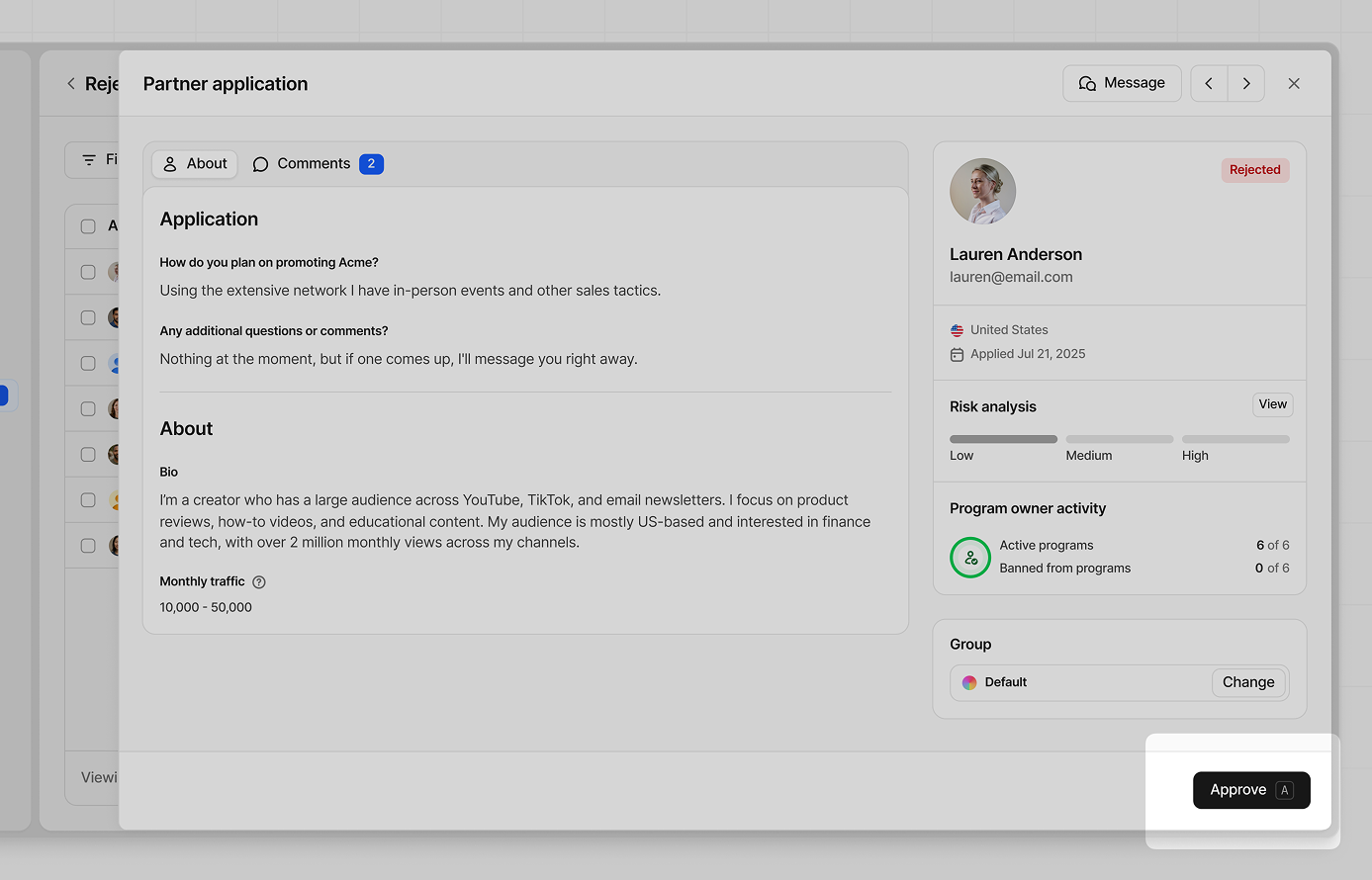
Similar to the approval process, you can reject an application from the applicant form or use bulk selection for more than one applicant at a time. When an applicant is rejected, they cannot reapply to the program and will see the status reflected in their dashboard. If you suspect this partner application shows signs of fraud, check the confirmation box when rejecting the applicant. This will flag the applicant in other programs to help keep the Dub network safe.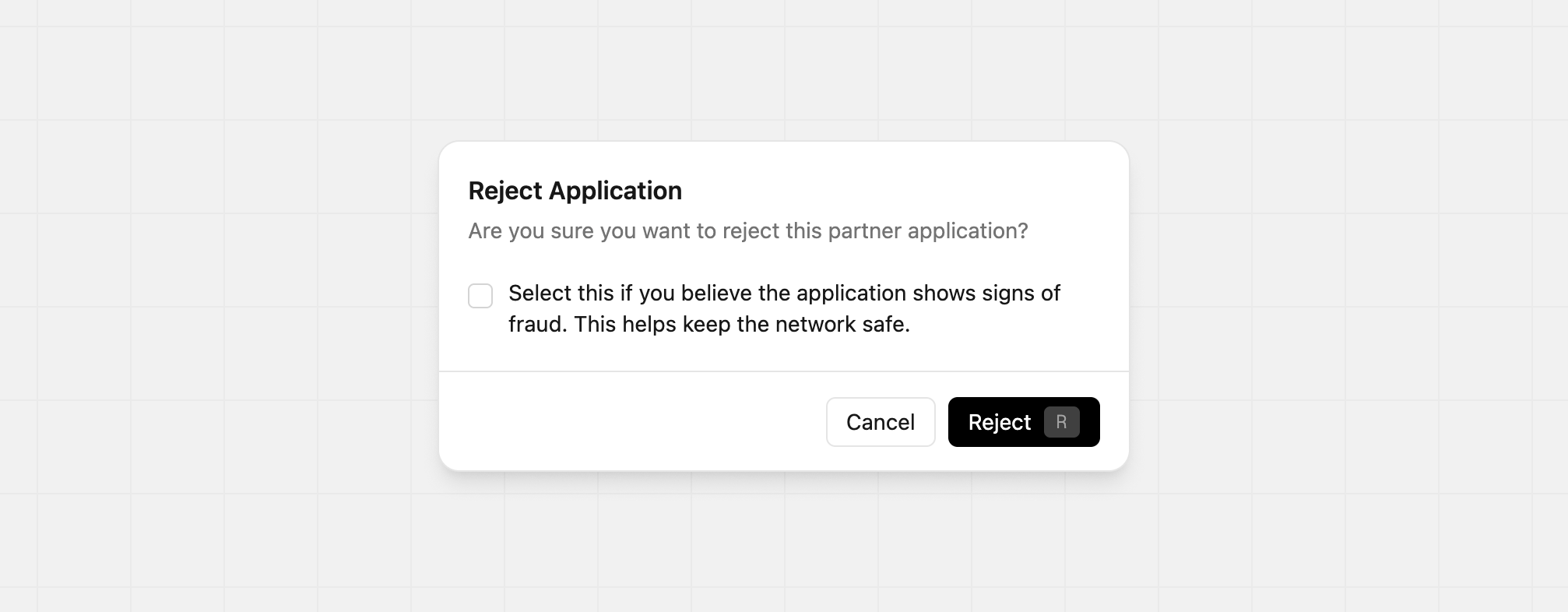
Approving a previously rejected partner
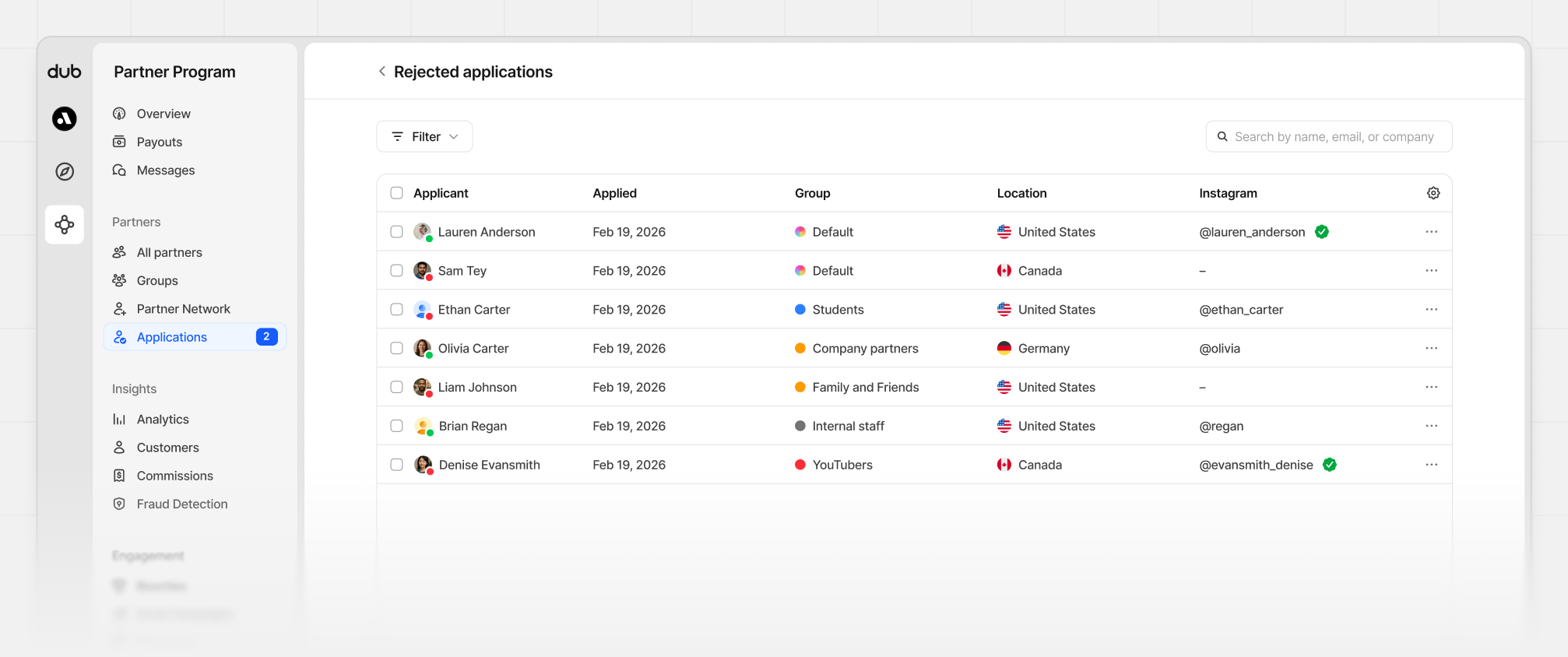
If you rejected a partner by mistake, or have changed your decision, you can approve them at any time. Open the⋮ menu in the Applications view and select View rejected partners.
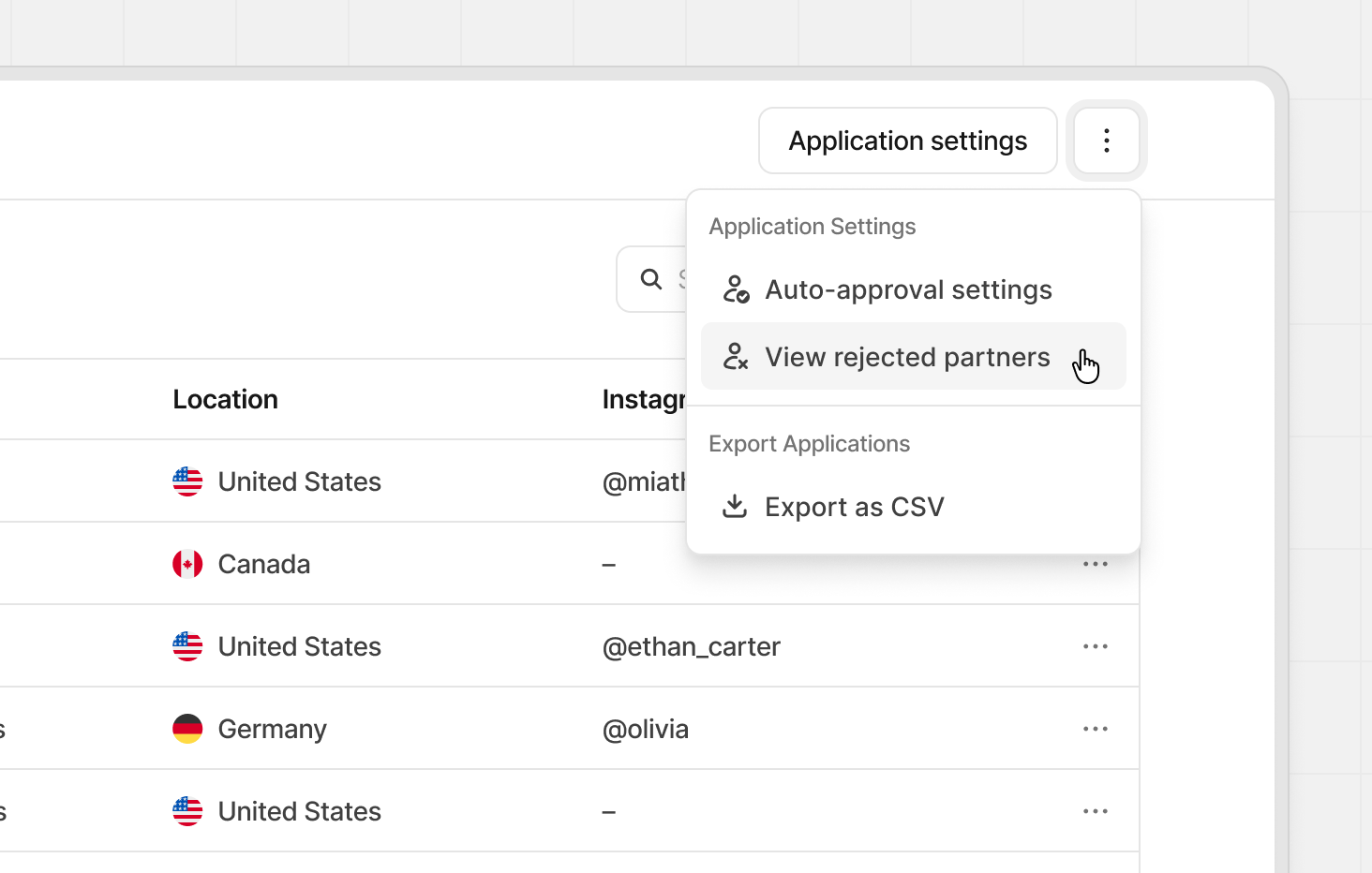 From the rejected partners table, find the application you’d like to revisit and click the row to open it.
 Once inside the application, click Approve. The partner will immediately be enrolled in your program.