

- Pro plan: 10 domains
- Business plan: 100 domains
- Advanced plan: 250 domains
- Enterprise plan: Unlimited domains
Not sure which custom domain to use? Check out our guide on choosing a custom
domain for some tips.
Complimentary .link custom domain
If you’re on a paid plan on Dub (Pro plan and above), you can claim a complimentary .link custom domain and use it as your short link domain – no DNS setup needed. Read our guide on how to claim your free .link domain on Dub.
Step 1: Add a custom domain
Once you have a custom domain, you can add it to your Dub workspace by following these steps:- Navigate to your workspace’s Domains page – you can do that by clicking on the Domains link in the menu bar at the top of your workspace dashboard.
- Click on the Add Domain button.
- Enter the domain you want to use and click Add domain.
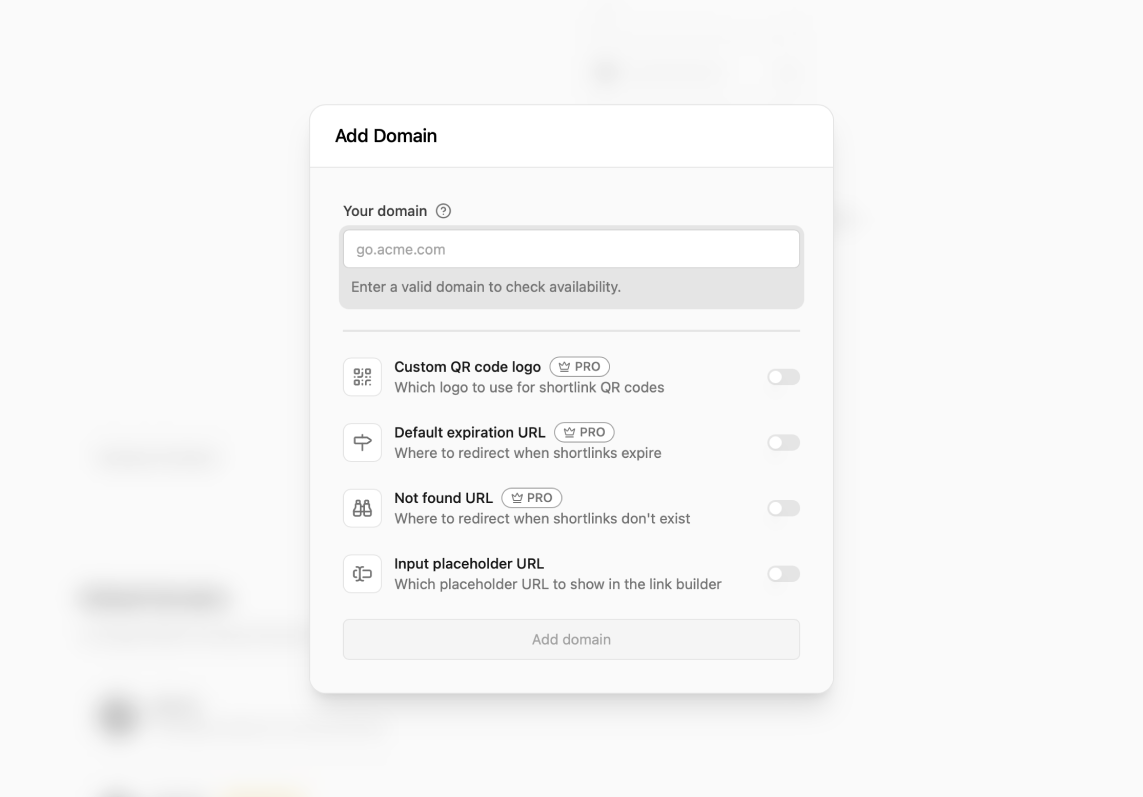
Step 2: Configure your domain
After adding your domain, you’ll be presented with a DNS record that you’ll need to add to your domain’s DNS settings.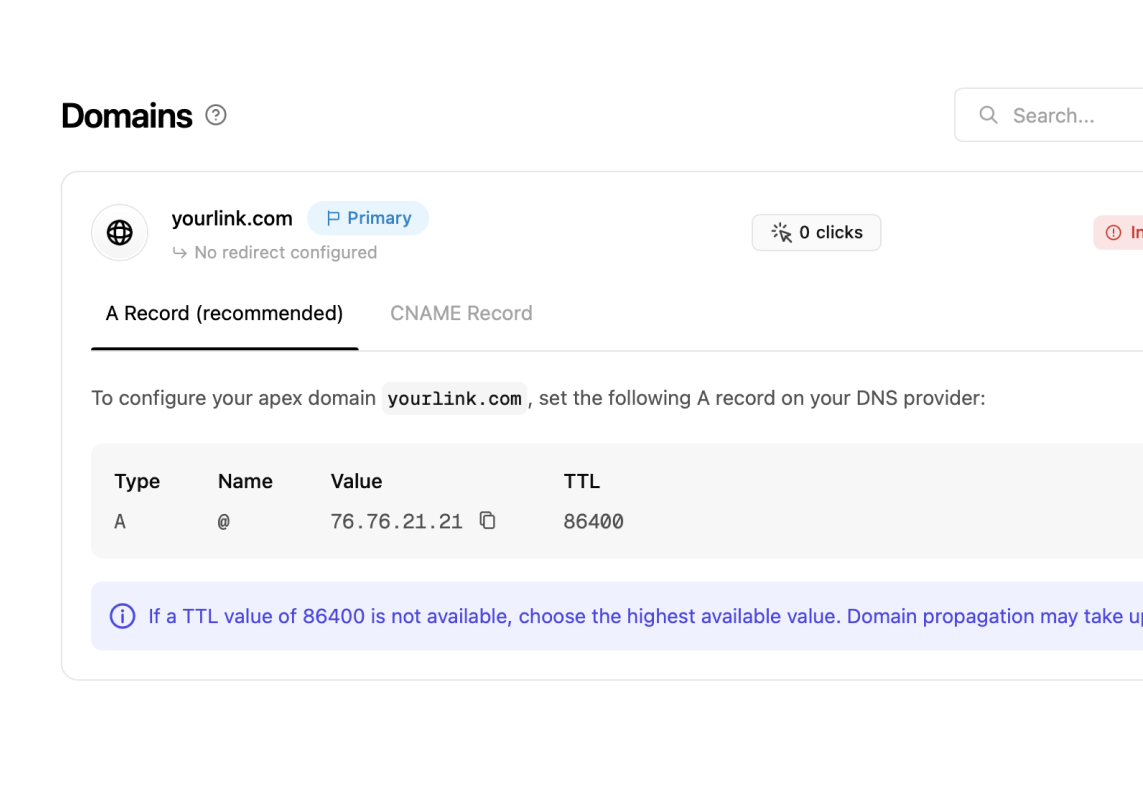
Step 2a: Adding an apex domain
If you’re adding an apex domain (e.g.example.com), you’ll need to add an A record with the following values:
- Name:
@(or leave it blank) - Value:
76.76.21.21 - TTL:
86400(or the highest value possible)
Step 2b: Adding a subdomain
If you’re adding a subdomain (e.g.go.example.com), you’ll need to add a CNAME record with the following values:
- Name:
go(or whatever subdomain you want to use) - Value:
cname.dub.co - TTL:
86400(or the highest value possible)
www. as a subdomain, since the www. subdomain will always redirect to the apex domain instead.
We recommend using the following variations for your subdomains:
go.example.comtry.example.comlinks.example.coml.example.com
Step 3 (optional): Verify domain ownership
This step is only applicable if you are adding a domain that is currently
being used on Vercel.
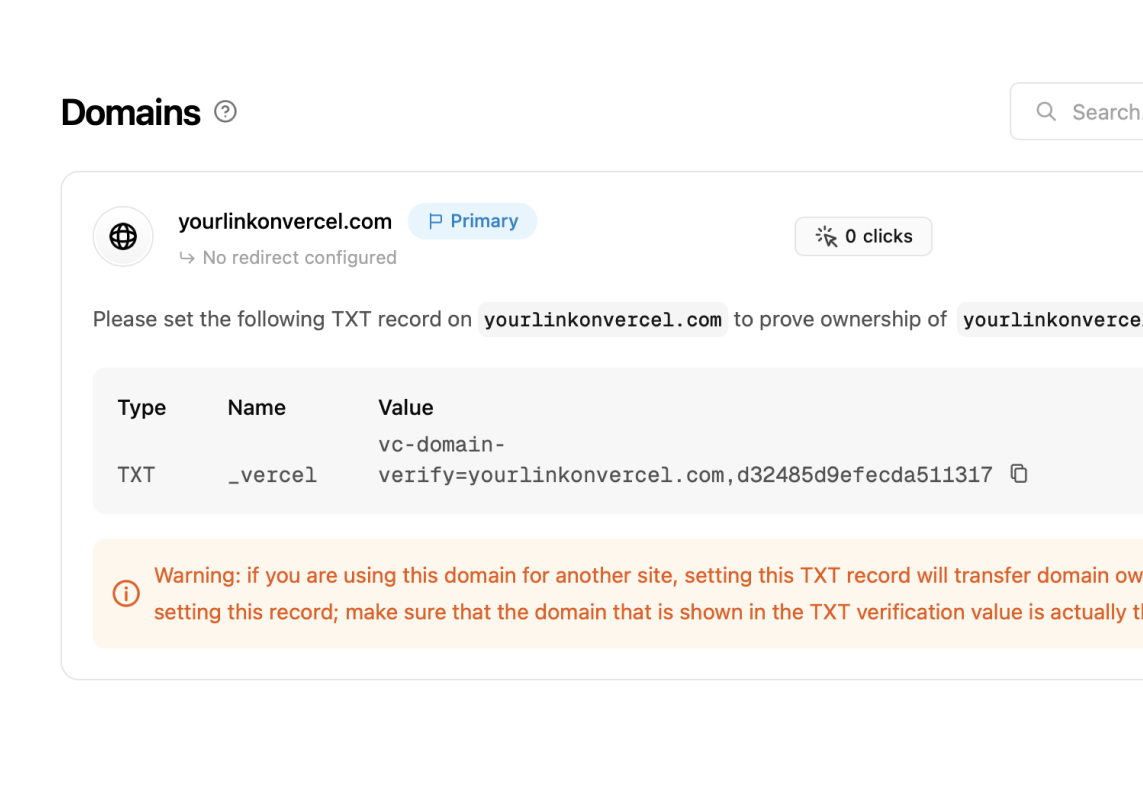 To do that, you’ll need to add a TXT record with the following values:
- Name:
_vercel - Value:
vc-domain-verify=go.yourdomain.com...(the value will be provided to you on the Dub dashboard)