

Prepare your CSV file
Before you import your CSV file, make sure it is in the correct format. Your CSV file needs to have the following data:
The actual names of your columns can be anything you want, but you need to make sure that the required columns are present.
| Column | Required | Description | Example |
|---|---|---|---|
| Destination URL | Yes | The destination URL of the link you want to import. | https://www.google.com |
| Short link | Yes | The shortened version of the link. | yourdomain.com/abc123 |
| Title | No | The title of the link. | Google |
| Description | No | The description of the link. | Search the web |
| Tags | No | The tags of the link – must be a comma-separated list of tags. | search, google, web |
| Creation date | No | The date the link was created. | 2024-01-01 |
Upload your CSV file
If you haven’t already, create a workspace on Dub.Then, from your links dashboard, click on the 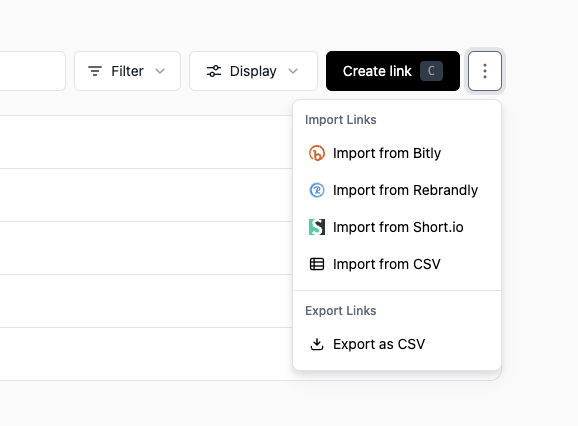 This will open a modal with a file uploader.
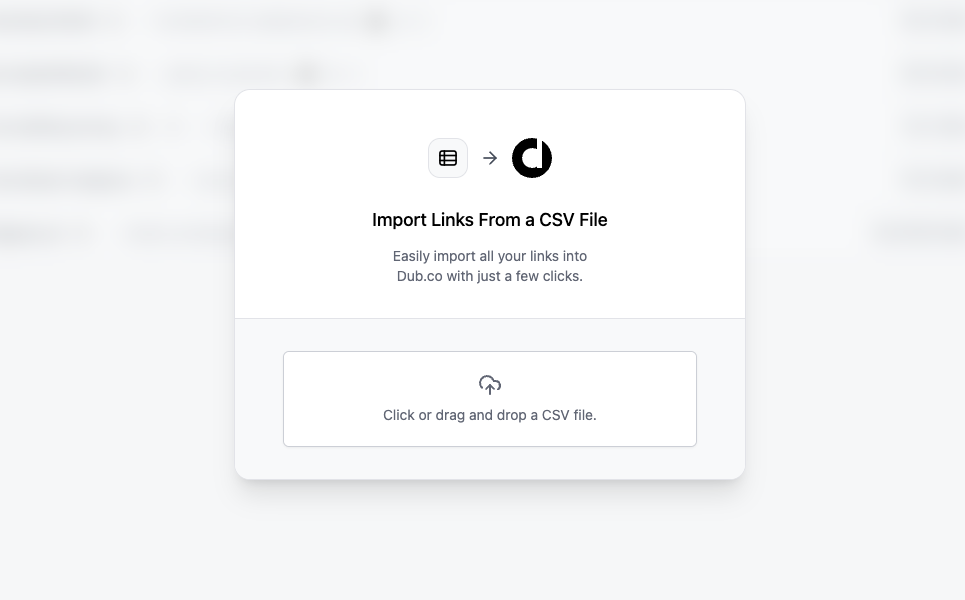 Upload your CSV file, and you should be automatically redirected to the next step.
Protip: Once you create your workspace, we generally recommend you not
to configure your domain until
you’ve migrated all your links. This will prevent any potential downtime for
your links.
⋮ button next to the Create Link button and select Import from CSV.This will open a modal with a file uploader.Upload your CSV file, and you should be automatically redirected to the next step.Review the AI-generated column mappings
When you upload a CSV file, Dub AI will automatically map the columns in your CSV file to the supported data fields in Dub.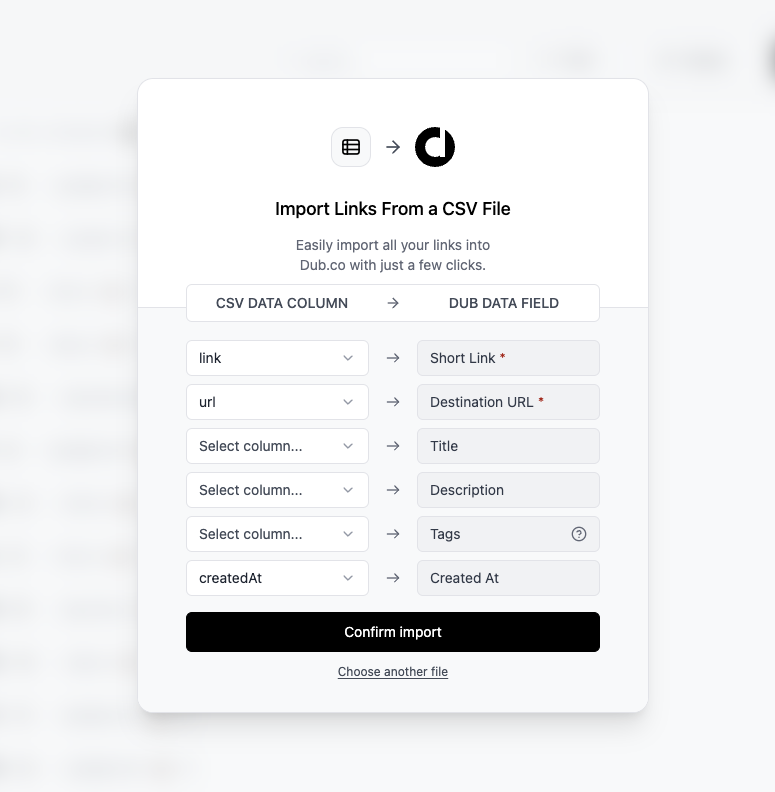 You can then review and edit the mappings before selecting Confirm import. In just a few seconds, all your links will be migrated to Dub.Alternatively, you can also select Choose another file to upload a different CSV file.
You can then review and edit the mappings before selecting Confirm import. In just a few seconds, all your links will be migrated to Dub.Alternatively, you can also select Choose another file to upload a different CSV file.Review the import summary
Once all your links have been imported, we will send you an email to let you know that the migration is complete.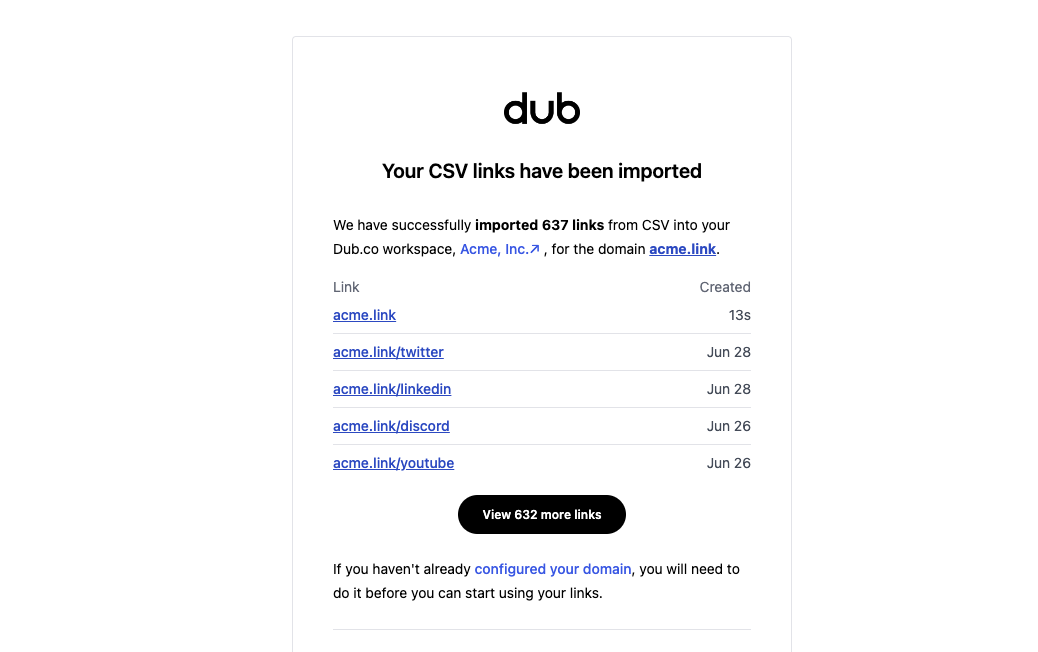 If there are any issues with the import, we will send you a separate email with the details of the errors.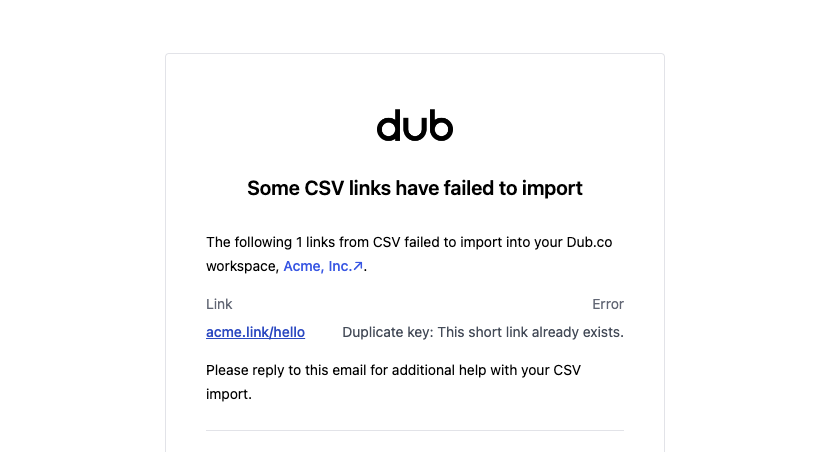
If there are any issues with the import, we will send you a separate email with the details of the errors.Configure your domain
Once all your links are imported, you can configure your domain by setting the right DNS records. Once this is done, you can start using your links!