

utm_source: The source of the traffic, e.g. Google, Facebook, LinkedInutm_medium: The medium of the traffic, e.g. cpc, organic, referralutm_campaign: The name of the campaign, e.g. summer_sale, newsletter_campaignutm_term: The term that triggered the traffic, e.g. “running shoes”utm_content: The specific content that triggered the traffic, e.g. “text_link”
- Directly in the UTM Builder
- In the UTM Templates Settings Page
Creating UTM Templates in the UTM Builder
To create a new UTM template in the UTM Builder, follow these steps:Create a link
First, create a link using the Dub link builder.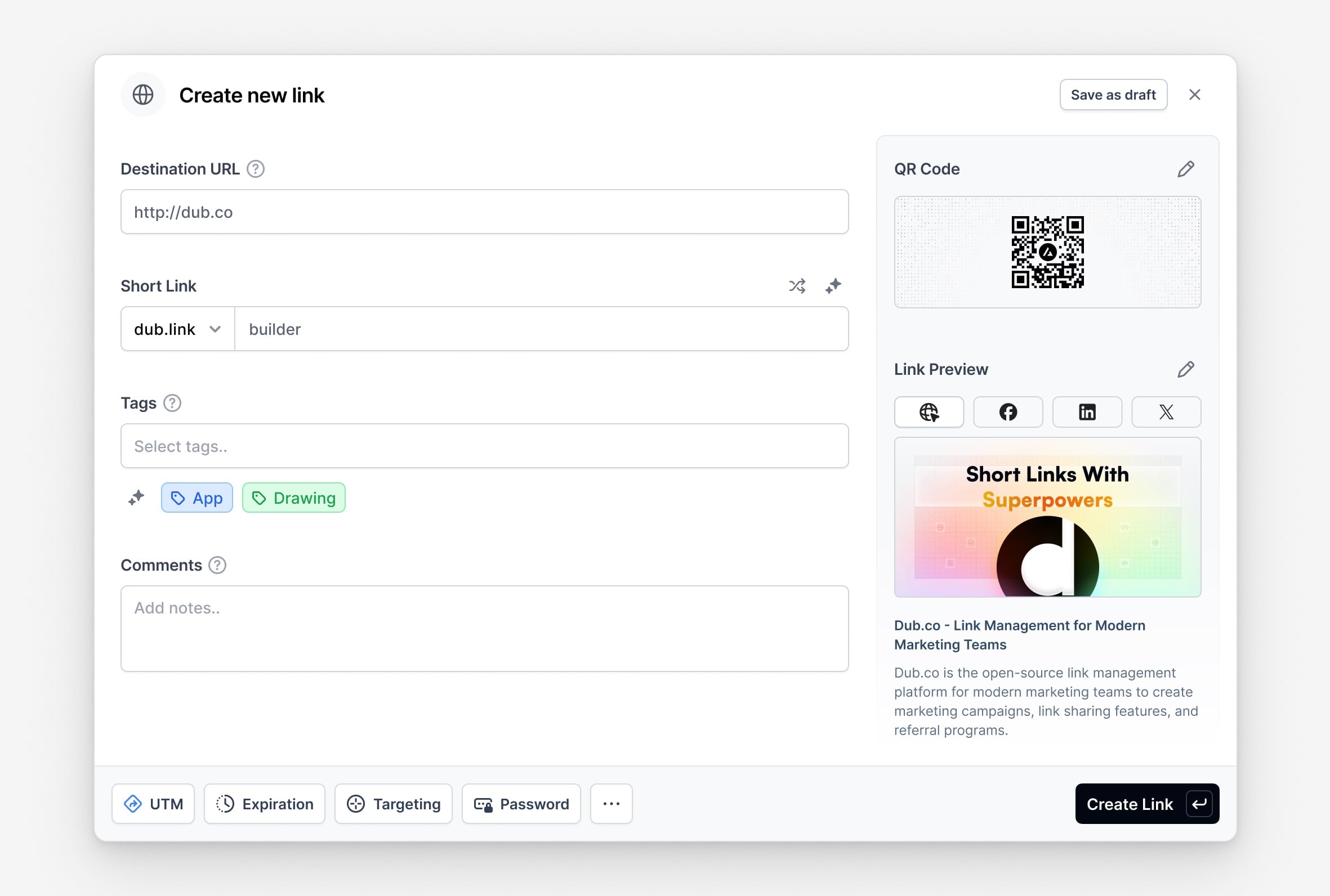
Open the UTM modal and add your UTM params
Click on the UTM button in the link builder. This will open the UTM Builder modal.You can also quickly access the UTM Builder feature by using the keyboard shortcut 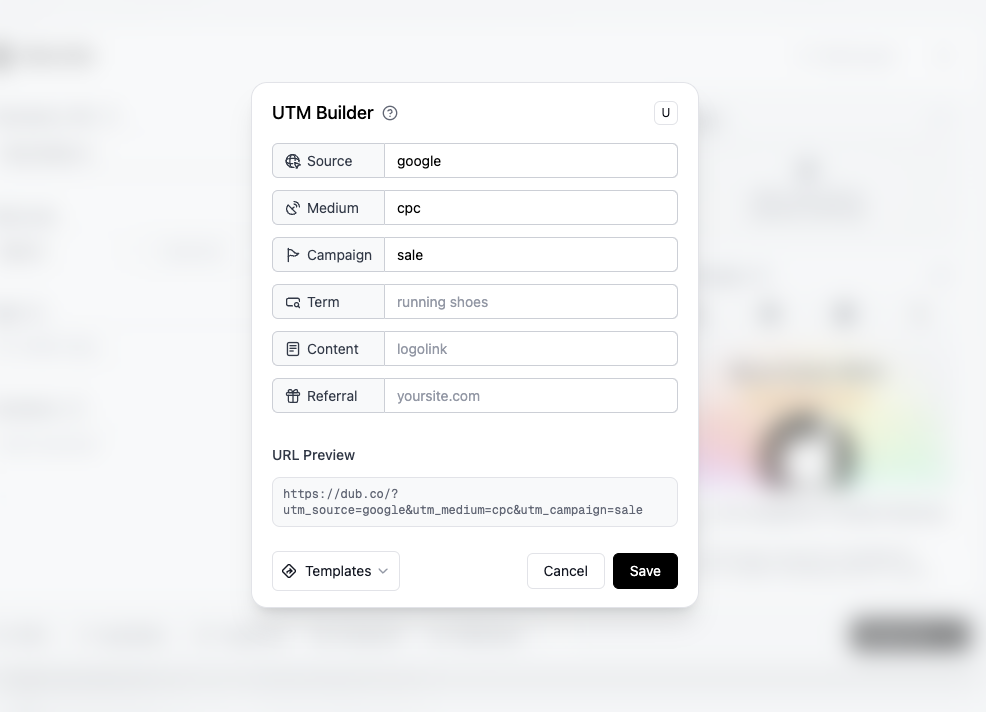 Here, you can populate the UTM parameters for your link. Some example values include:
U while in the link builder.Here, you can populate the UTM parameters for your link. Some example values include:- UTM Source:
google - UTM Medium:
cpc - UTM Campaign:
sale
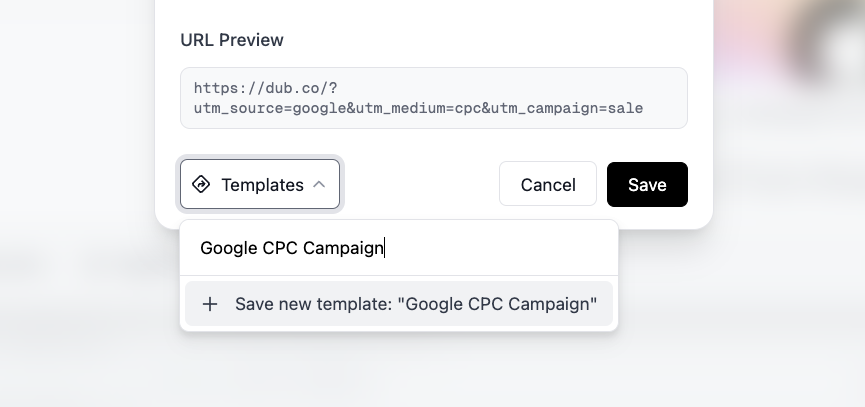
Creating UTM Templates in the UTM Templates Settings Page
To create a new UTM template in the UTM Templates Settings Page, follow these steps:Go to the UTM Templates Settings Page
Go to the UTM Templates Settings Page in your Dub workspace.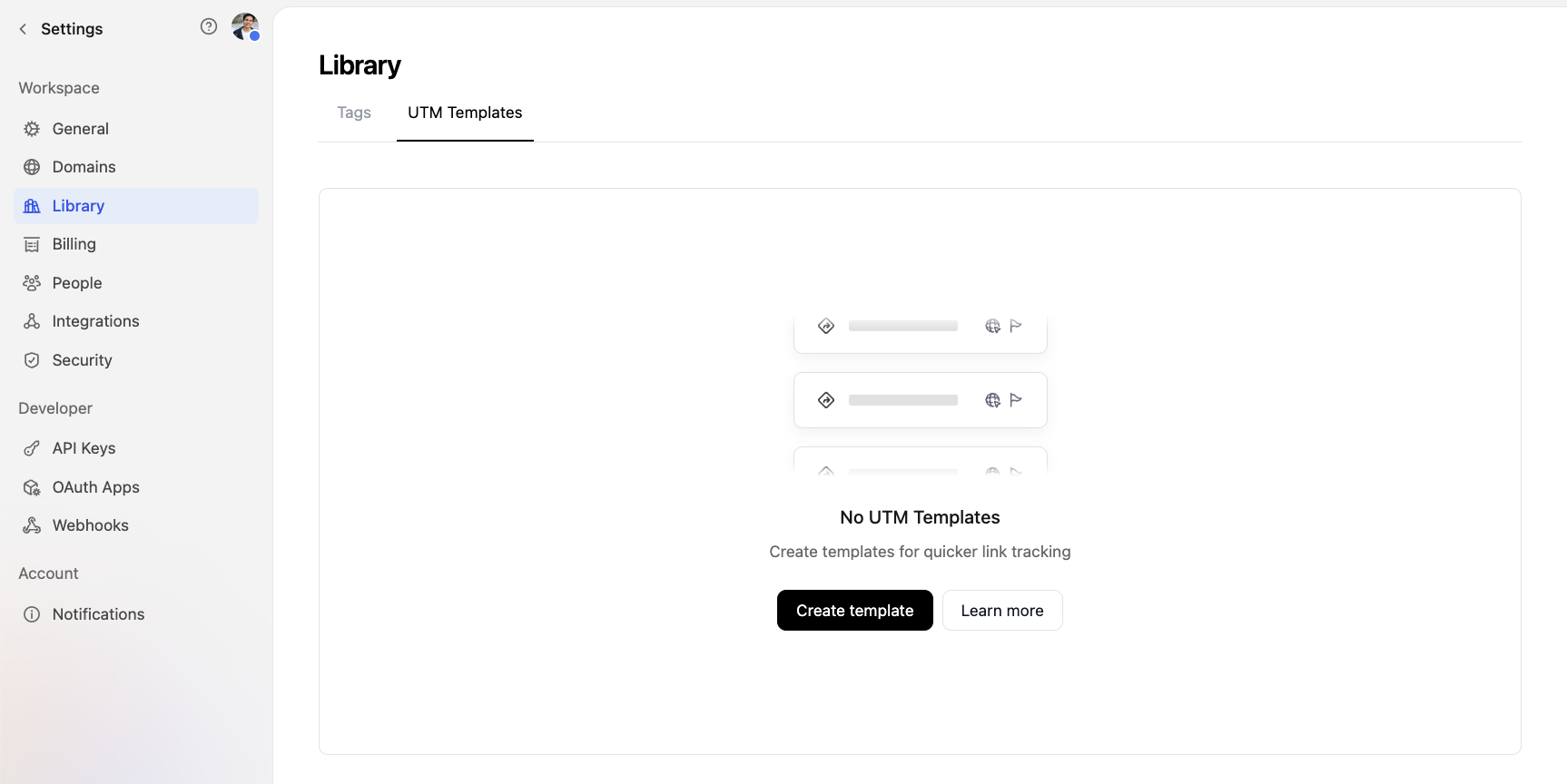
Open the UTM template editor and add your UTM params
Click on the Create Template button to open up the UTM template editor.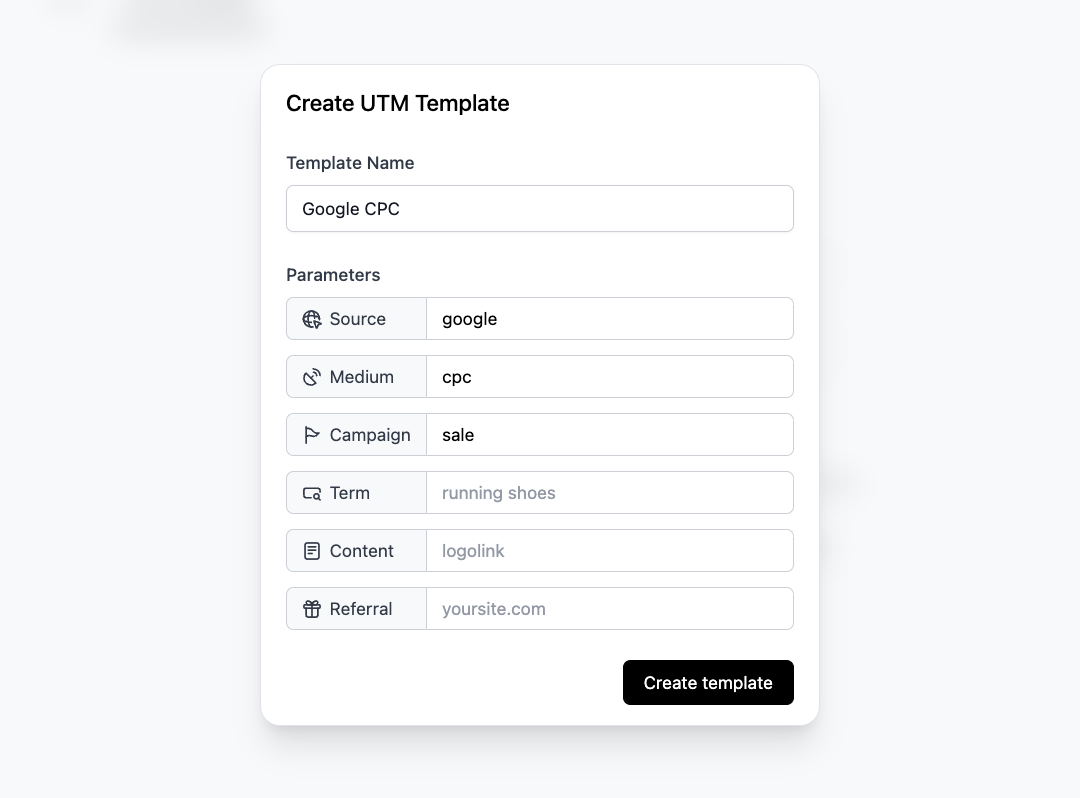 Here, you can add your UTM parameters to the template.
Here, you can add your UTM parameters to the template.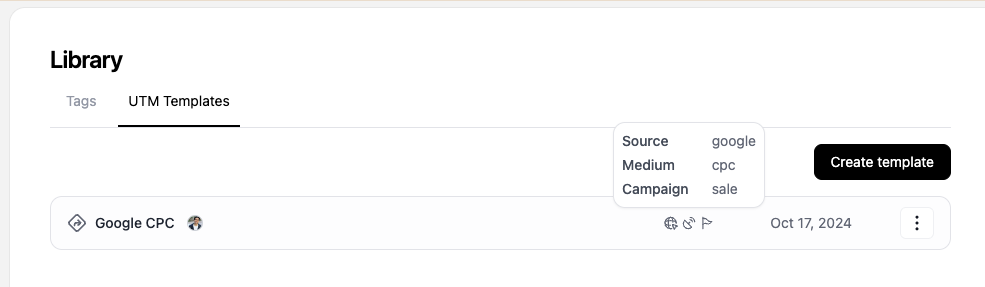
Using UTM Templates
There are two ways to use a UTM template:Method 1: Create a link and select the UTM template icon
First, create a link using the Dub link builder.Then, click on the UTM icon right above the destination URL field. This will open up the list of UTM templates you have created in your workspace, which you can then select.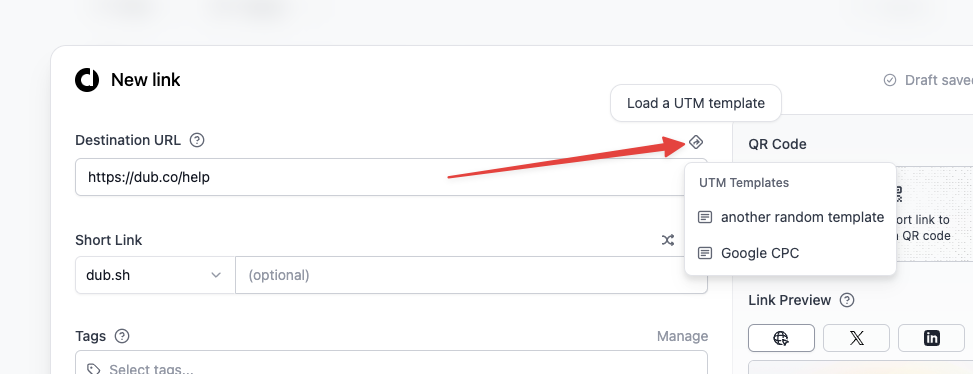 That’s it! Your link will now have the UTM parameters from the template applied to it.
Then, click on the UTM icon right above the destination URL field. This will open up the list of UTM templates you have created in your workspace, which you can then select.That’s it! Your link will now have the UTM parameters from the template applied to it.Method 2: Open the UTM modal and add select a UTM template
Alternative, you can also click on the UTM button in the link builder. This will open the UTM Builder modal.You can also quickly access the UTM Builder feature by using the keyboard shortcut In the UTM Builder, click on the Templates button. This will open the UTM templates dropdown.You can then select your UTM template from the dropdown.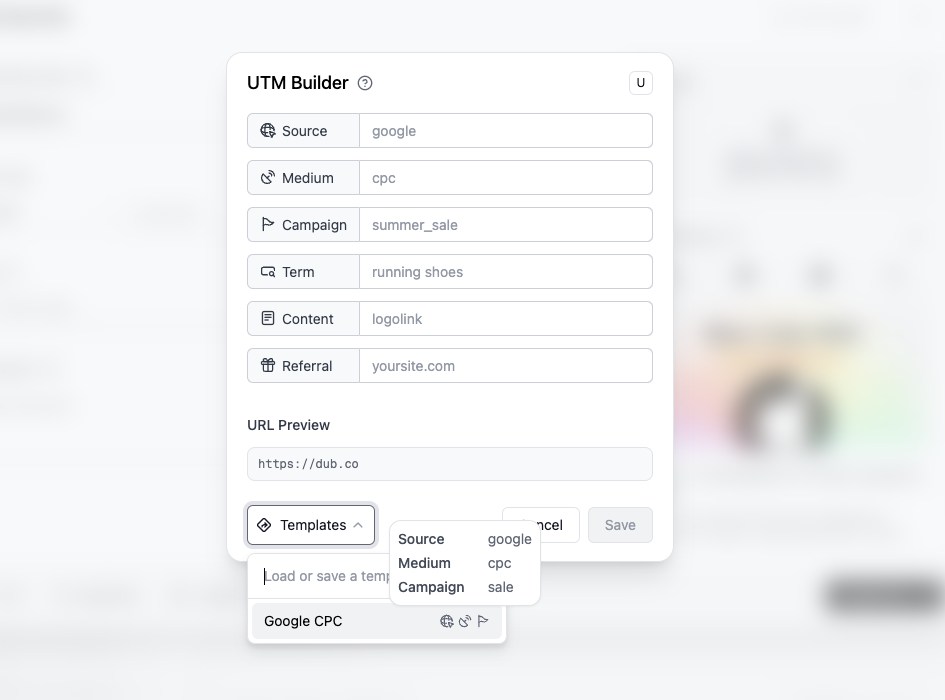
U while in the link builder.In the UTM Builder, click on the Templates button. This will open the UTM templates dropdown.You can then select your UTM template from the dropdown.