

Create a link
First, create a link by clicking on the Create Link button on the top right corner of the Dub dashboard.Then, enter the destination URL and optionally, a custom short link for it.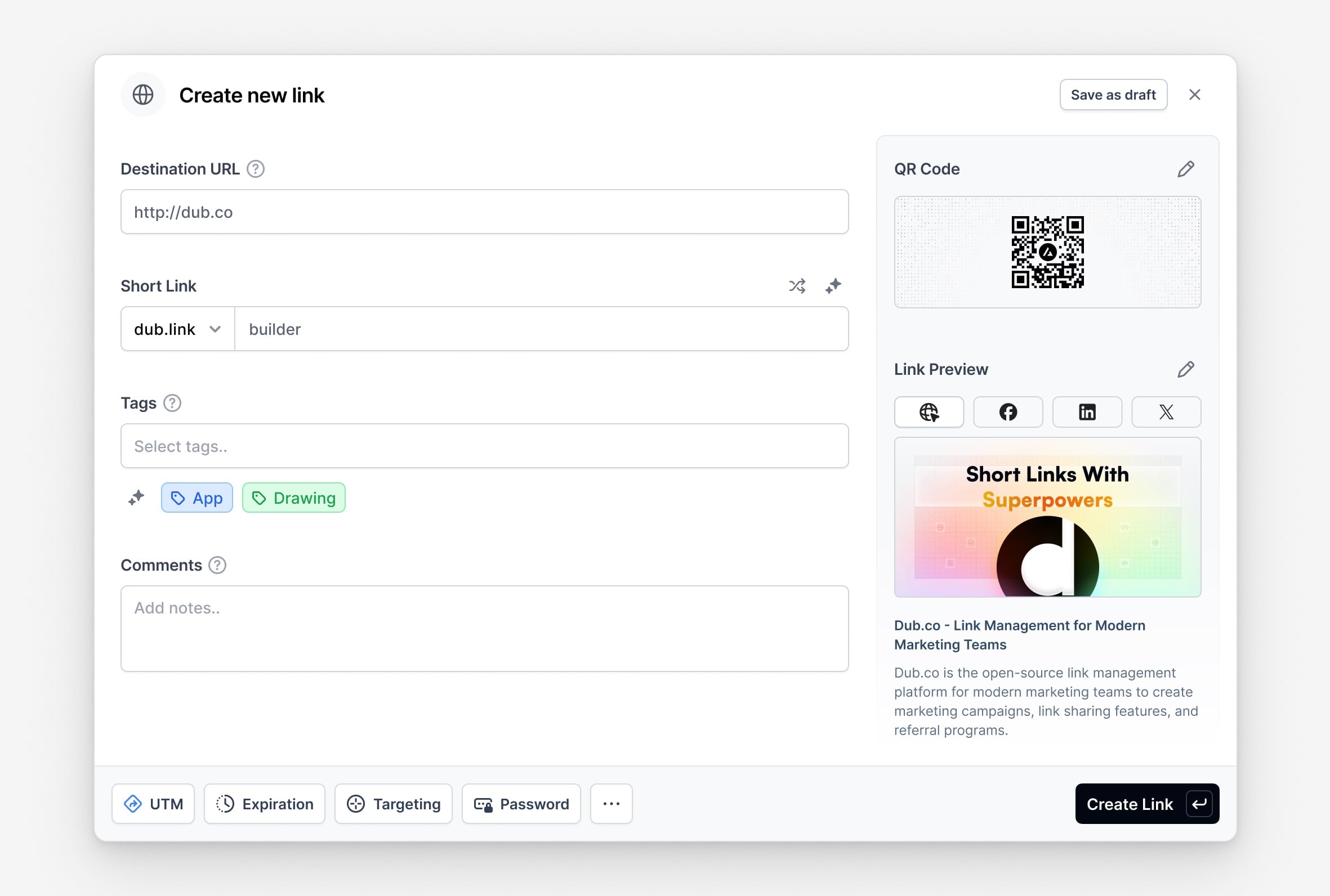
Enter a password
To use this feature, click on the Password button in the link builder. This will open a new modal Link Password.Then, enter a password for the link or generate a random one and click on the Add password button.You can also quickly access the Link Password feature by using the keyboard shortcut 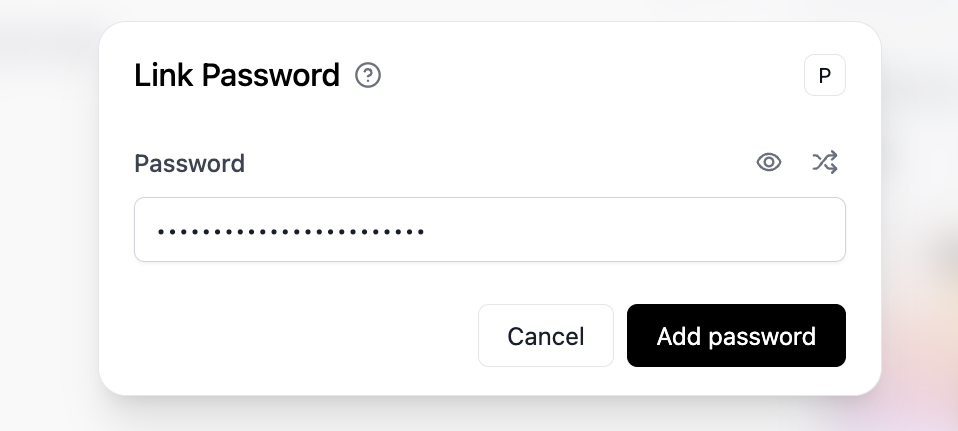 Then, when you share your link, the user will be prompted to enter a password before they can access the destination URL.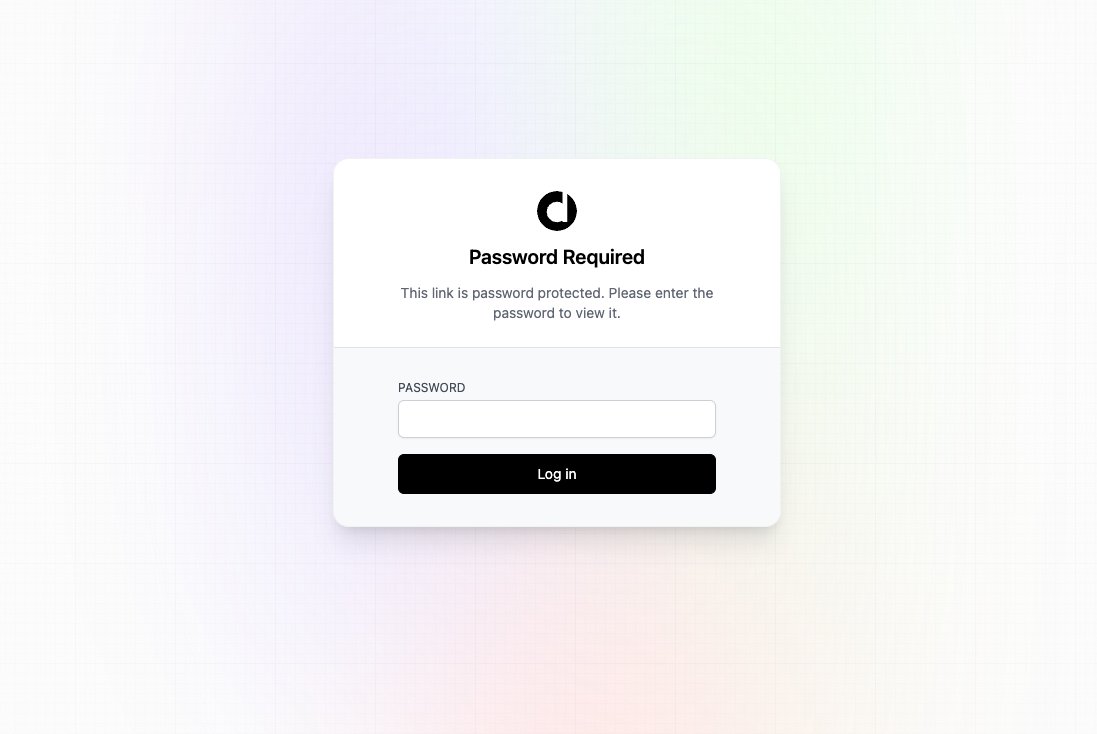
P while in the link builder.Then, when you share your link, the user will be prompted to enter a password before they can access the destination URL.Pass the password in the URL (optional)
Optionally, you can also pass a
pw query parameter to the link to automatically authenticate and redirect the user to the destination URL.Here’s an example:- Password-protected link: dub.sh/password
- Password-protected link with the password included in the URL as a query parameter: dub.sh/password?pw=dub
Set a custom logo for the password page (optional)
On the Pro plan and above, you can also set a custom logo for the password page. This is useful if you want to brand the password page with your company’s logo.Your password page logo is connected to your workspace’s logo on Dub. You can set that by following the steps below: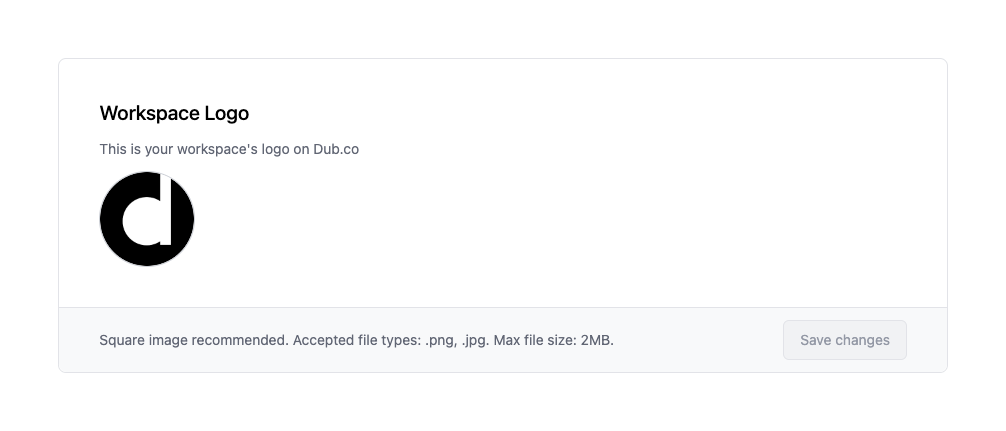 Once you’ve set your workspace’s logo, your password page will automatically update to use your workspace’s logo.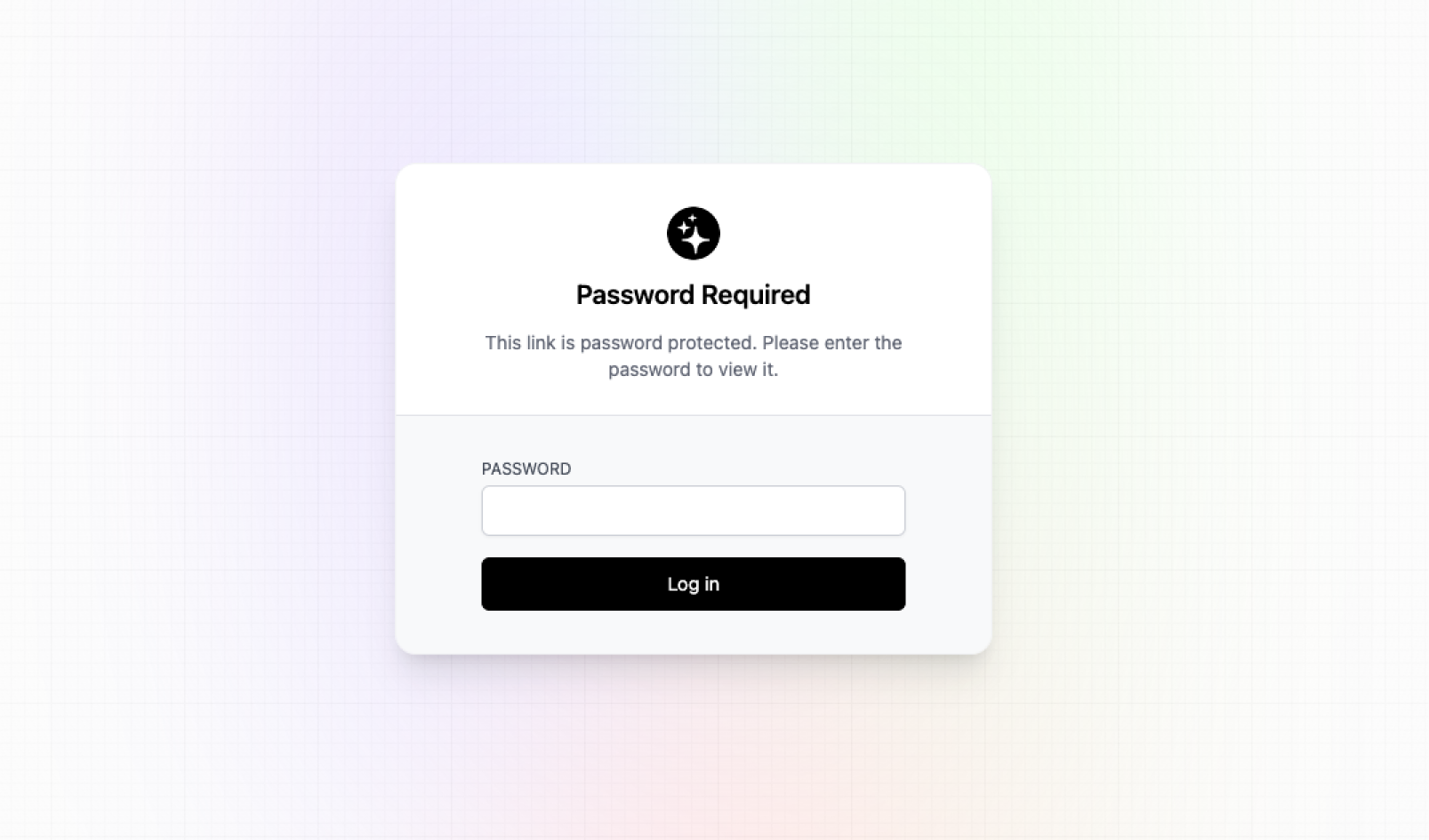
- Go to your workspace settings page by clicking on the Settings link in the menu bar at the top of your workspace dashboard.
- Scroll down to the Workspace Logo section and upload your company’s logo. We recommend using a square image for the best results.
Once you’ve set your workspace’s logo, your password page will automatically update to use your workspace’s logo.