Where to find your program partners
In the Partner Program menu, click All Partners to see everyone in your program
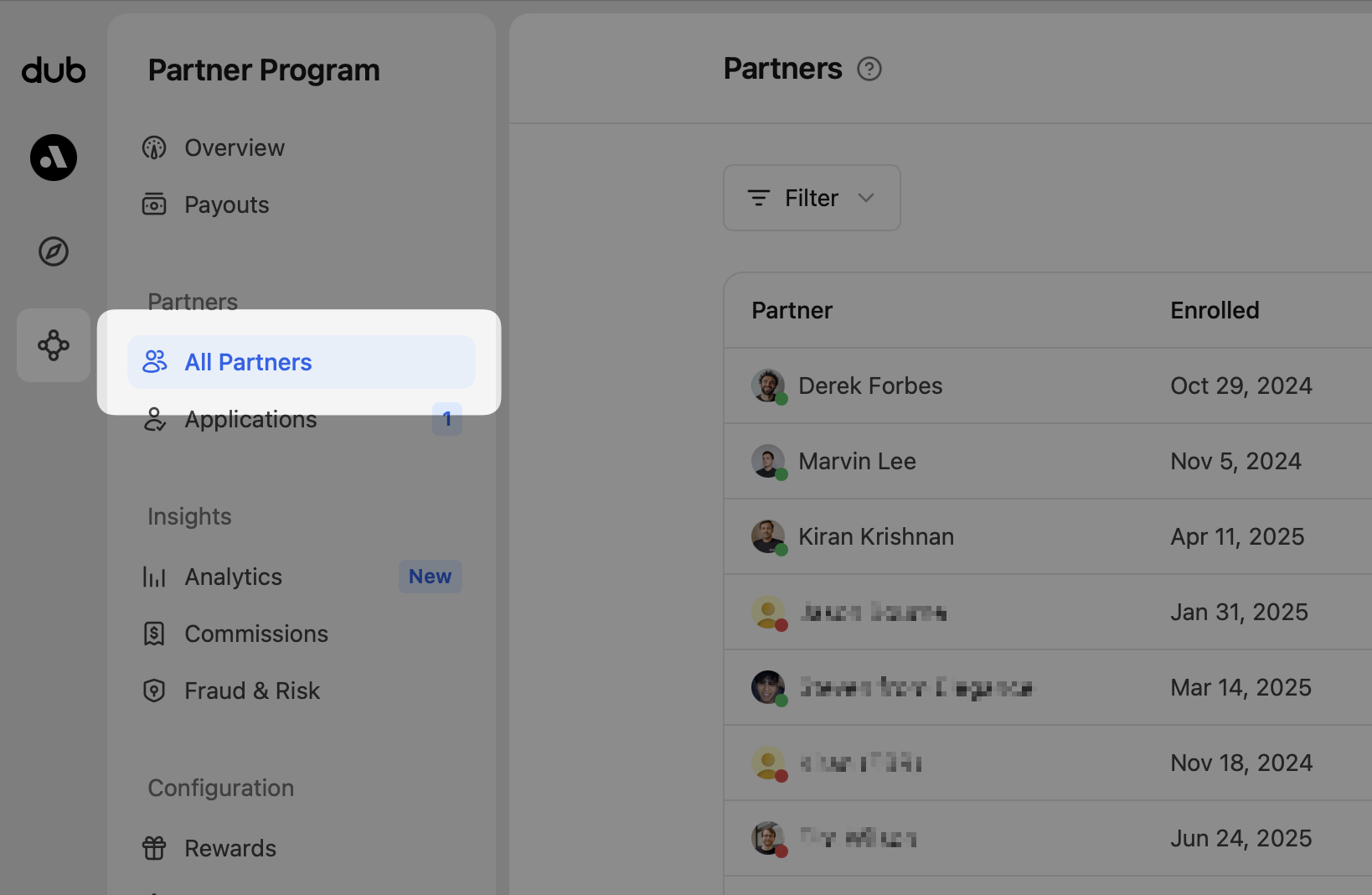
Inviting partners On the Partners page, click Invite partner to open
the invite panel.
 Learn more about inviting partners here. ##
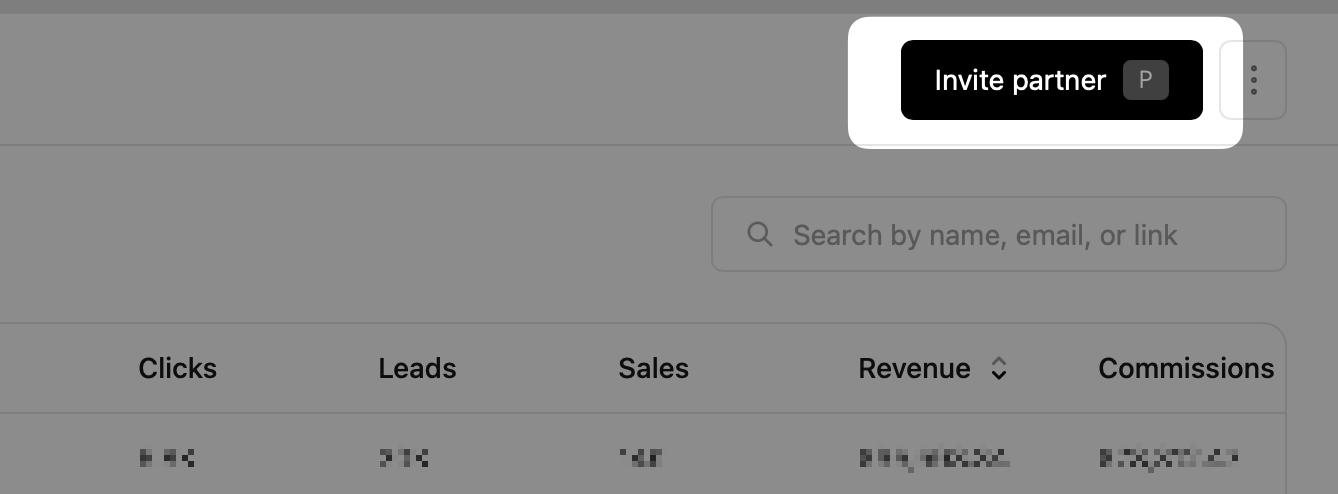
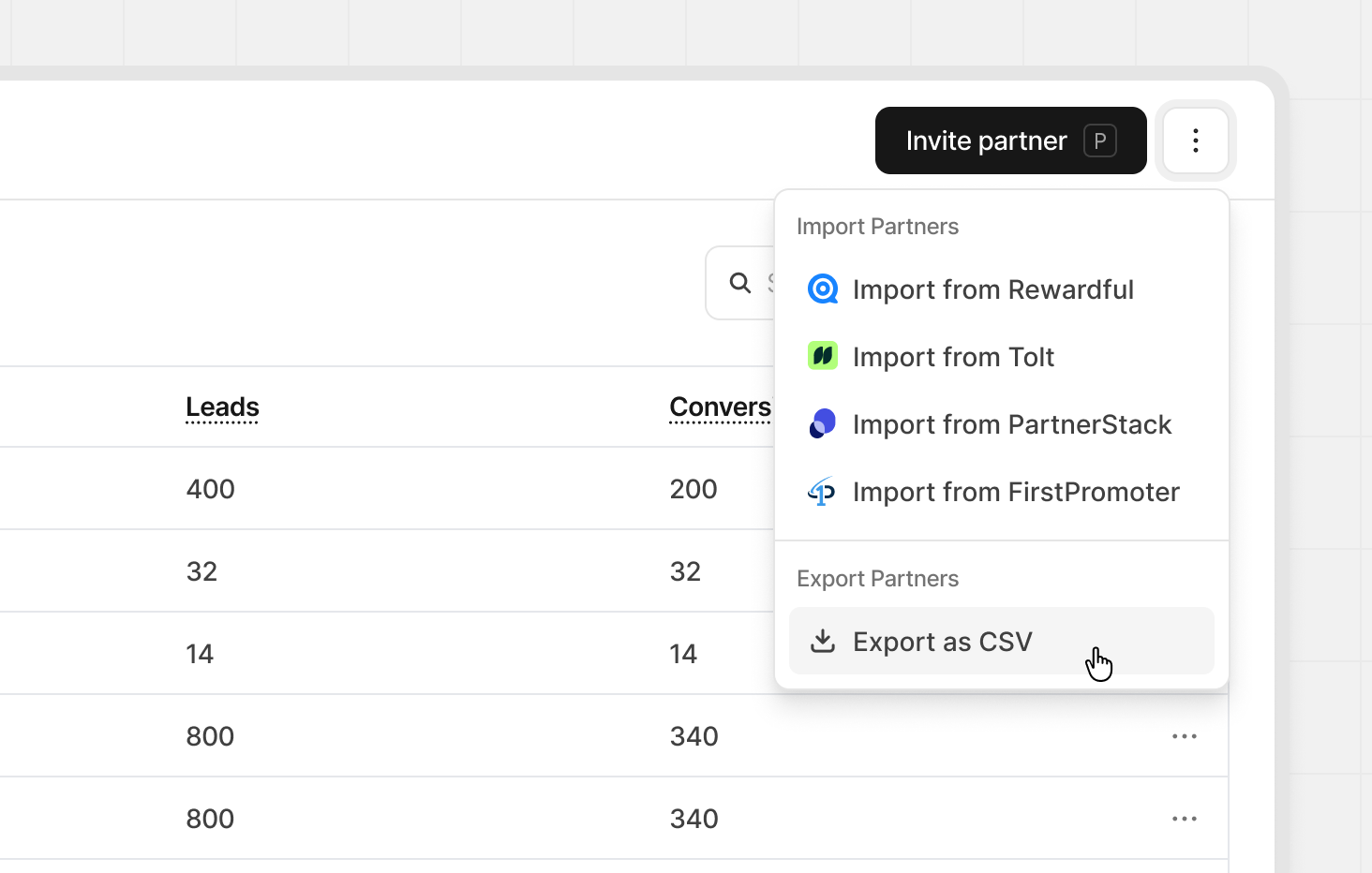
Importing partners Click the
Learn more about inviting partners here. ##
Importing partners Click the ⋮ menu to import partners from supported
platforms into your Dub program.
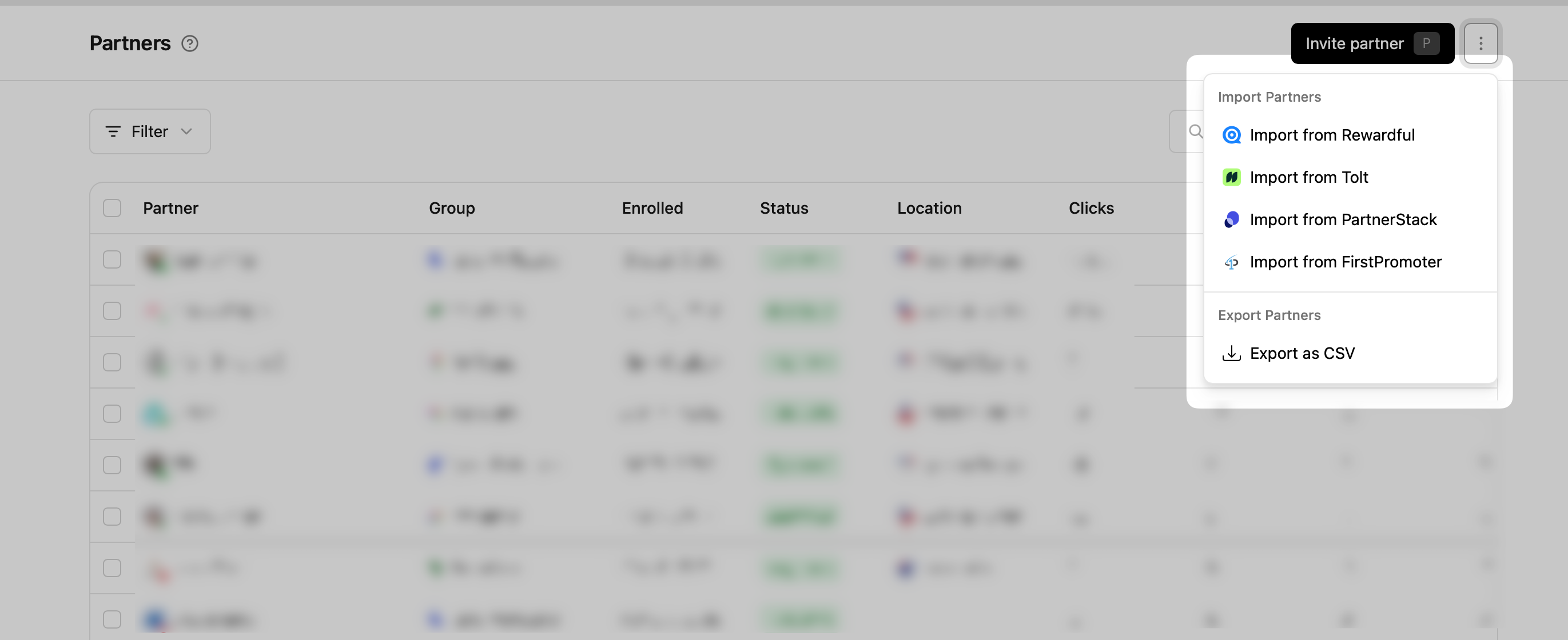 Dub currently supports importing from:
If you’d like to import from other platforms, let us know.
Dub currently supports importing from:
If you’d like to import from other platforms, let us know.
Exporting partners
Click the ⋮ menu and choose Export as CSV to download your partner data for use anywhere.
Partner table
The partner table gives you a complete view of everyone in your program. By default, partners are sorted by net revenue, starting with your highest performers. This makes it easy to see who is driving the most value at a glance.
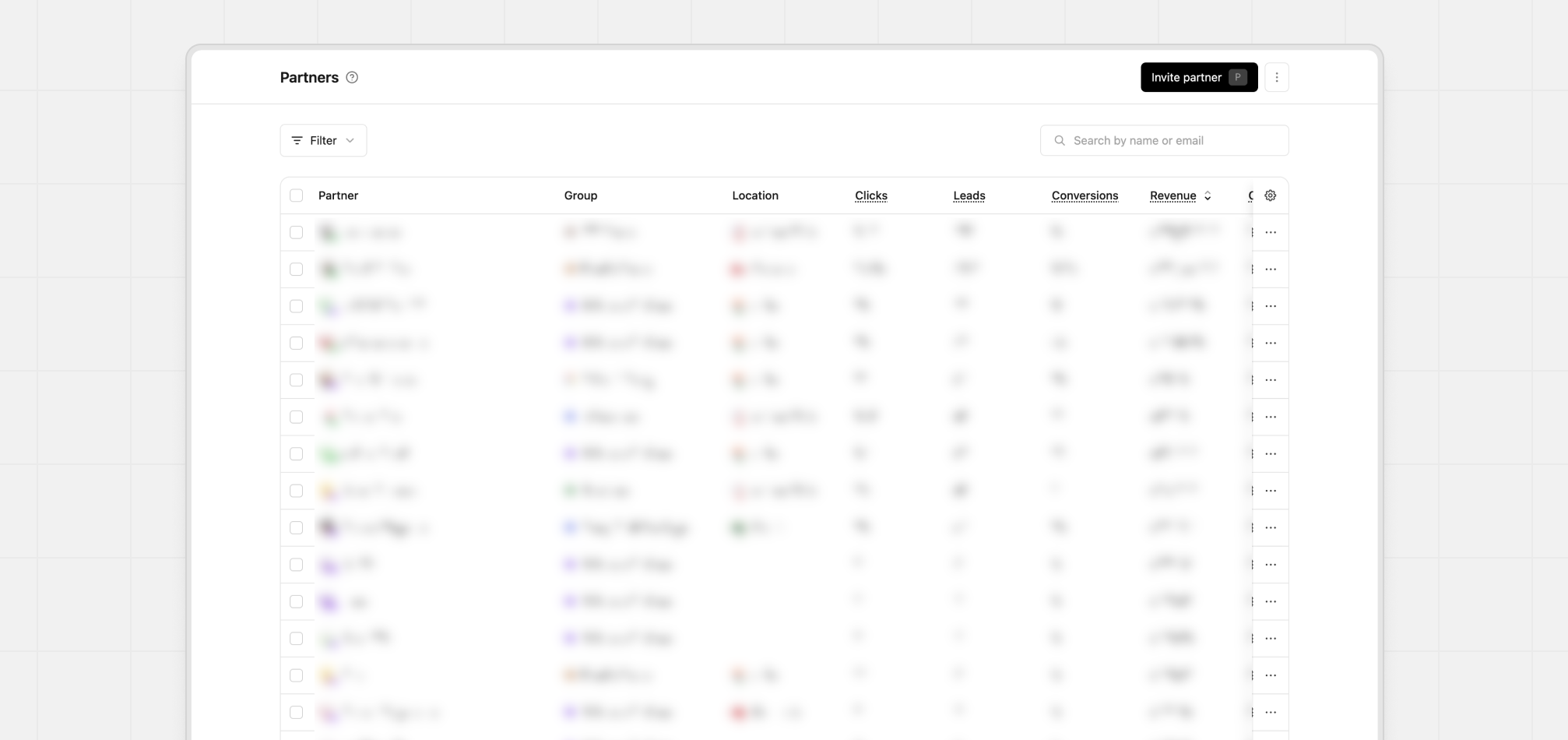 You can sort the table by any column header. For example, select Conversions to sort partners by the number of conversions instead of revenue.
Default columns
When you first open the table, you will see a focused set of columns designed to give you a quick read on partner performance.
| Column | Description |
|---|
| Group | The group this partner is in |
| Location | The partner’s declared location |
| Clicks | Total number of clicks on the partner’s links |
| Leads | Total number of leads generated by the partner’s links |
| Conversions | Total number of leads that converted to paying customers |
| Revenue | Total revenue generated by the partner’s links |
| Commissions | Total commissions paid to the partner for their referrals |
| Net Revenue | Net revenue after commissions |
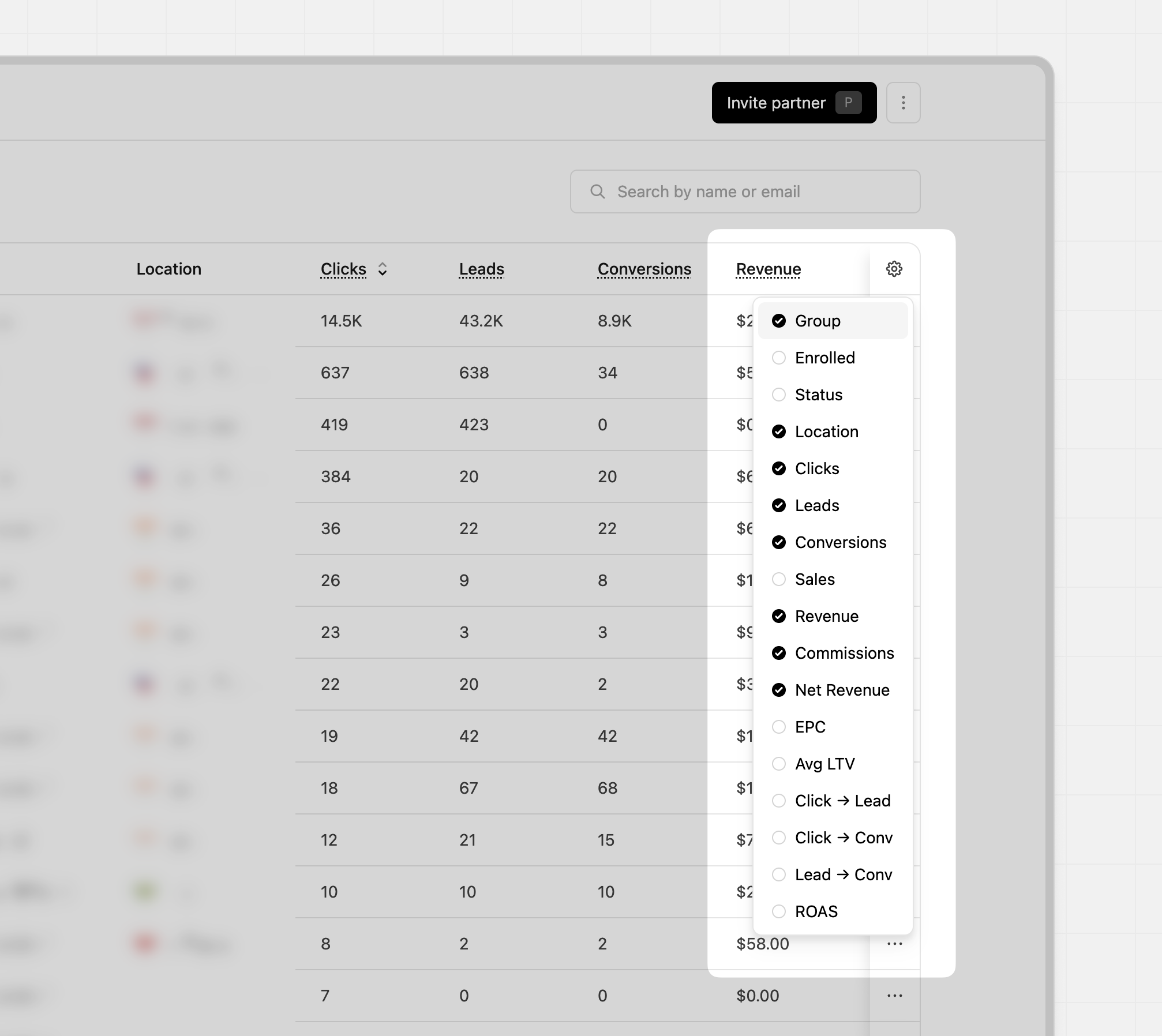 These can be changed anytime by clicking the
 Gear icon in the top right of the table, allowing you to enable or disable additional columns.
Additional columns
If you need a deeper view, you can turn on extra performance and attribution metrics. These optional columns help you understand partner quality, funnel efficiency, and long term value more clearly.
| Column | Description | Equation |
|---|
| EPC | Earnings Per Click | Total Revenue ÷ Total Clicks |
| Avg LTV | Average lifetime value for each paying customer | Total Revenue ÷ Total Conversions |
| Click -> Lead | Percentage of clicks that become leads | Total Leads ÷ Total Clicks |
| Click -> Conv | Percentage of clicks that convert to paying customers | Total Conversions ÷ Total Clicks |
| Lead -> Conv | Percentage of leads that convert to paying customers | Total Conversions ÷ Total Leads |
| ROAS | Return On Ad Spend | Total Revenue ÷ Total Commissions |
Filter and search
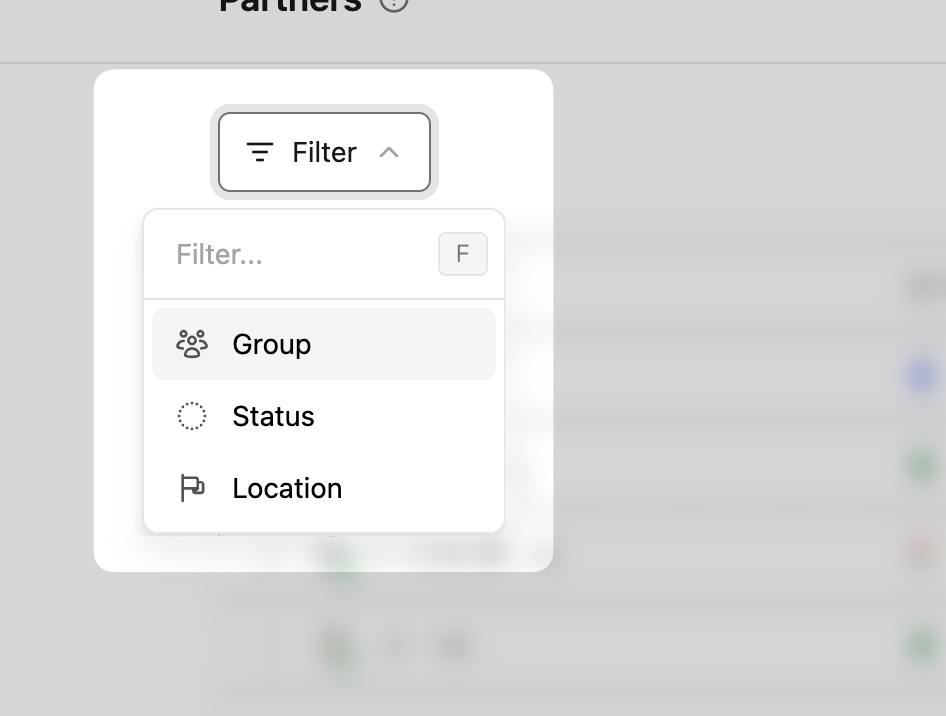
Use filters to sort partners by group, status, or location. Filters help you spot top-performing partners.
You can also use the search field to search by name, email, or link. This is helpful when looking for a specific partner.
Status Filter by status to see who’s active and who isn’t. | Status |
Description | | --- | --- | | Approved | Partner has joined and can earn rewards
| | Invited | Partners that have been invited to your program but haven’t
accepted the invite yet | | Declined | Partners that have declined your
invitation to join | | Archived | Partner has been removed from the program | |
Banned | Partners that you have banned from your program | | Deactivated |
Partners that you’ve deactivated your partnership with. This could be used for
ending a partnership for non abuse-related reasons (e.g. commercial/financial
reasons). | ### More dropdown For each partner, click the ⋯ menu to see more
controls.
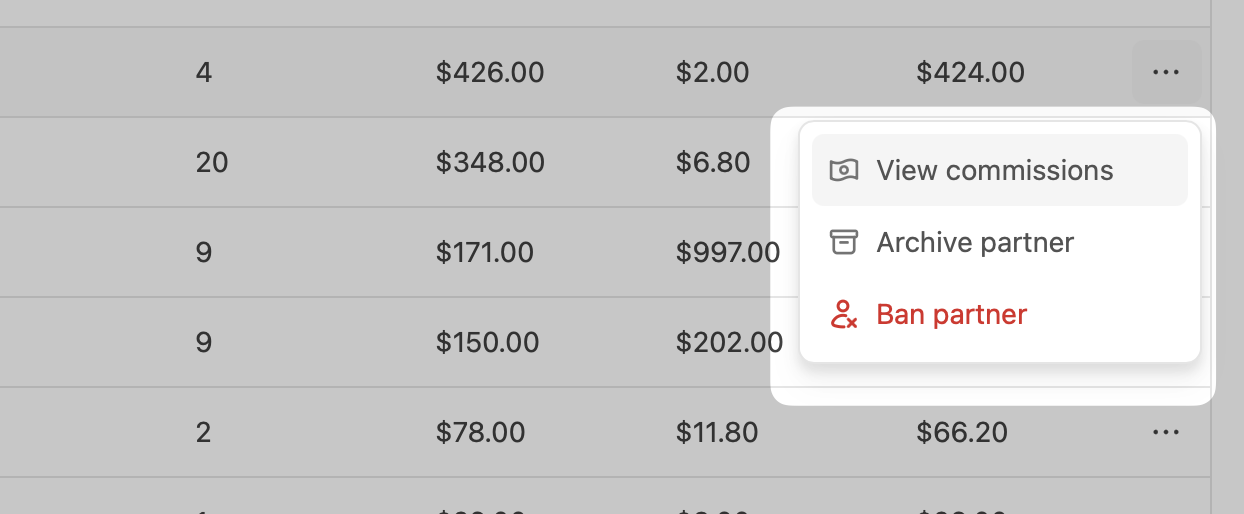 These additional controls include: - Approved partners - View commissions,
Archive partner, and Ban Partner - Invited partners - Resend invite and
Delete invite - Archived partners - View commissions, Unarchive partner, and
Ban partner. - Banned partners - View commissions, Archive partner, and
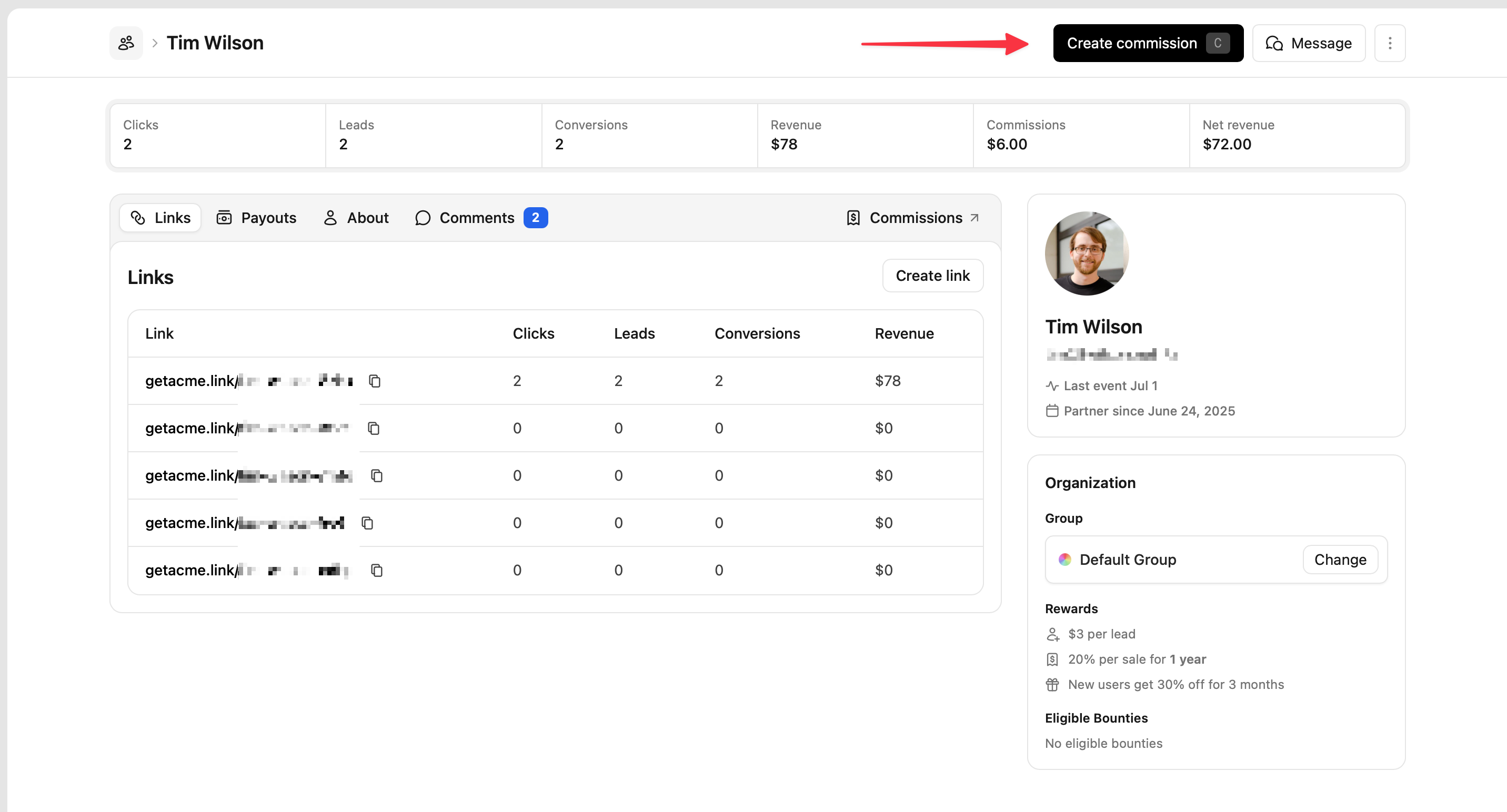
Unban partner. ### ## Partner details Click on a partner’s row to see their
details, like their profile, performance, short links, payouts, and commissions.
These additional controls include: - Approved partners - View commissions,
Archive partner, and Ban Partner - Invited partners - Resend invite and
Delete invite - Archived partners - View commissions, Unarchive partner, and
Ban partner. - Banned partners - View commissions, Archive partner, and
Unban partner. ### ## Partner details Click on a partner’s row to see their
details, like their profile, performance, short links, payouts, and commissions.
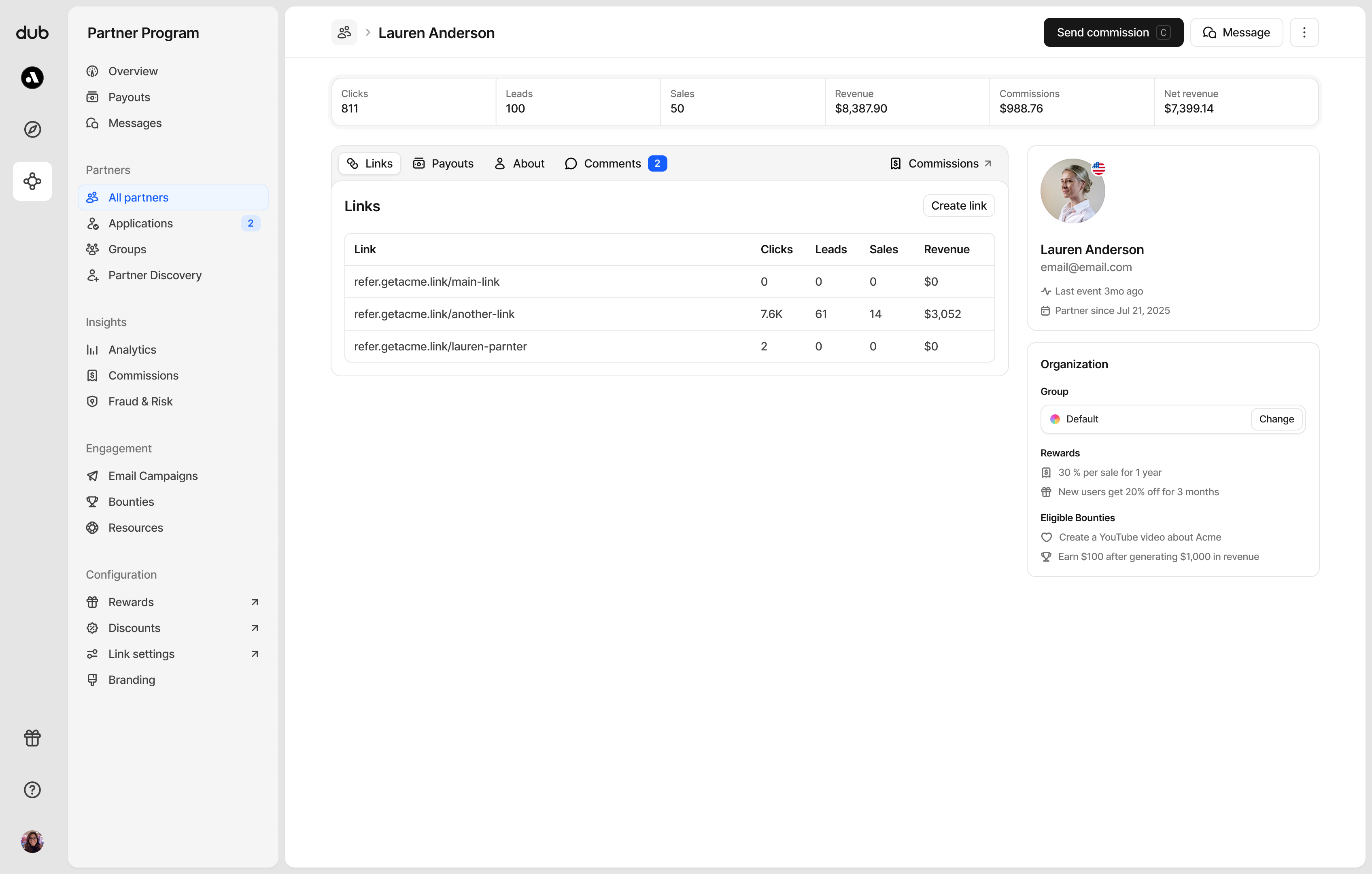
Links
To see all referral links for this partner, click Links. You’ll also see partner discount codes if they have been added. Learn more about partner discount codes.
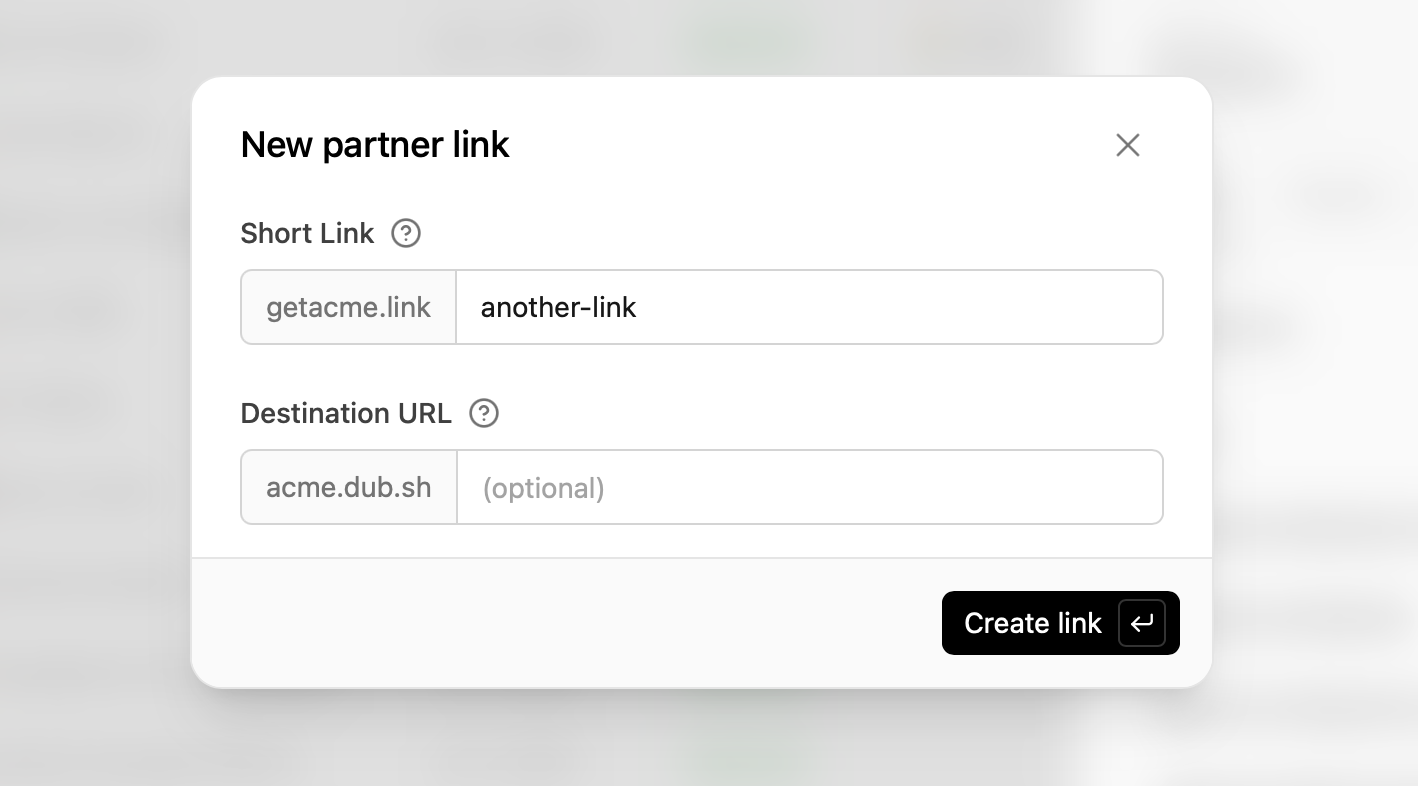
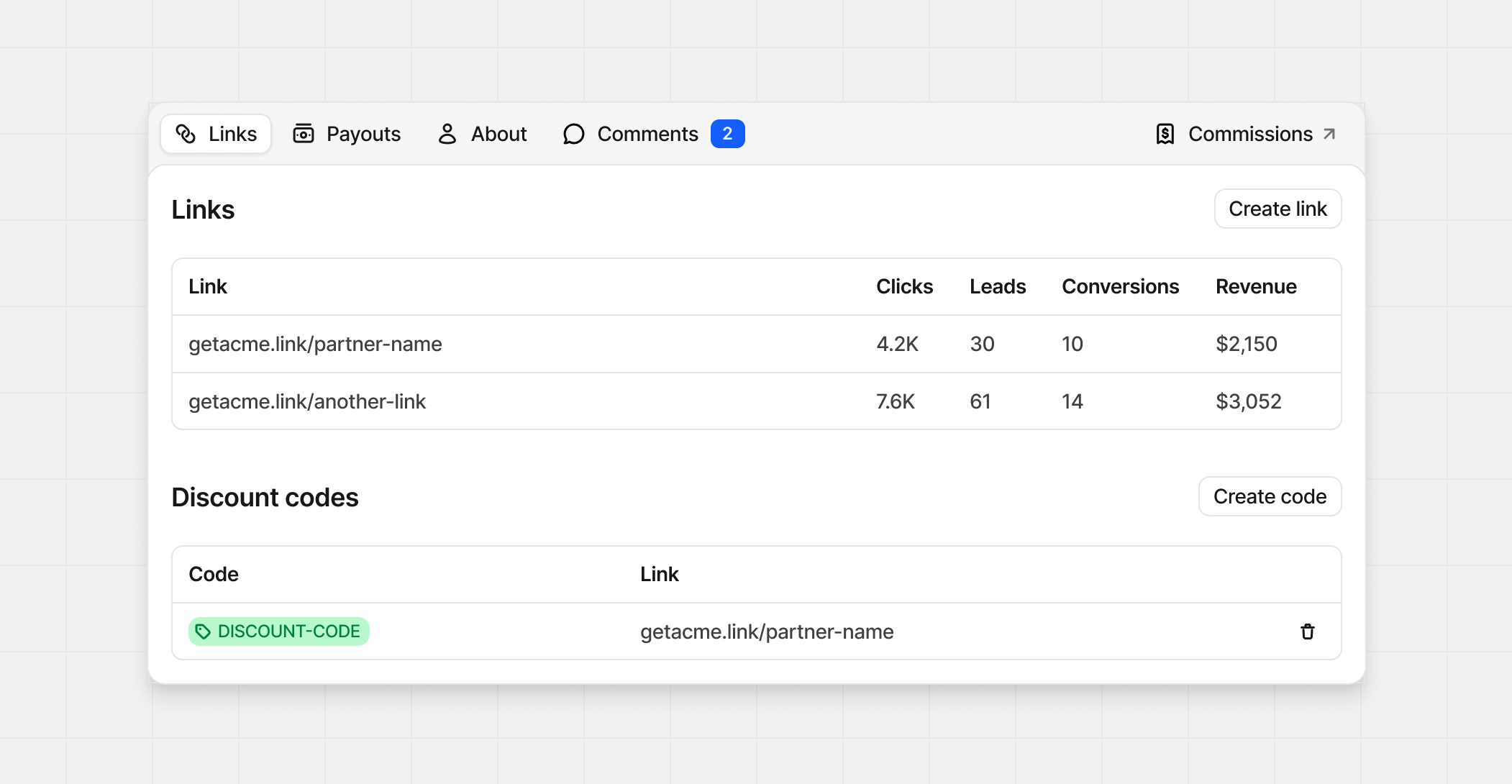 If you need to create a link for your partner, click Create link.
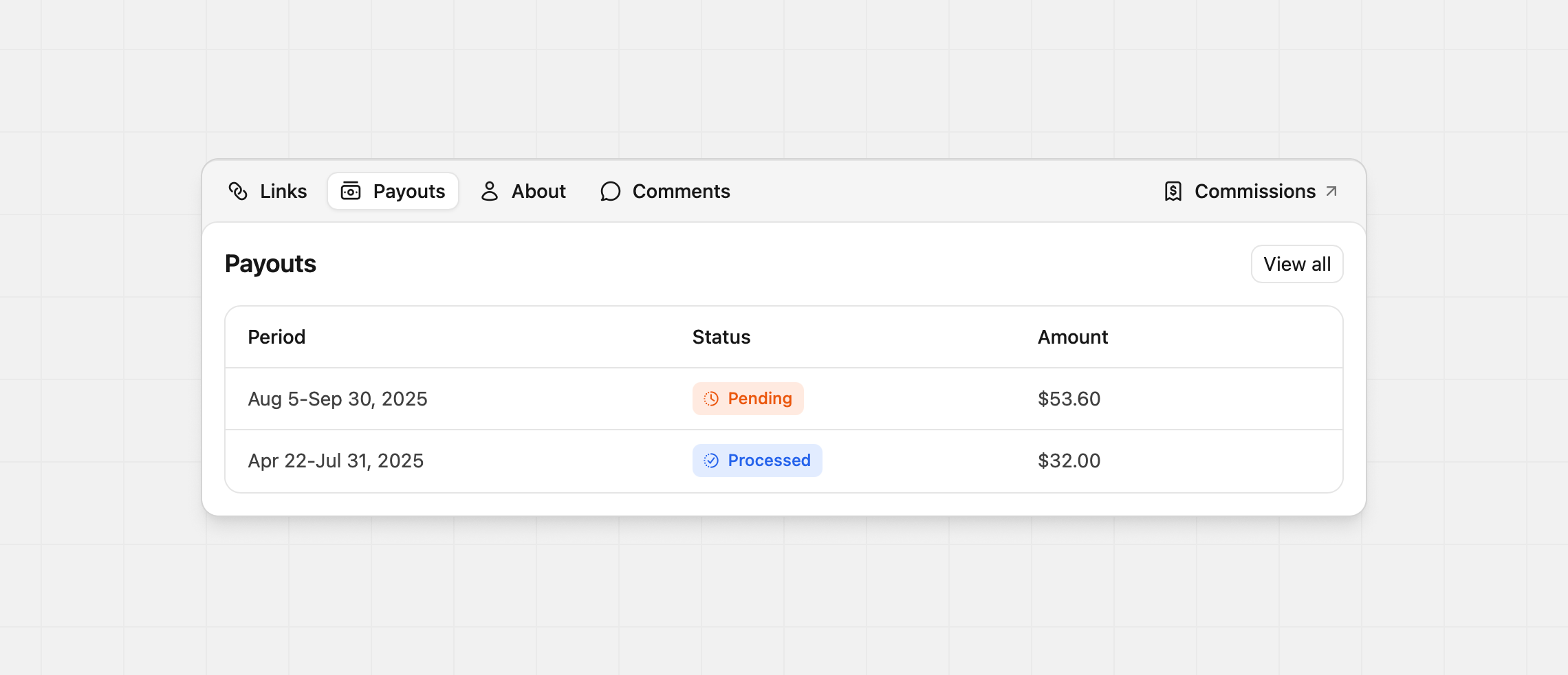
Payouts
Click Payouts to see all payouts for a partner. Click any payout row to view its details.
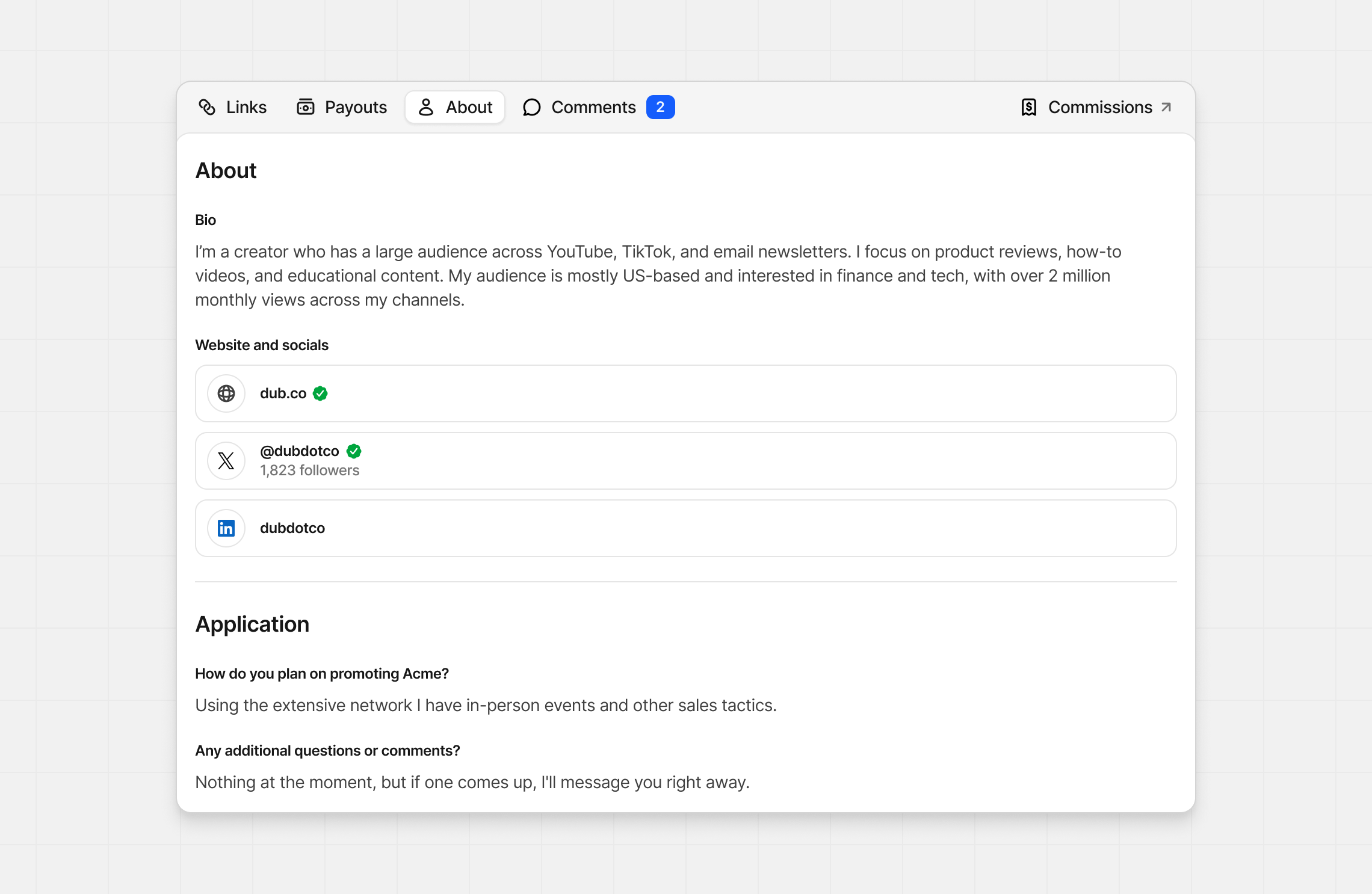
About
Click About to see more details, like their country, bio, and connected websites or social accounts.
You’ll also be able to view the partner’s original application response when they first applied.
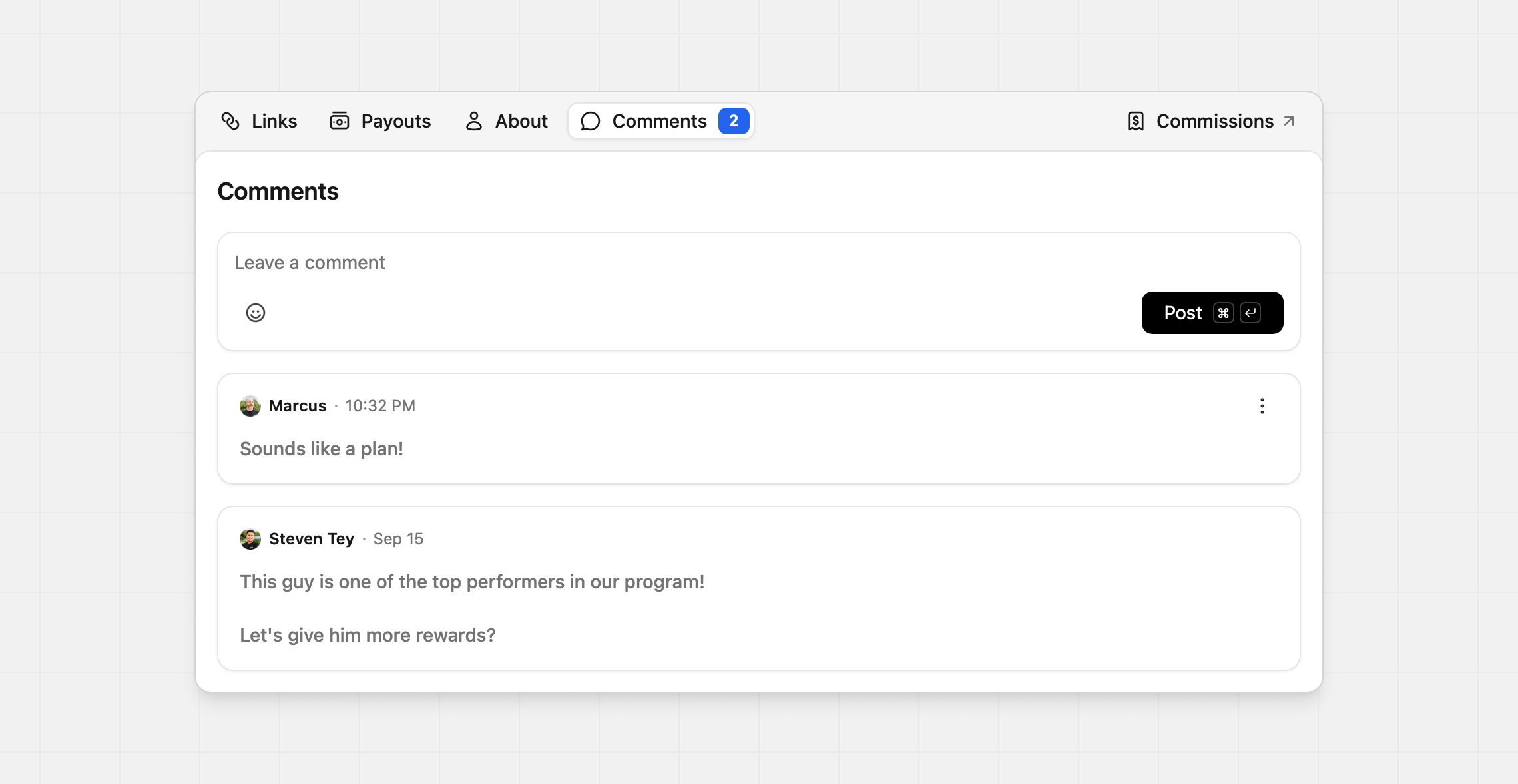
 Click Comments to view and add comments for this partner, which only your workspace can view. You can also edit and delete your own comments in case a mistake was made.
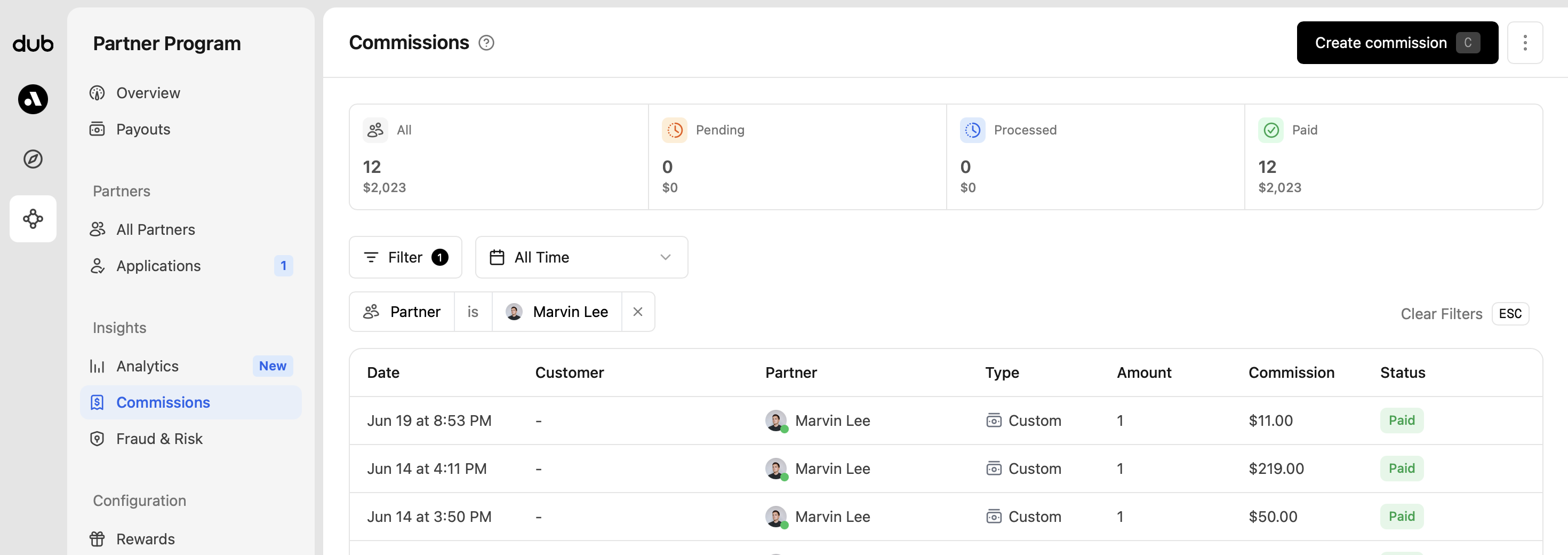
Commissions Click Commissions to open a page showing commissions
filtered for this partner. Learn more about partner commissions
here.
Manual commission
Occasionally, you might need to create a one-off or recurring commission to account for a missed commission or other reasons. On Dub, you can easily create those commissions via the dashboard, and they will be included in the next payout for that partner.
Click Create commission to get started. Learn more about manual commissions here.
Advanced settings
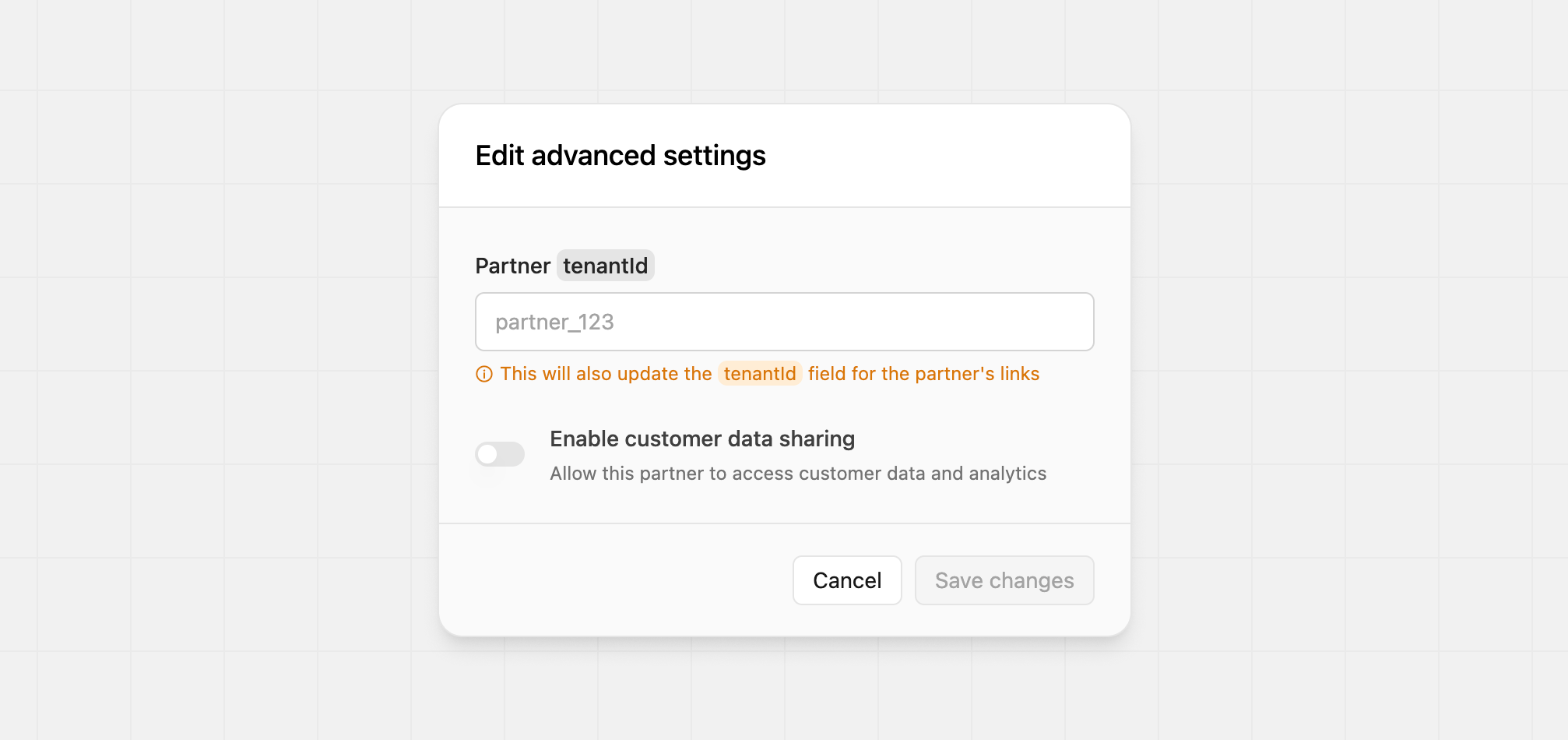
Use caution when changing any of the advanced partner settings.
⋮ dropdown and select Advanced settings.
Tenant ID
If you need to update the partner’s tenant ID, changing the ID here will update the tenantId for all their links as well. This could potentially impact any custom integration you have set up, so only change if you’re certain the information is correct and necessary.
Customer data sharing
Enabling this setting allows this partner to see customer data on any leads or sales the partner has made.
Instead of the hidden email addresses, they will see the full customer email address and their name. They’ll also be able to click through the customer to view the sales history.