On Dub, you can create a public analytics dashboard for your short links or link folders.
This allows you to share the analytics for a given short link (or a folder of links) with clients or other external stakeholders without having to invite them to your Dub workspace.
For further control, you can also show conversion analytics, set a password, or enable search engine indexing for the dashboard.
In this guide, we’ll go over how to set up public analytics dashboards and the options available.
Creating a shared analytics dashboard for a short link
There are two ways to enable a public analytics dashboard for a given short link:
Option 1: On the links dashboard, hover over the perfomance counter button for a given short link and click on the Share dashboard button.
 Option 2: On the analytics page for a given short link, click on the Share button in the top right corner.
 Then, inside the Share Dashboard modal, toggle the Enable public sharing switch to ON.
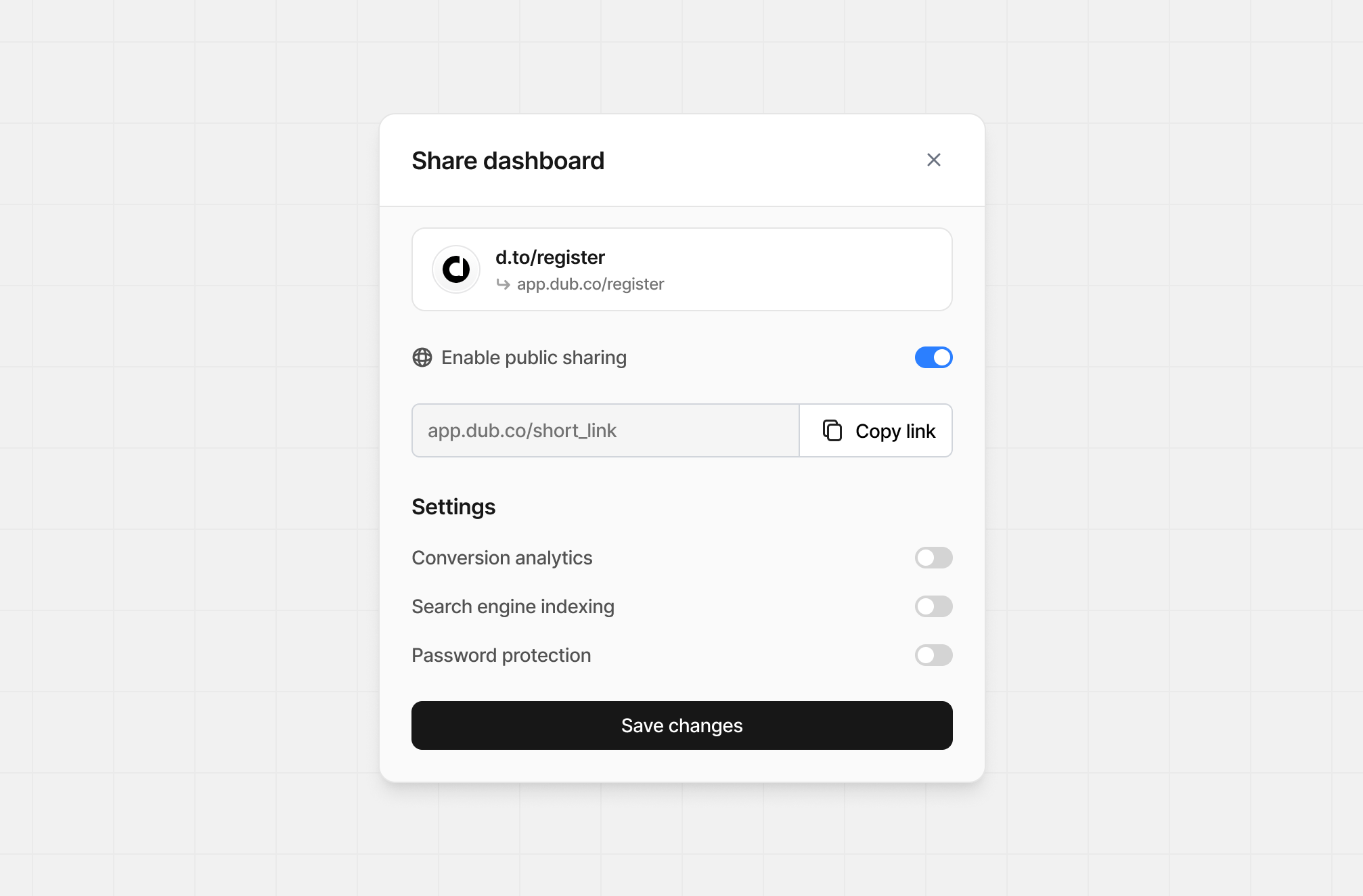 Behind the scenes, Dub creates a public page for your link’s analytics and automatically copies the link to your clipboard. Here’s an example.
Creating a shared analytics dashboard for a link folder
Only workspace owners can create shared dashboards for link folders.
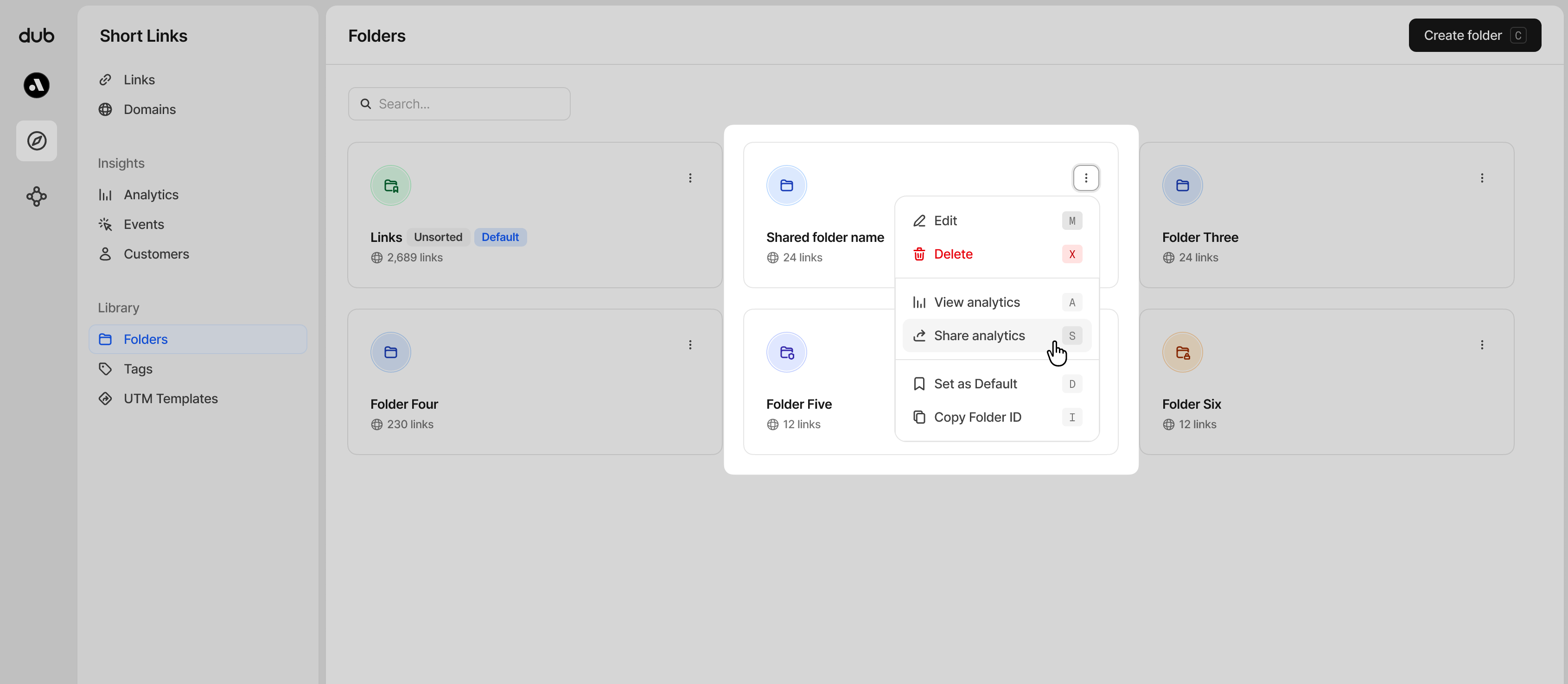
⋮ dropdown and select Share analytics.
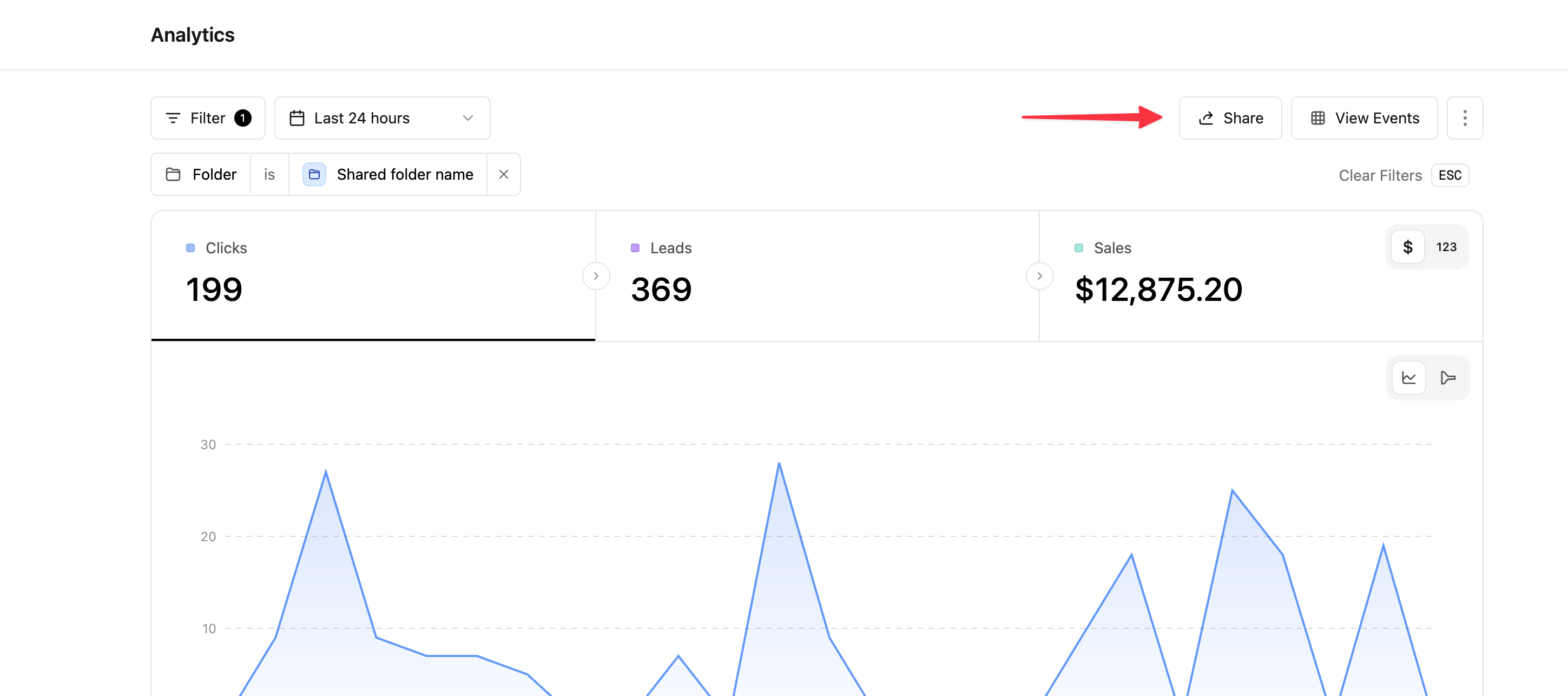
 Option 2: On the analytics page for a given link folder, click on the Share button in the top right corner.
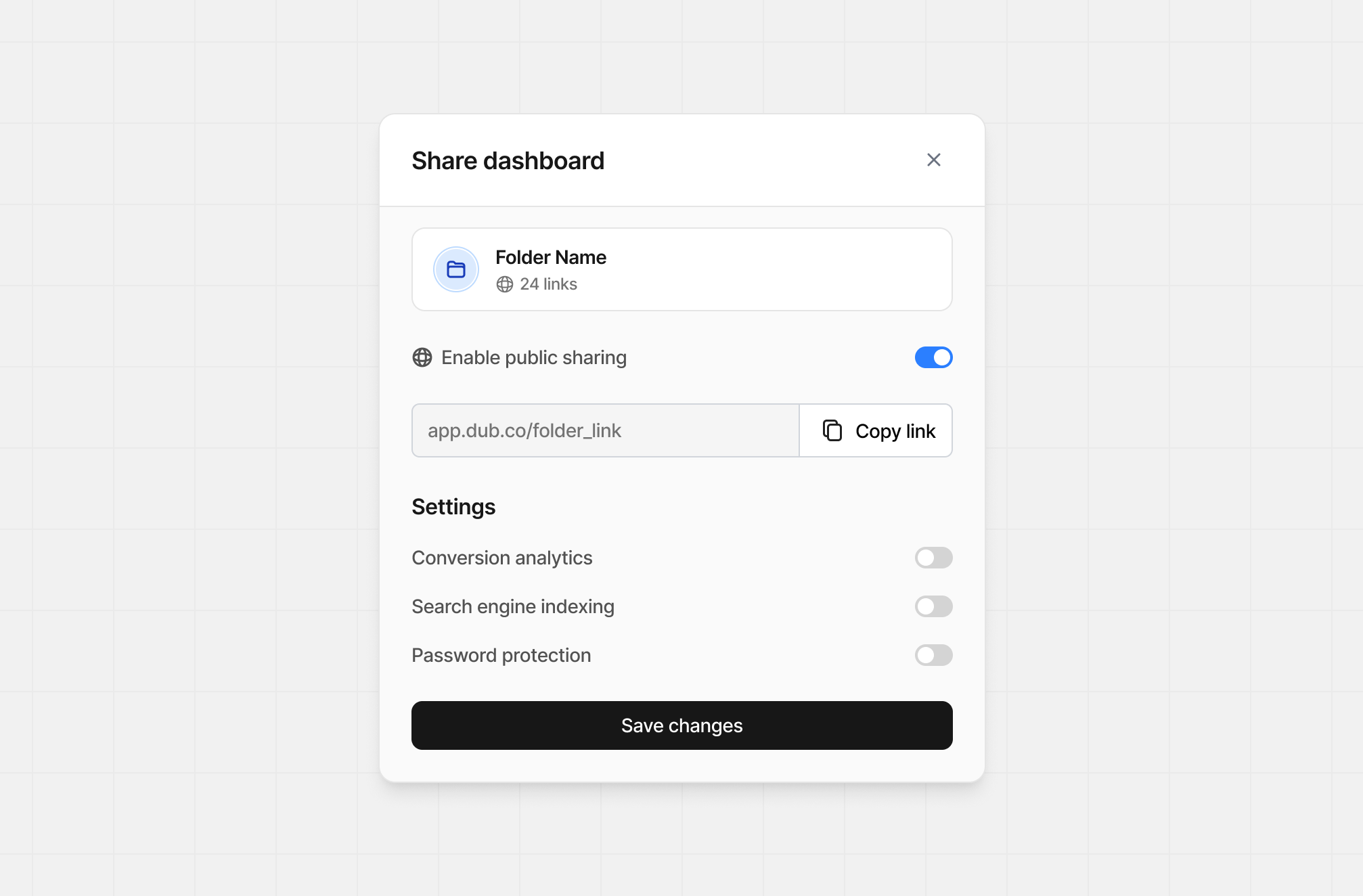
 Then, inside the Share Dashboard modal, toggle the Enable public sharing switch to ON.
Sharing settings
The following settings are available for both short links and link folders.
Show conversion analytics
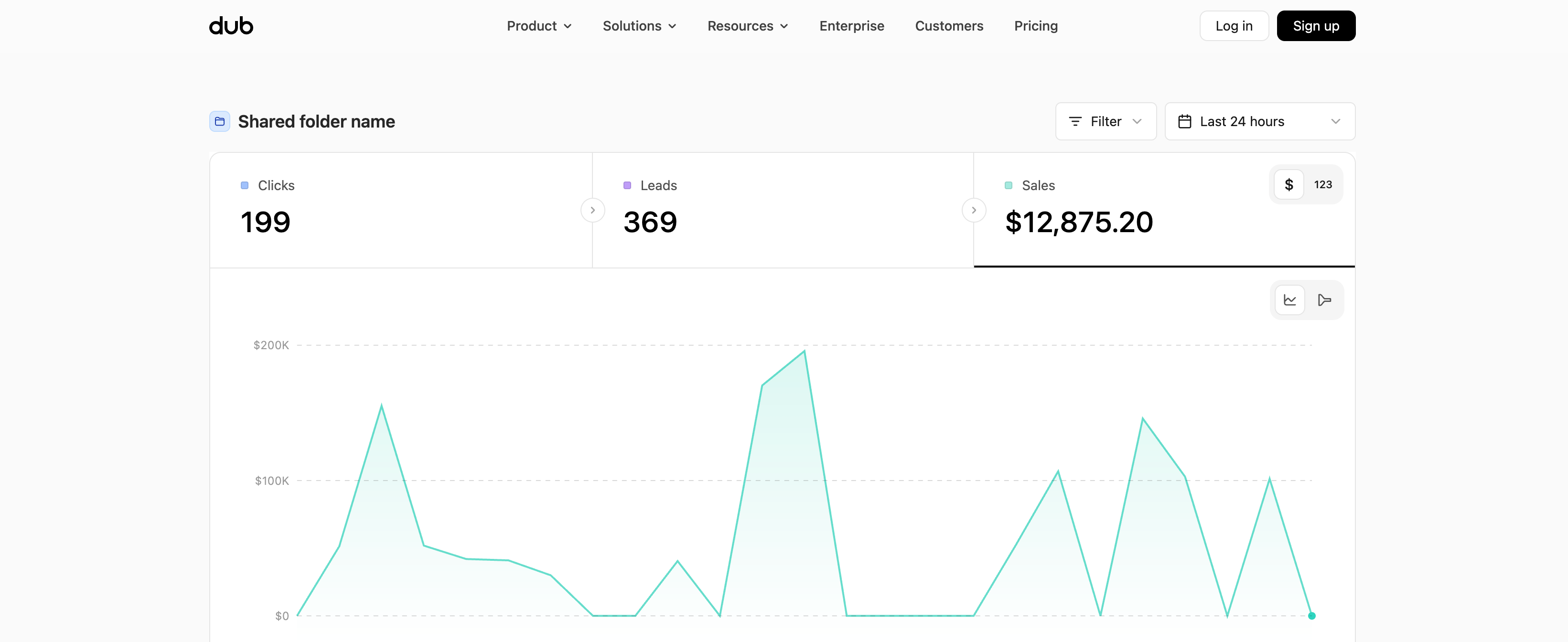
If you enable Conversions analytics, this will change what’s visible on the shared dashboard to include your lead and sales analytics.
Here’s how the dashboard looks with conversion analytics enabled:
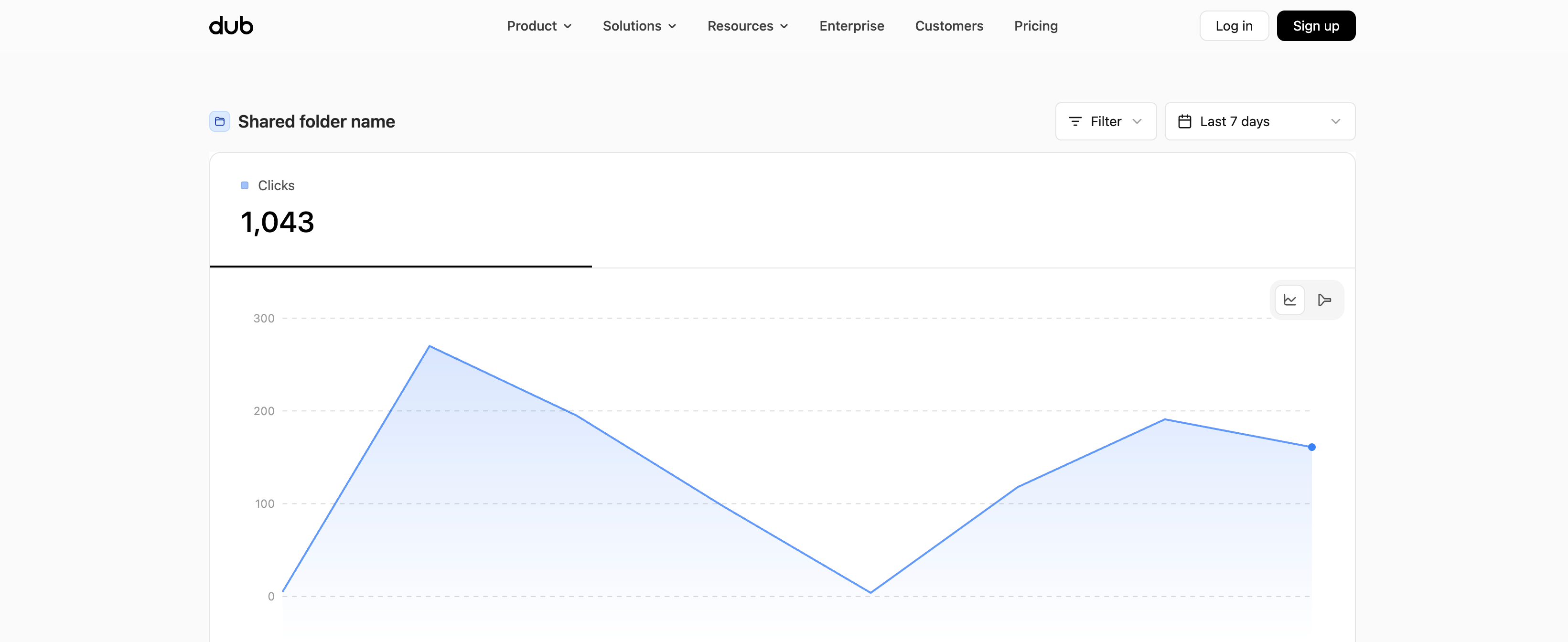
 Here’s how the dashboard looks without conversion analytics enabled:
Setting a password
You can also set a password for your public analytics dashboard to further secure the page. To do that, toggle the Password protection switch to ON and set a password in the field below.
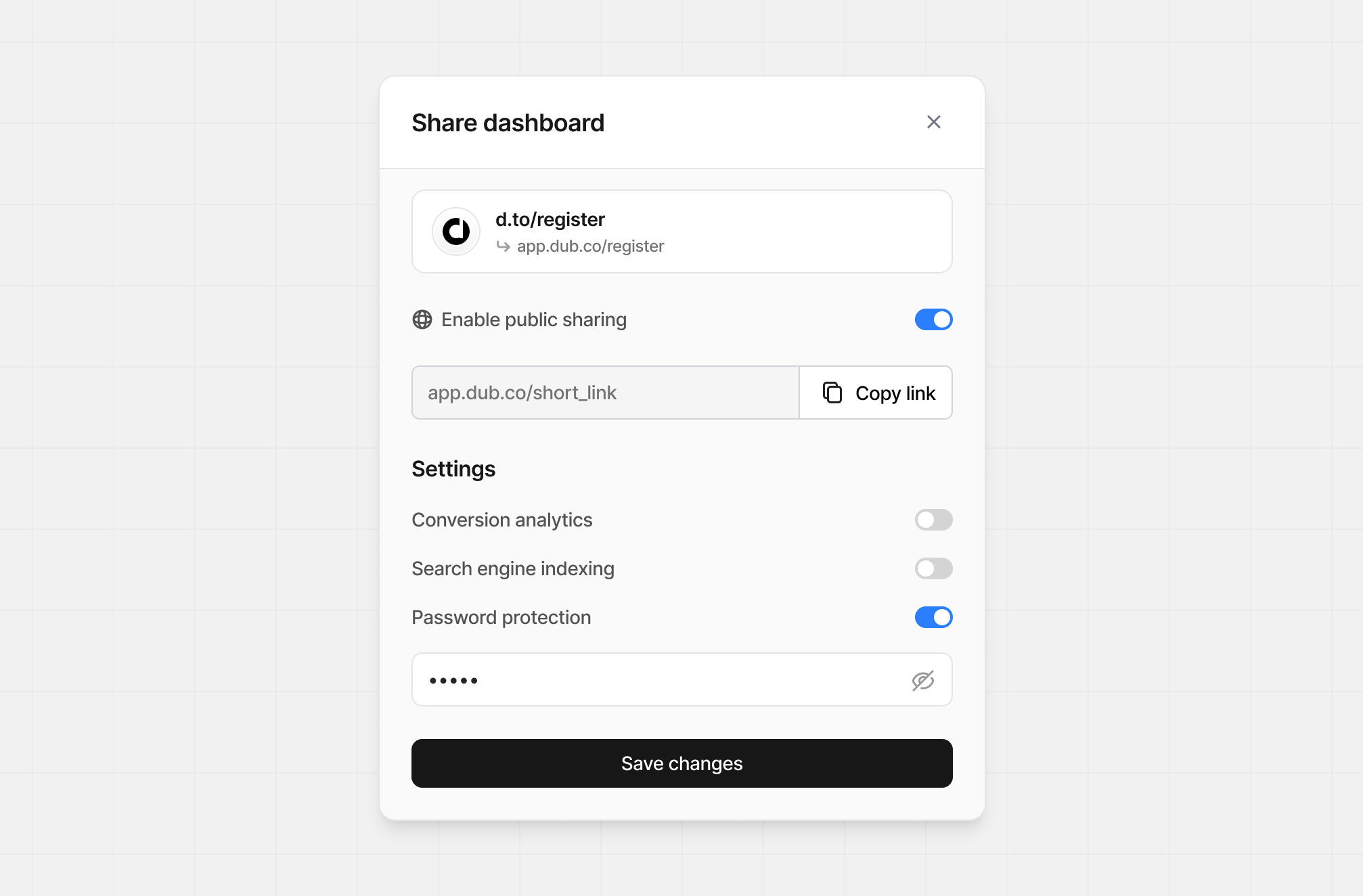 Then, when someone visits the public analytics dashboard, they will be prompted to enter the password in order to view the page.

Search engine indexing
If you want to enable search engine indexing for your public analytics dashboard, toggle the Search engine indexing switch to ON.
This will make the page more discoverable by search engines like Google.
Otherwise, public analytics dashboards are served with a noindex meta tag by default, which tells search engines not to index the page.
html <meta name="robots" content="noindex, nofollow" />
How to disable a public analytics dashboard
Follow the same steps as the “How to create a public analytics dashboard” section above, but toggle the Enable public sharing switch to OFF.
Dub will automatically disable the public analytics page for the given link. You will still be able to view the analytics for the link on your Dub dashboard, but the public page will no longer be accessible.
Warning: By disabling a public analytics dashboard for a given link, your
existing dashboard link will break and you’ll have to create a new one – which
will have a different URL. This action is irreversible.


