This feature is only available for Pro plans and above.
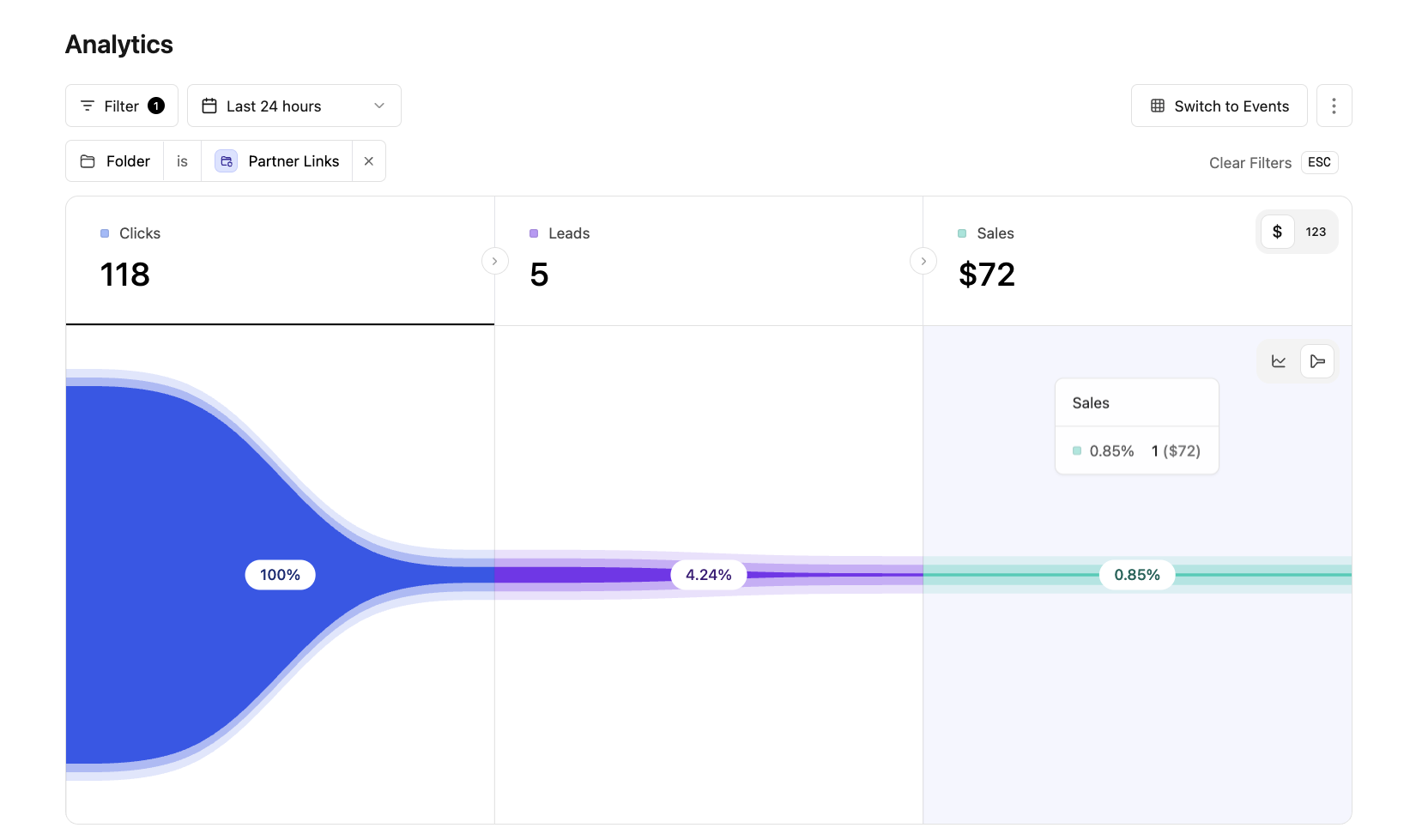
On Dub, you can filter analytics by folders. This allows you to create powerful campaign-specific reports for your links. For example, you’re using folders to group your affiliate links and SMS marketing links, and want to see how each of those campaigns are performing. You can filter the analytics by each of those folders and get a real-time dashboard of their clicks and conversion analytics.
Before you can filter analytics by folders, you need to create a folder and add links to it. Then, as your links start accruing clicks, you will be able to filter your analytics by folders.
1

Open Analytics filter dropdown

In the Analytics tab of your Dub workspace, click on the Filter button to open the filter dropdown:Analytics filter dropdown folder
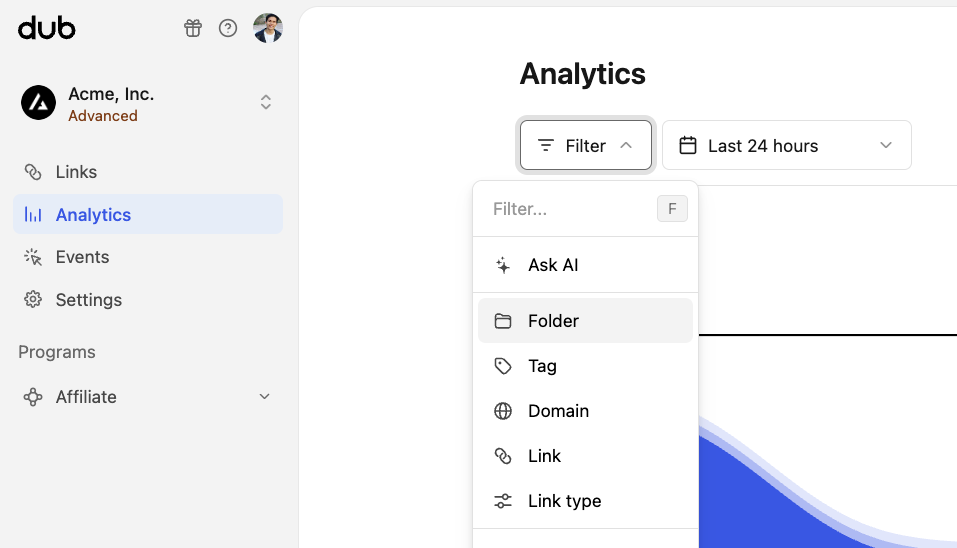
You can also use the F keyboard shortcut to quickly open the filter dropdown.
2

Select the 'Folder' filter option

Select the Folder option in the dropdown to open the folder filter:Analytics folder filter
3

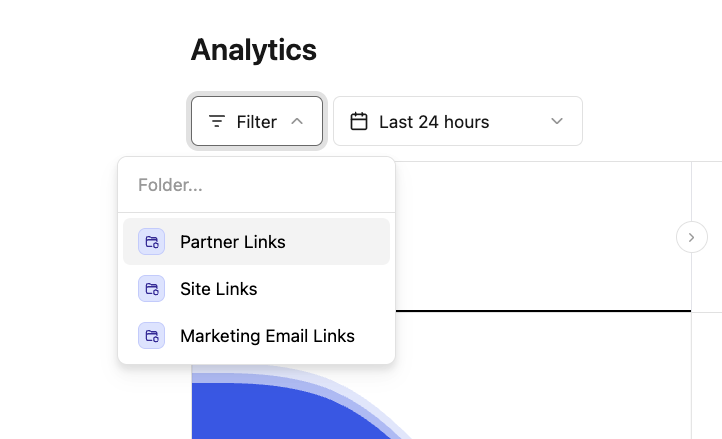
Click on the folder you want to filter by

Finally, click on the folder you want to filter by:Filtered analytics by folder

Viewing filtered analytics for a folder directly

Alternatively, you can also view the filtered analytics for a folder directly, simply by opening the dropdown next to the folder in your links dashboard and select the “Analytics” option:
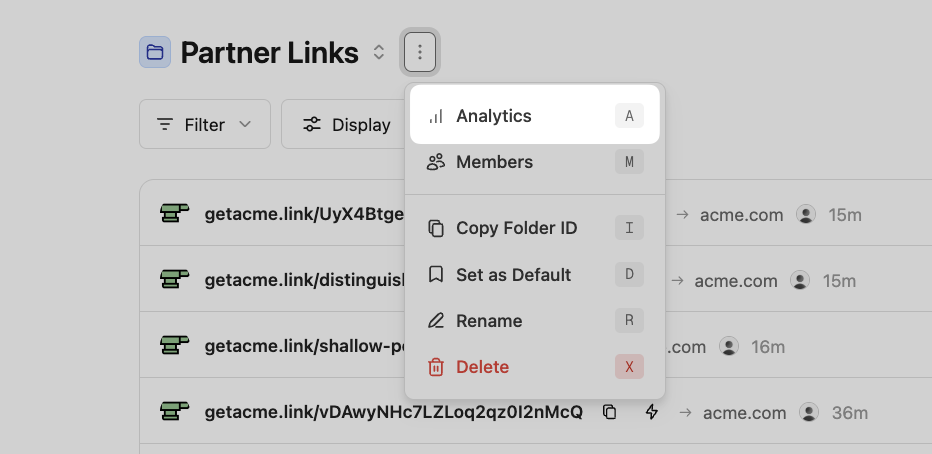
View folder analytics shortcut

Voila! You have successfully filtered your analytics by folder. You can also export your analytics data to a CSV file for further analysis.